|
<< Click to Display Table of Contents >> Using GAMMA P2A Builder |
  
|
|
<< Click to Display Table of Contents >> Using GAMMA P2A Builder |
|
SOPRANO GAMMA messages can be sent from the web portal. These messages are referred to as P2A (Person - to - Application). A message request is called an Order.
Who can send P2A messages?
•Any GAMMA User provisioned with a license who has the mobile app installed, open and online. Messages will be delivered by IP to the MEMS Portal.
Why is it called an Order?
An order is the term used to refer to a request for a SOPRANO GAMMA message to be sent to the web portal. As a message can be set to multiple destinations (thus generating multiple messages from one single request), the term order is used to differentiate the request from the actual messages themselves. This distinction allows more granular reporting and better control over remote wiping.
How to send a New P2A Gamma order ?
Enter into the GAMMA mobile application and look up the MEMS contact you wish to send the order out to.
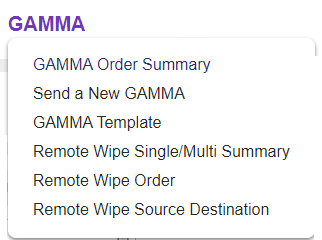
You will be presented with a window that shows the following tabs:
•Summary Contains basic information about the order such as the order name and description
•Destinations Allows the user to define who will receive the message
•Message Is where the message content is controlled
•Replies Allows the user to set the reply-path for the order
•Delivery Controls the delivery options for the order
•Batch Options Allows the user to set batch sending for large orders
Users can read on each of the steps in creating a Portal based GAMMA Order via the sections below:
Send Rich Messages or Interactive Messages
Advanced Functions: Control Settings