* Expand the below topics to read further
New RCS - Summary
The RCS Summary is a section to enter a basic Title and Description to your RCS Order
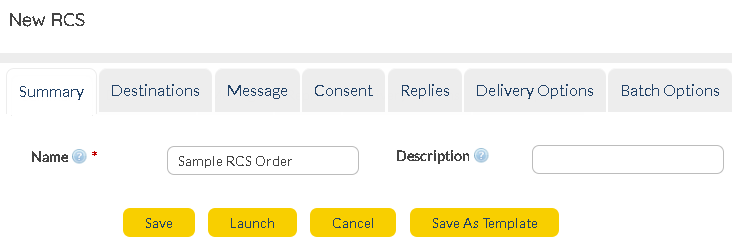 Summary |
New RCS - Destinations
Users can include recipients to the RCS Order. Either enter the destination (Contacts/ Groups / Lists) details manually or use the  to load a pre-loaded Contact / Group / List. to load a pre-loaded Contact / Group / List.
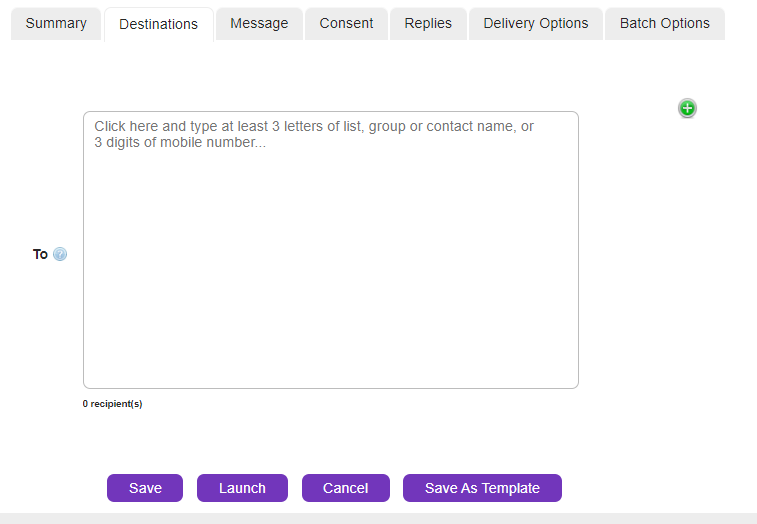 Destinations |
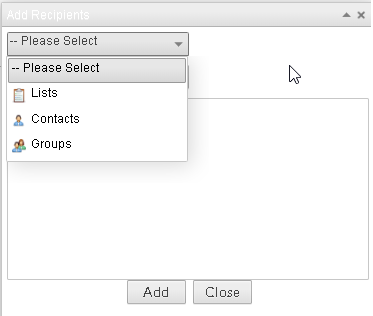 Contacts/Groups/Lists |
Anytime, a User enters an invalid mobile number, they are provided with a warning message prompting the User to re-enter a valid mobile number.
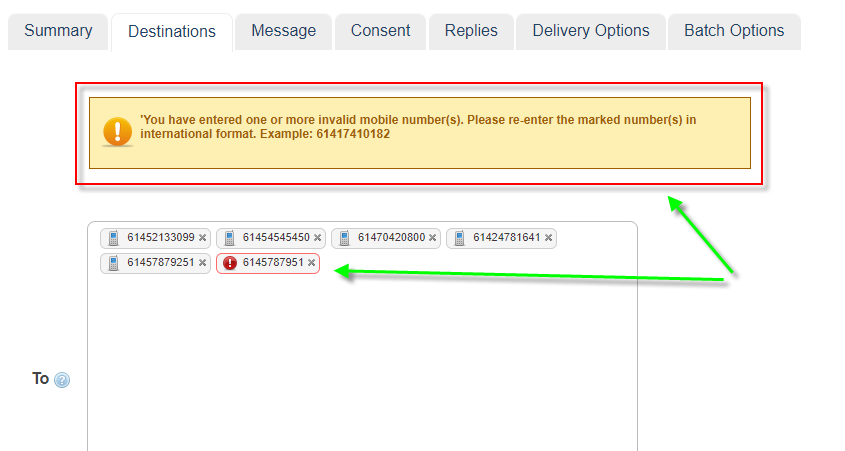
|
|
New RCS - Message
Once Users decide the recipients, proceed to create the message using the HTML builder provided.
This is the work space to build your RCS Message
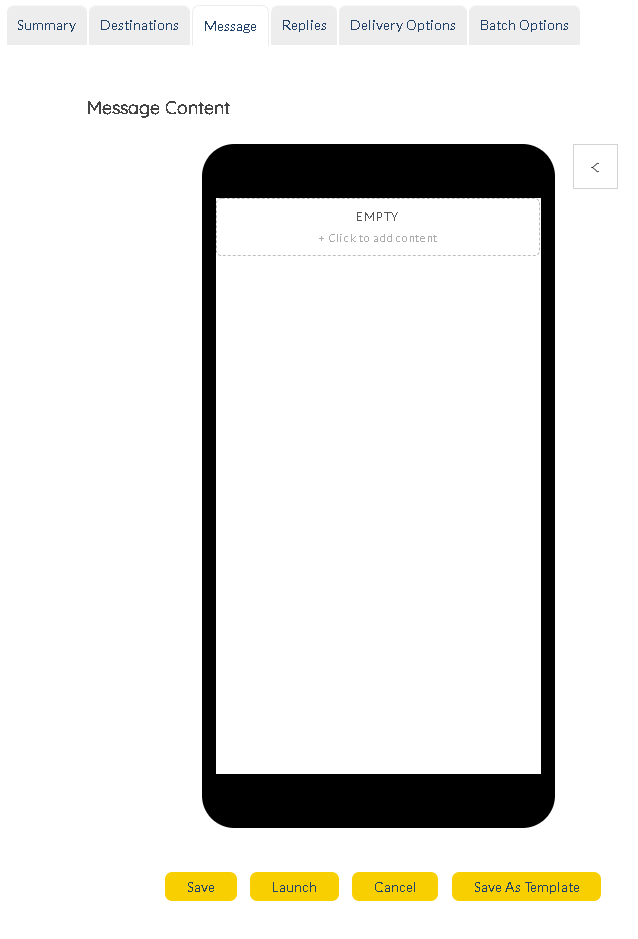 HTML Builder |
Click on the "Click to add content" to open up a number of custom message entities.
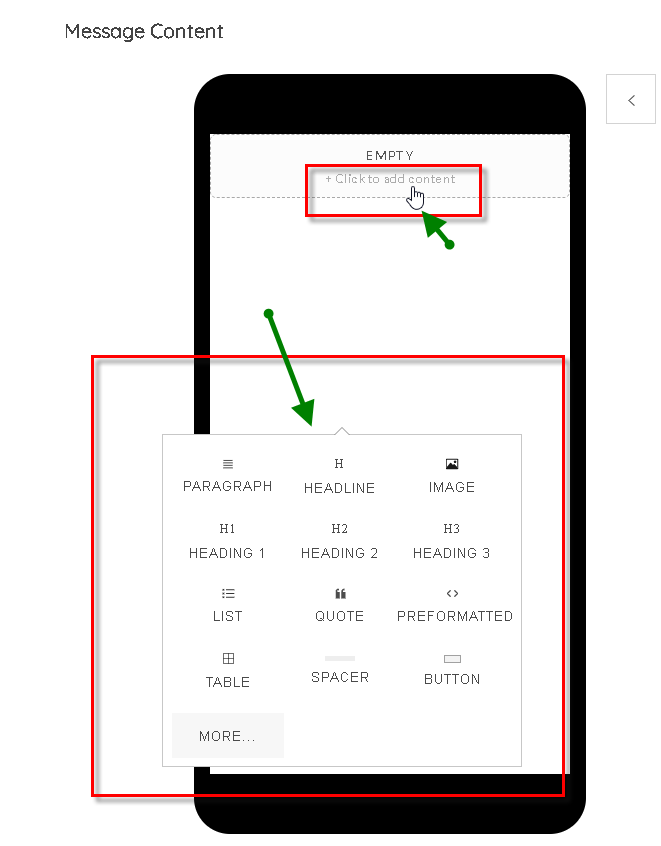 Click To Add Content
For Example: Use the <> PREFORMATTED option to add custom lines of code into your message.
|
|
|
RCS message options button is highlighted below.
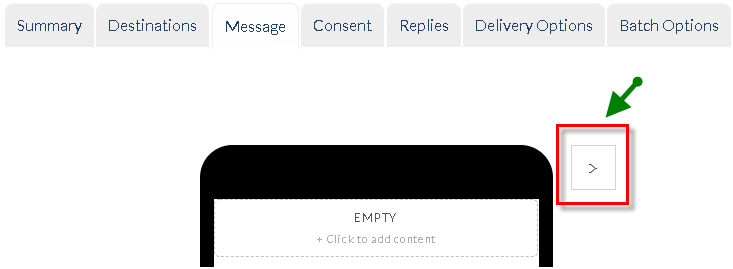 HTML Builder Template Button |
|
|
Tapping the button brings up two options : RCS Text and RCS Cards.
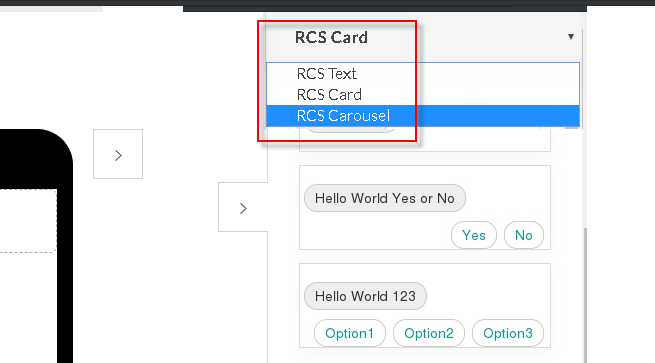 RCS Card Options |
|
|
Choosing RCS Text pulls up a list of RCS Text templates that can be used via an easy drag-and-drop technique.
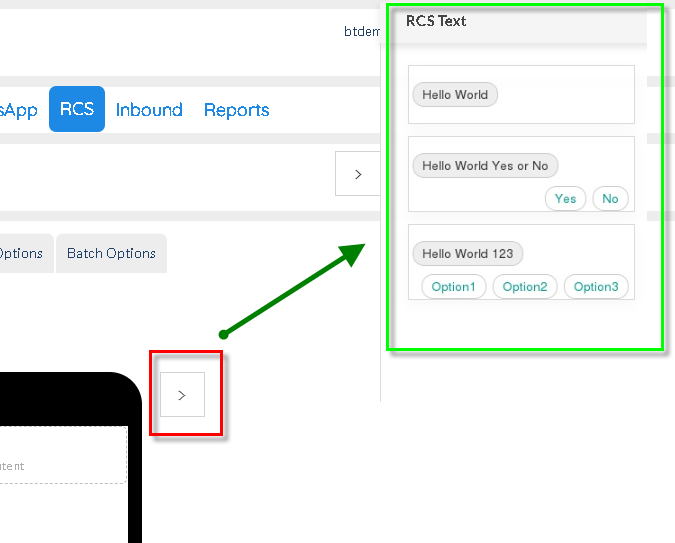 RCS Text Option
Drag-and-drop the template to view it on the work space. There are 3 standard text templates you can use. This is essentially how the content is viewed on the recipients of the RCS Order.
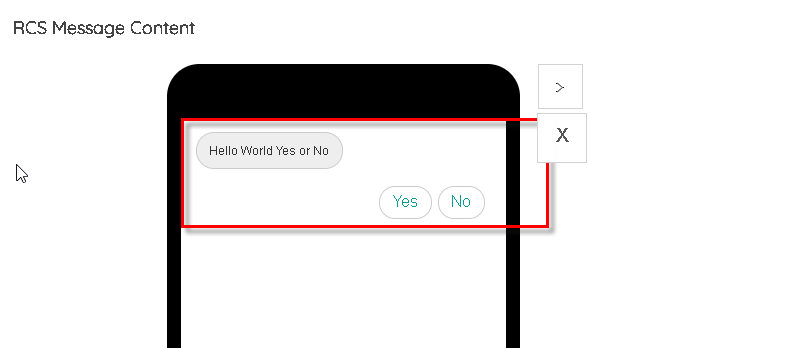 RCS Text Card Included
The HTML Builder comes with a handy "clear" button  . This removes any of the HTML elements in the builder. This button is visible only when an element is dropped in and not when the builder is empty. . This removes any of the HTML elements in the builder. This button is visible only when an element is dropped in and not when the builder is empty.
|
Choosing RCS Cards brings up number of custom cards to drag-and-drop into the message builder space.
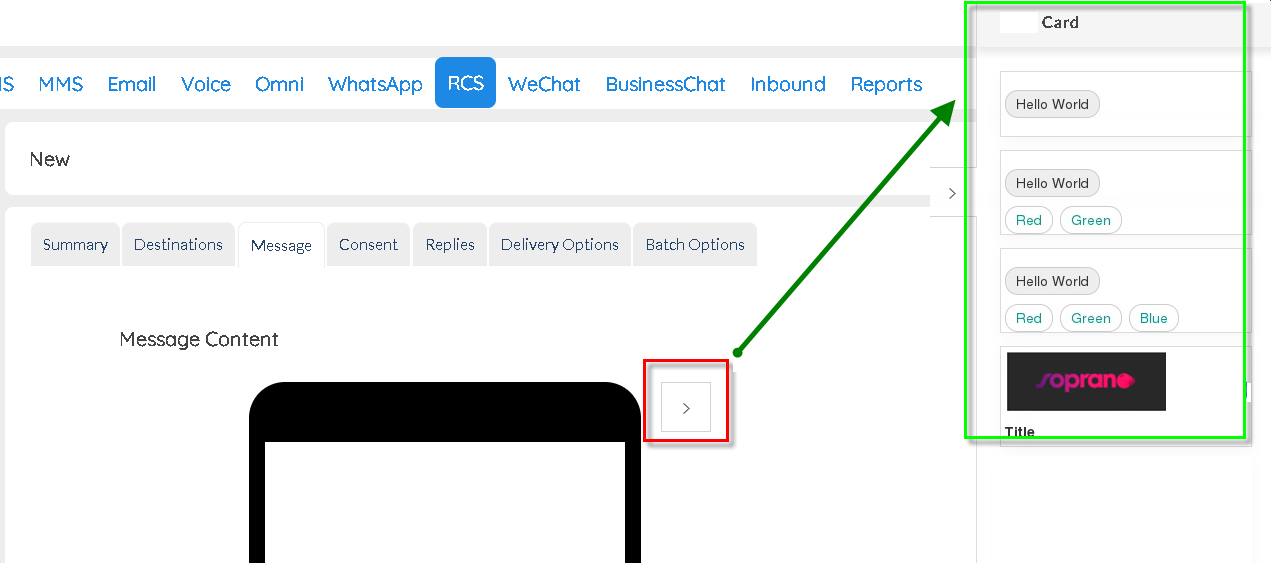 RCS Card Option
Note: RCS Cards provide Users with the ability to hit enter and create a "new line". This helps with formatting and alignment. This is applicable to RCS Cards and Carousels.
|
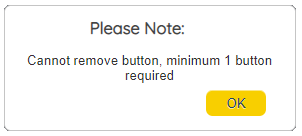
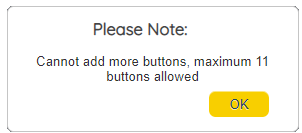
When working with Carousel buttons, Users are requested to adhere to the minimum and maximum button counts that MEMS offers.
Minimum buttons = 1
Maximum buttons = 11
Drag and drop any of the cards into your message builder. Currently there are 9 standard rich card templates supported.
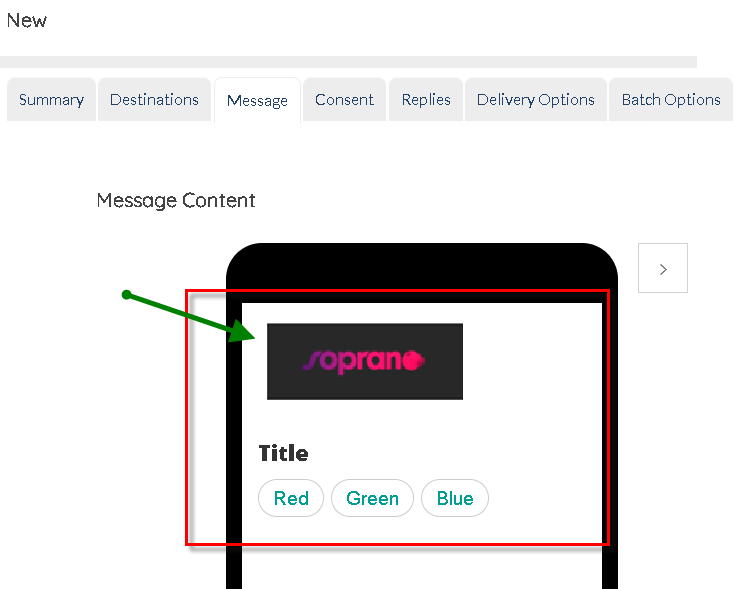 RCS Rich Card Included |
|
|
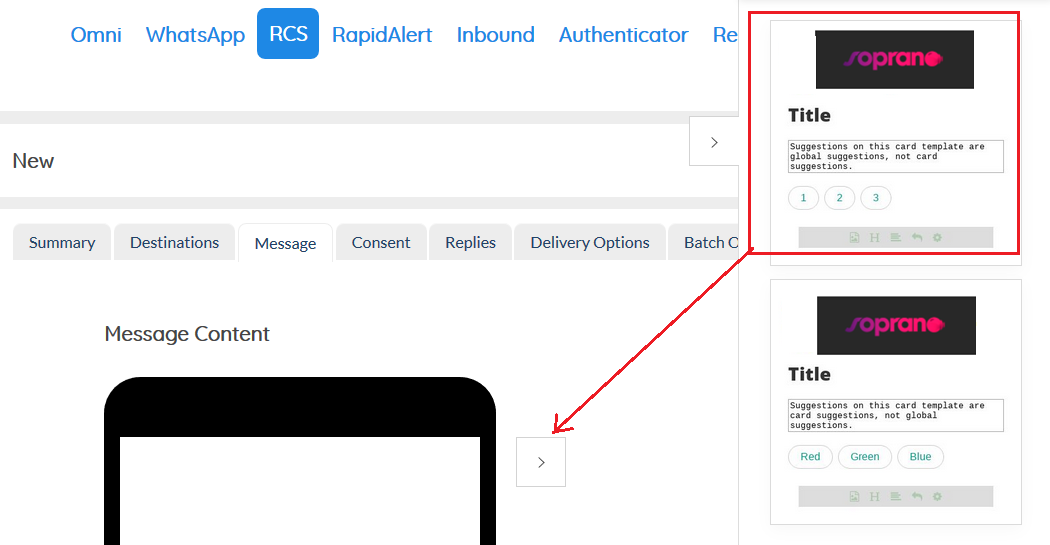 RCS Survey Snippet
RCS Survey is a snippet designed specific to handle survey based scenarios amongst User base. Drag and drop the Survey Snippet from the RS Cards on the right.
Note: Users can perform all operations on keyboard the same way as using a mouse. Read about it here.
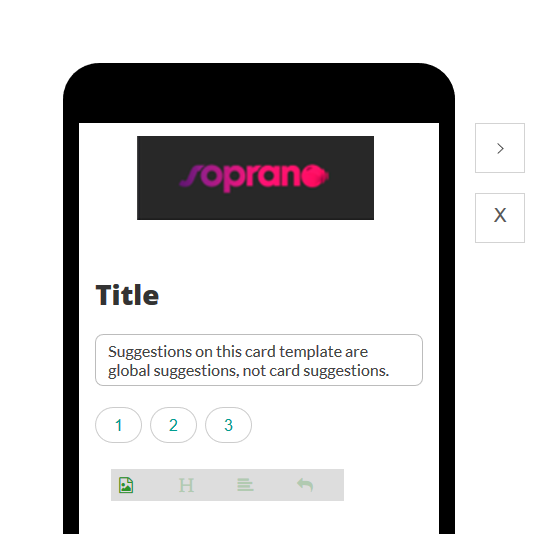 RCS Survey Snippet Builder
The above screen is what is presented once Users drag it into the editing space. Add a custom image, Title and Description to your Survey card.
 Survey Button Options
Once Users create a Survey Snippet, they have the ability to use buttons as survey options.
Modify these buttons with the below actions:
Icon
|
Description
|

|
Add buttons to the left or right
|

|
Remove buttons
|

|
Modify button text
|
Read about these buttons here.
 Snippet Options
Another useful option is the ability to modify the snippet itself. Below are the various snippet actions.
Icon
|
Description
|

|
Hide or show snippet image
|

|
Hide or show snippet title
|

|
Hide or show snippet description
|

|
Hide or show snippet buttons
|

|
Delete snippet
|
|
|
|
|
Note: RCS Cards provide Users with the ability to hit enter and create a "new line". This helps with formatting and alignment. This is applicable to RCS Cards and Carousels.
|
|
|
|
|
New RCS - Consent
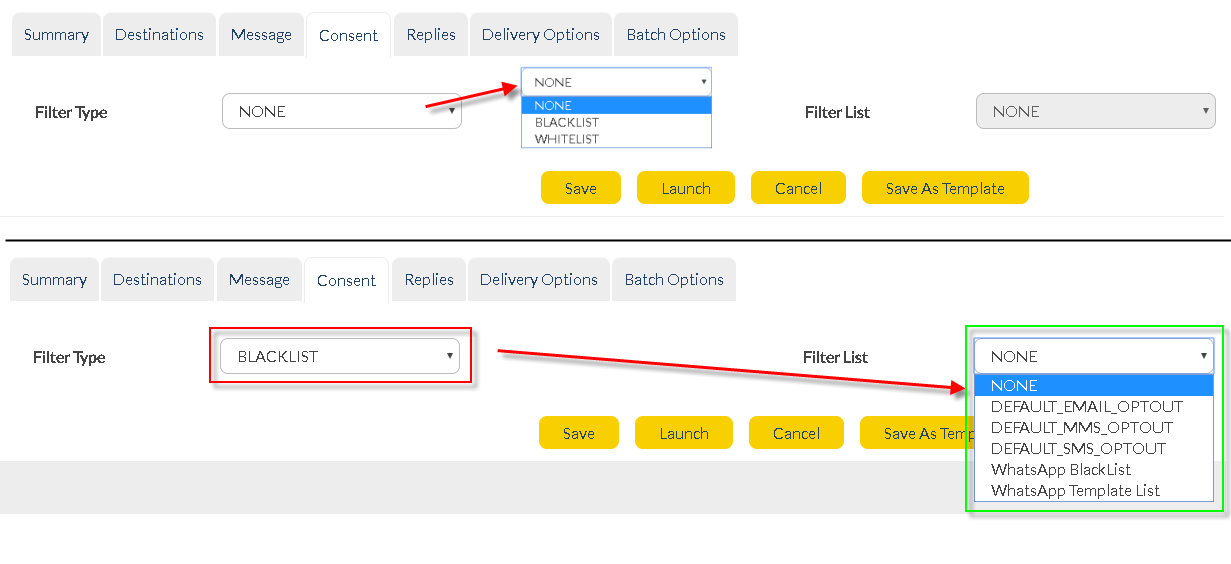
Similar to other applications in MEMS, RCS provides the options to user to either opt-in / opt-out from receiving messages.
once you've chosen the type of filter (BLACKLIST / WHITELIST) you are presented with the lists that you have pre-loaded into SOPRANO MEMS.
|
New RCS - Replies
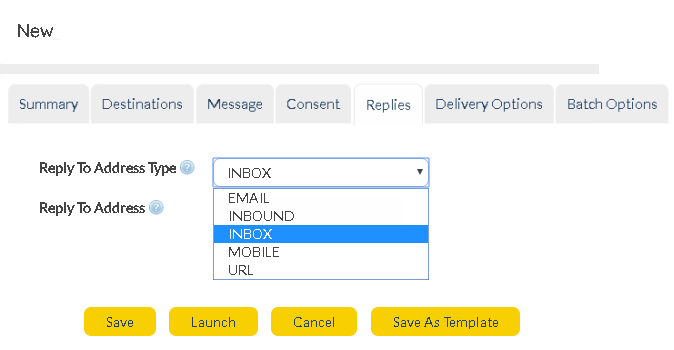
Users can choose how they wish to receive replies from customers. Choose from one of the below options. Once chosen, enter an appropriate Reply To Address.
|
New RCS - Delivery Options
Delivery Frequency
|
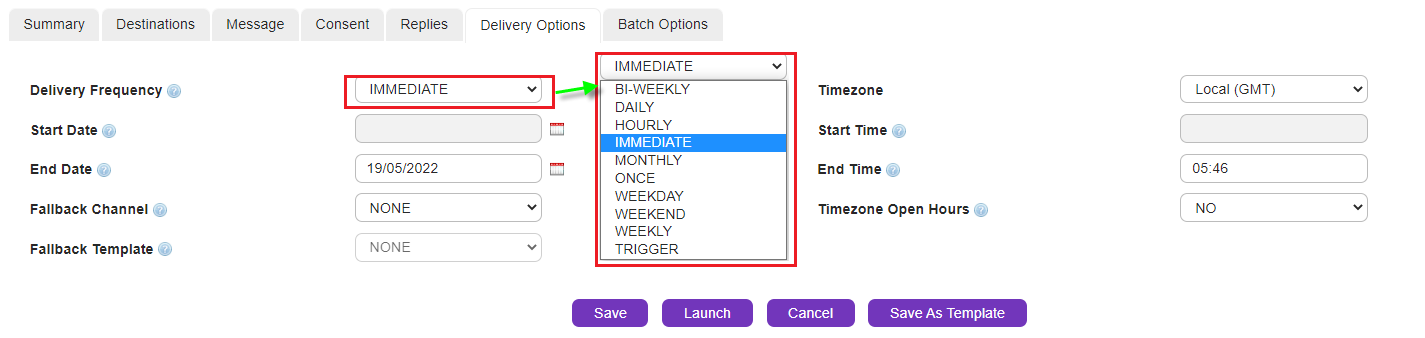
Choose how frequent the RCS Orders are delivered, from one of the options available (as displayed).
|
Timezone
|
Based on your customer locations, assign an appropriate Timezone.
|
Start / End Time
|
Choose a suitable time frame to send out the Orders
|
Start / End Date
|
Choose a suitable date frame to send out the Orders
|
Timezone Open Hours
|
Choose this option to make sure the RCS Orders are not delivered during off-hours (after work, nights etc.)
|
Priority
|
Pick an appropriate priority for your RCS Order
|
Fallback Channel
* To access the SMS Fallback feature, Users are requested to purchase the appropriate license.
|
Under the circumstances where customers do not have access to RCS and it's features, it is possible to setup MEMS in such a way that they still receive the same messages in the form of SMS messages.
*Note: When the recipient cannot receive RCS orders, the delivery receipt is in SMS format :
id:nnnnnnn sub:SSS dlvrd:DDD submit date:YYMMDDhhmm done date:YYMMDDhhmm stat:*UNDELIV* err:E Text: . . . . . . . . .”
If the RCS message delivered is in HTML format, the message is sent as a link to the User's mobile phone. This link can be opened in the phone's browser.
|
Fallback Template
|
Similar to other channels, Users can configure specific templates to be called upon to be used in case a Fallback scenario is needed.
|
|
New RCS - Batch Options
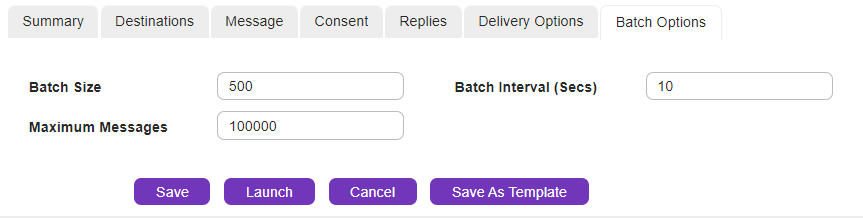
Enter appropriate batch delivery options.
Batch Size
|
Edit the batch size here.
|
Batch Interval
|
Edit the interval between batches here.
|
Maximum Messages
|
This feature is useful if you are not sure how many recipients there are in a list but you want to limit the number of messages sent so that you don’t exceed your broadcast budget
|
|
New RCS - Launch Options
Once all the above steps have been completed, Users can use any of the launch options below.

|
Save the RCS Order
|
|
Launch your RCS Order
|
|
Cancel and re-start framing the Order
|
|
Save your RCS Order as a Template if this would be a regular Order sent to recipients.
|
|
New RCS - Order Statistics
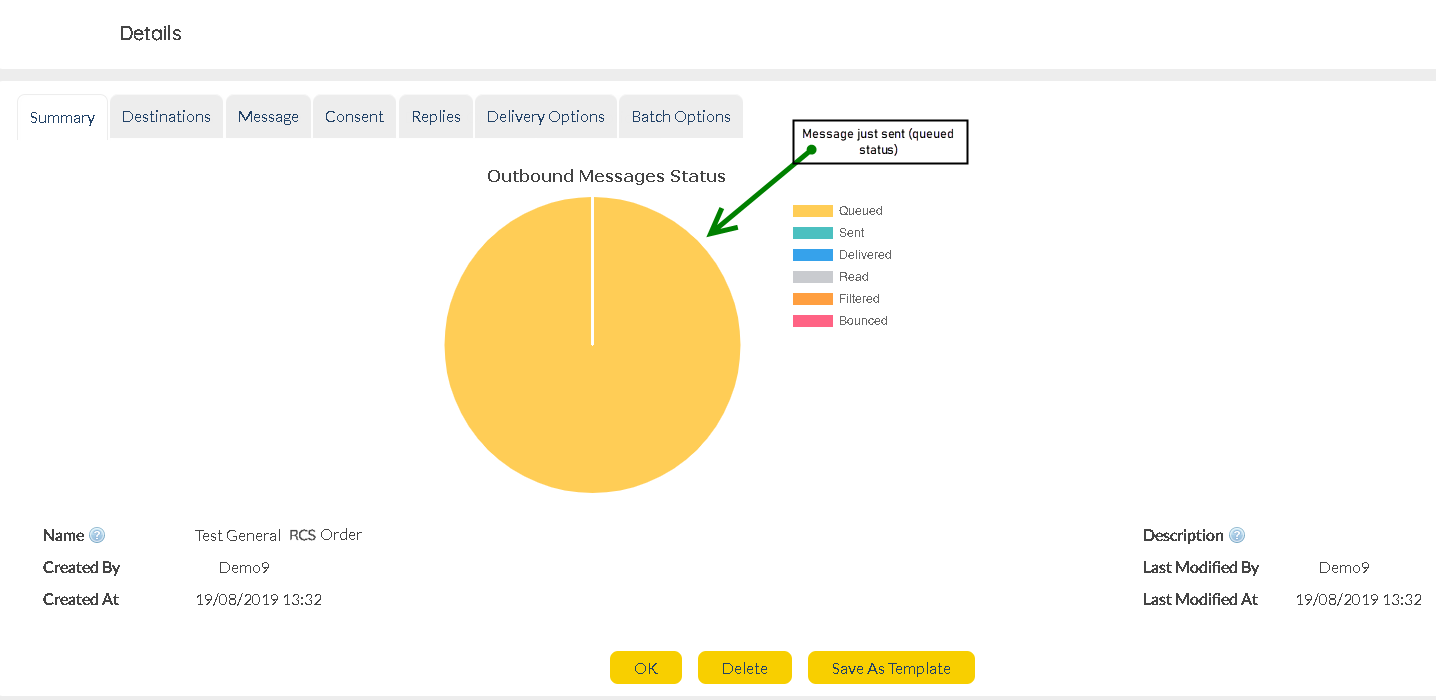
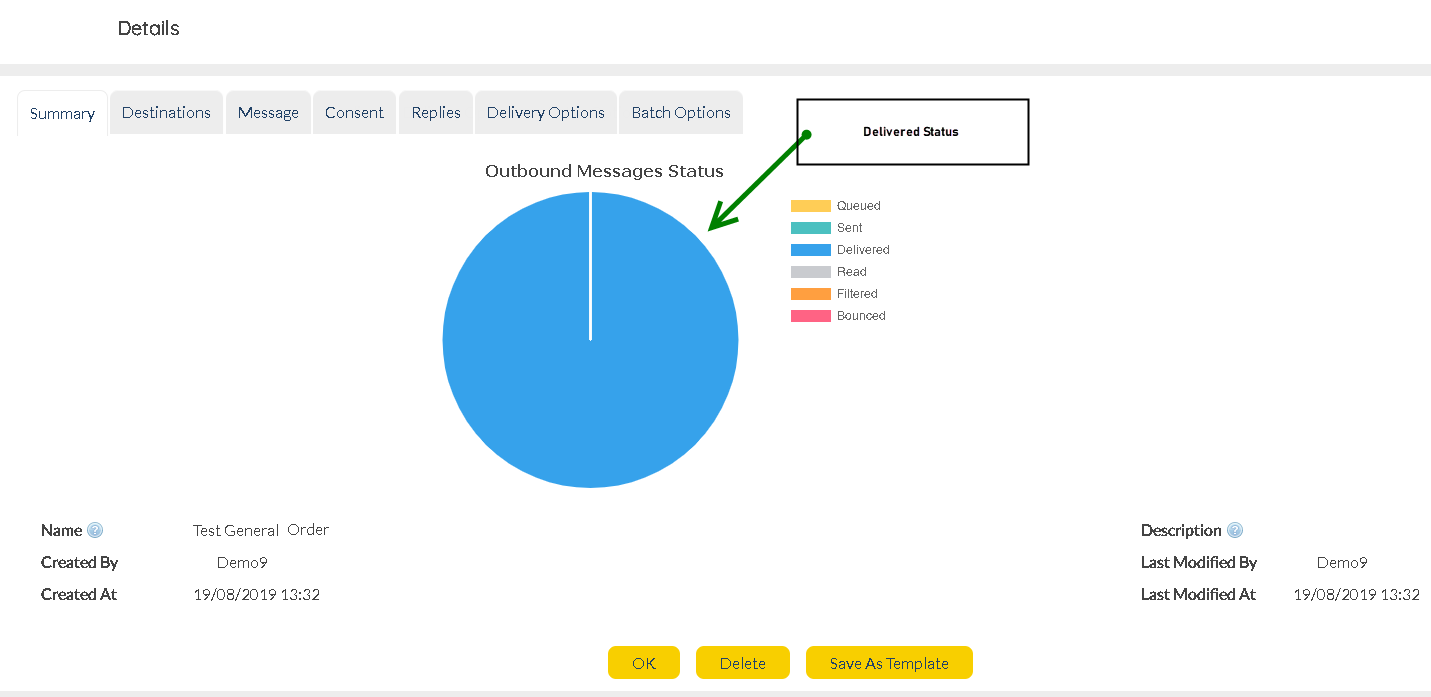
After sending out the RCS Order, the Users are presented with some statistical charts that provide some valuable insights.
|
The first chart visible shows the "Queued" message. The message has been sent by MEMS User.
|
|
The message is now delivered to the recipient.
|
|
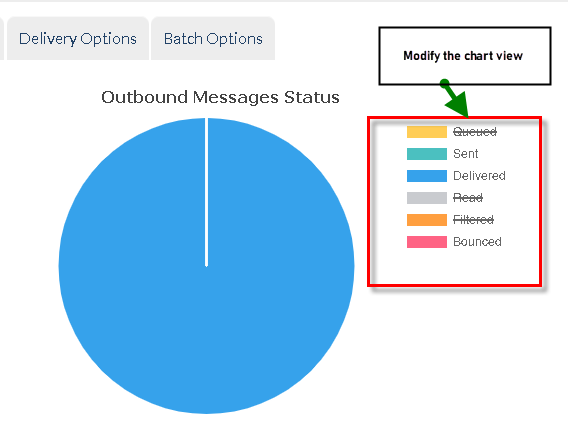
The options highlighted in the image here can be selected / de-selected.
Users are free to check and un-check the options to modify the chart view accordingly.
|
|
RCS Call-to-Action Buttons
RCS - Template
RCS - Mobile Output


