|
<< Click to Display Table of Contents >> RCS - Mobile Output |
  
|
|
<< Click to Display Table of Contents >> RCS - Mobile Output |
|
Here's a look at how RCS Messages are received on a mobile device.
*Expand below topics to read them
Note: You must have completed the set-up process and enable the RCS client on your mobile device.
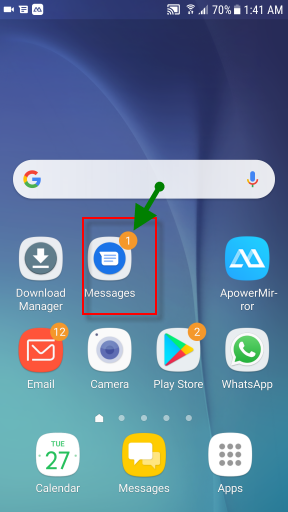
On you mobile device, open up your phone's default messaging app.
|
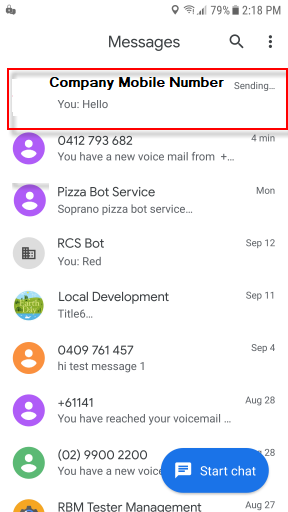
Within the Messaging app, locate the message Bot.
|
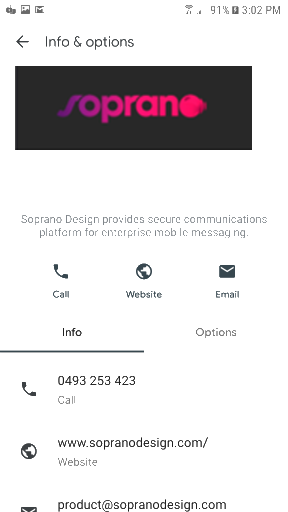
Enter the Bot and check the Bot's profile details.
|
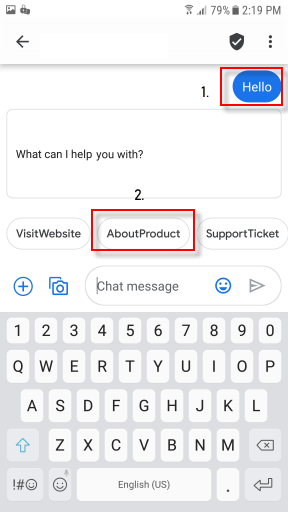
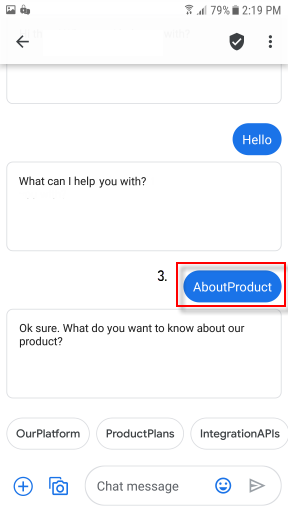
Return into the chatbot and initiate a message. For Example: "Hello".
The bot prompts you with a couple of options. As an example, let us choose "AboutProduct" option. |
The following response if provided by the bot.
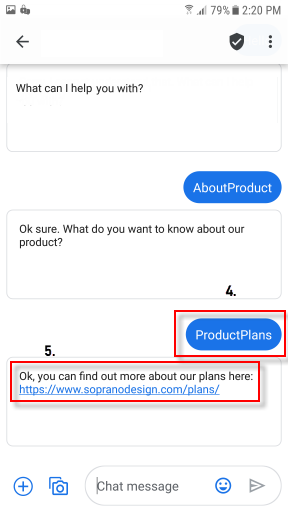
Proceed to the next level of responses by choosing "ProductPlans". |
Choosing ProductPlans provides the User with a link to Product plans offered across Soprano.
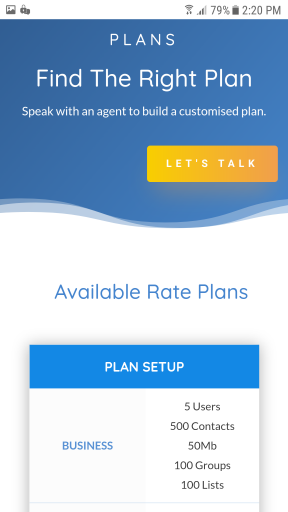
Clicking on the link opens up the page in your mobile browser.
|
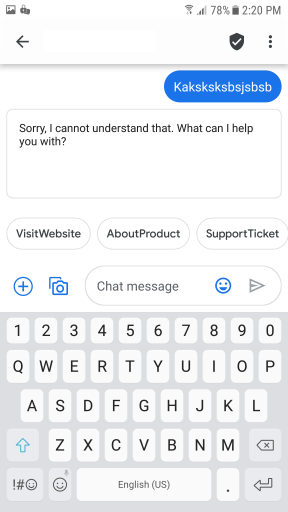
Sometimes you may provide an invalid request to the Bot.
It recognizes this invalid request and responds with "Sorry, I cannot understand that. What can I help you with?" and provides a set of standard request you may want to initiate.
|