|
<< Click to Display Table of Contents >> RCS - Call-to-Action Buttons |
  
|
|
<< Click to Display Table of Contents >> RCS - Call-to-Action Buttons |
|
RCS contains a number of useful call-to-action buttons that may be configured for various relevant scenarios.
When framing an RCS Order, the buttons within the Order can be modified to allow Users to include Images, Video content etc.
After Users drag-and-drop all RCS Texts, Media carousals or cards containing configurable buttons, click on the  to assign actions to these buttons.
Hovering over each action-button brings up 4 separate actionable buttons.

|
Add action-buttons to the left or right of existing action-buttons
|
|
Delete action-buttons
|
|
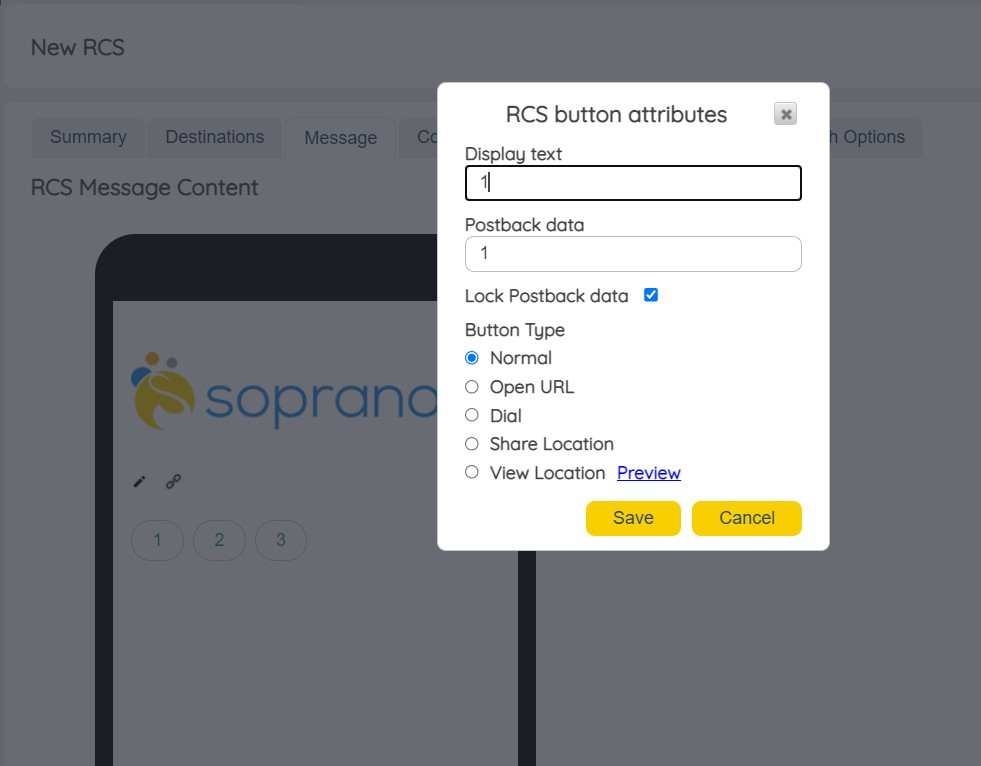
Edit and add specific call-to-actions to action-buttons
|
Expand each topic below to see it's contents
RCS Call To Action - Send Media (Images + Videos)
Users can use the options to include an attach image / video content as a call-to-action.
Note:Below are the recommended media specs to be uploaded. The maximum size of image attachment is 1MB and maximum video file upload size is 1MB.
|
|||||||||||||||||||||||||||||||||||||||||||
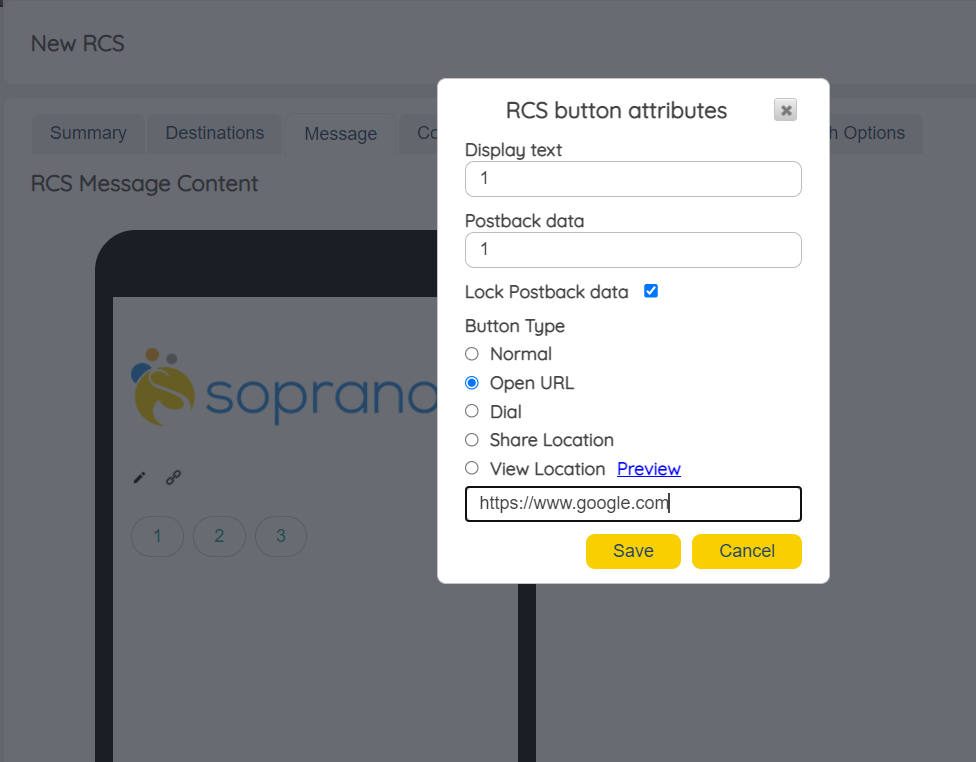
Assigning this action to a button will initiate a URL to be opened in a new browser window. Include the URL to be included in the box as shown in the image.
|
RCS Call To Action - Dial Phone Number
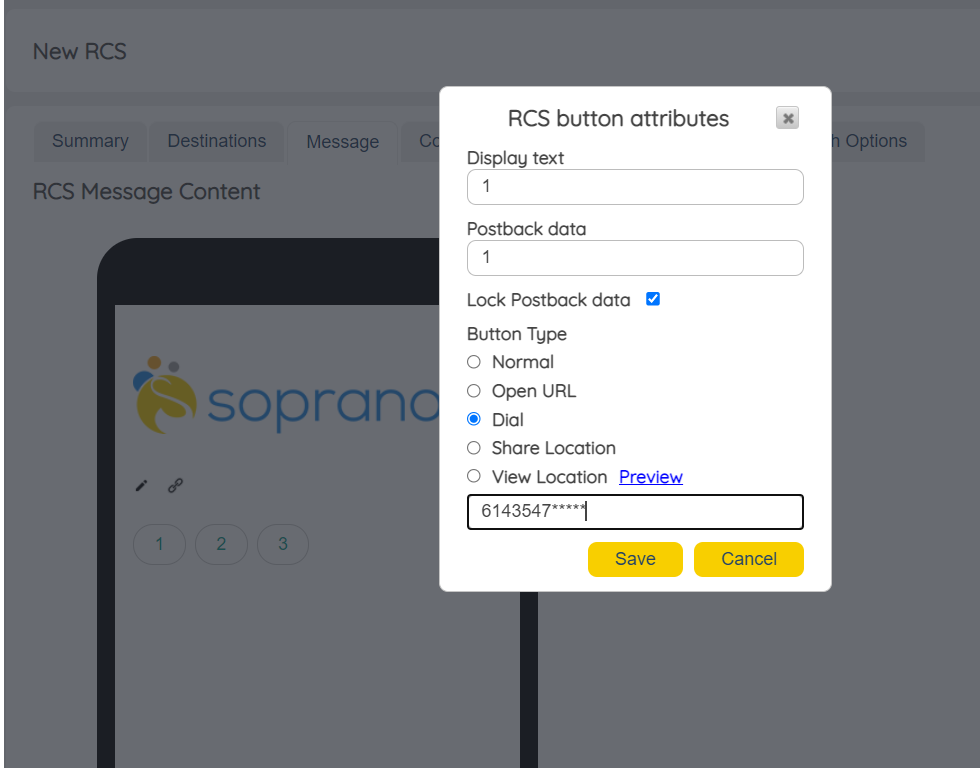
Users can use the Dial Phone Number options to assign this action to a custom button within the RCS Order. Include the Mobile Number to be included in the box as shown in the image. |
RCS Call To Action - Share Location
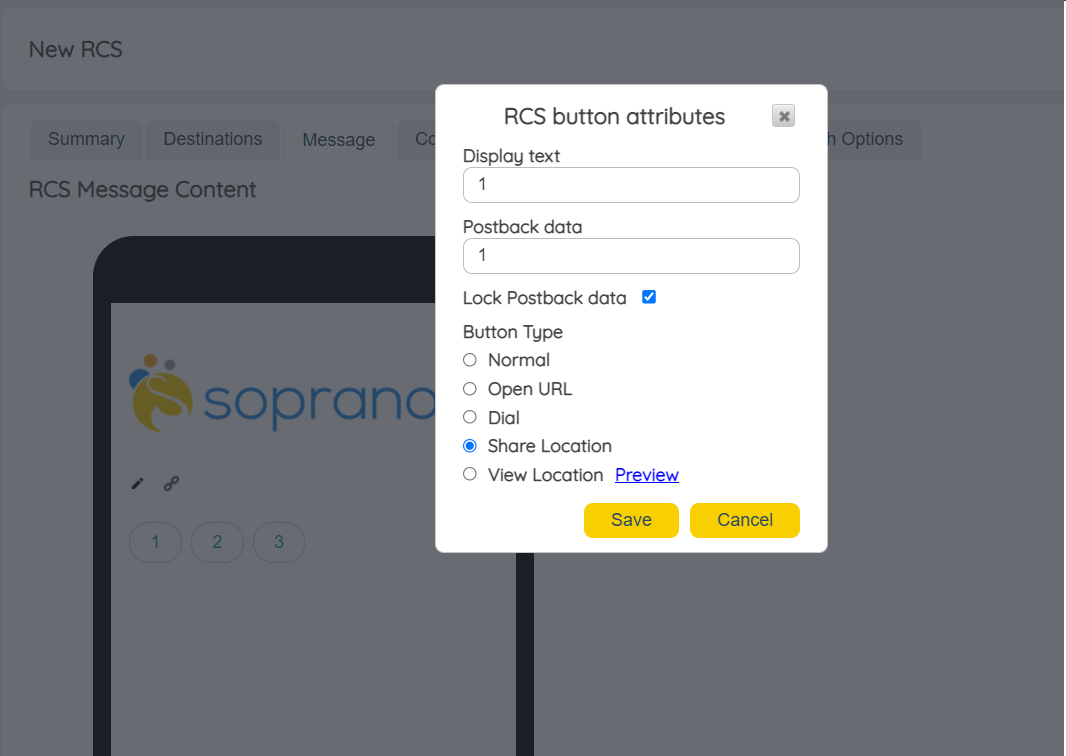
Users can add an action, Share Location, to the custom button. This may be utilized by Users to add a button for end-users to share locations when responding to Orders.
|
RCS Call To Action - View Location
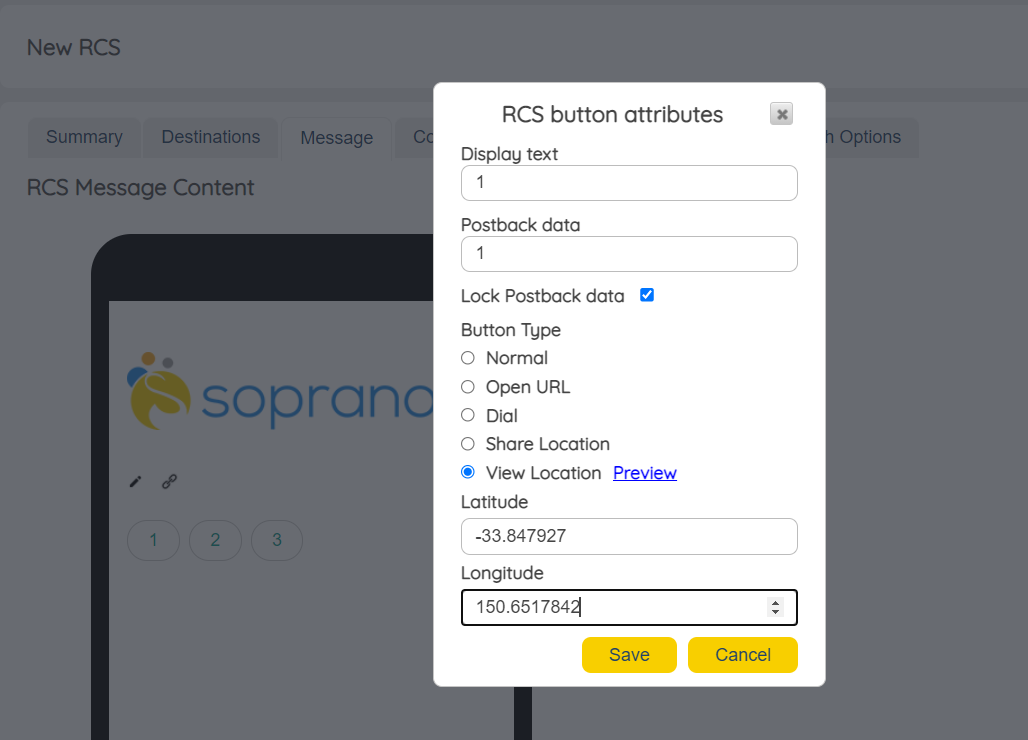
As an alternative, Users can also assign an action to the button to preview the location tagged to the customer. Clicking on this button opens up Google Maps in a separate tab.
Note: Under Share / View Location call-to-action button, Users must provide only 2D values (latitude and longitude) and avoid 3D values (latitude, longitude and elevation). Using 3D values results in the location being displayed incorrectly hence only 2D values are to be used. It is advised to NOT use the first two out of three values in 3D location to mimic a 2D location. This will result in location errors. Always User 2D values directly. |
RCS Call To Action - Max Character Limit Pop-up
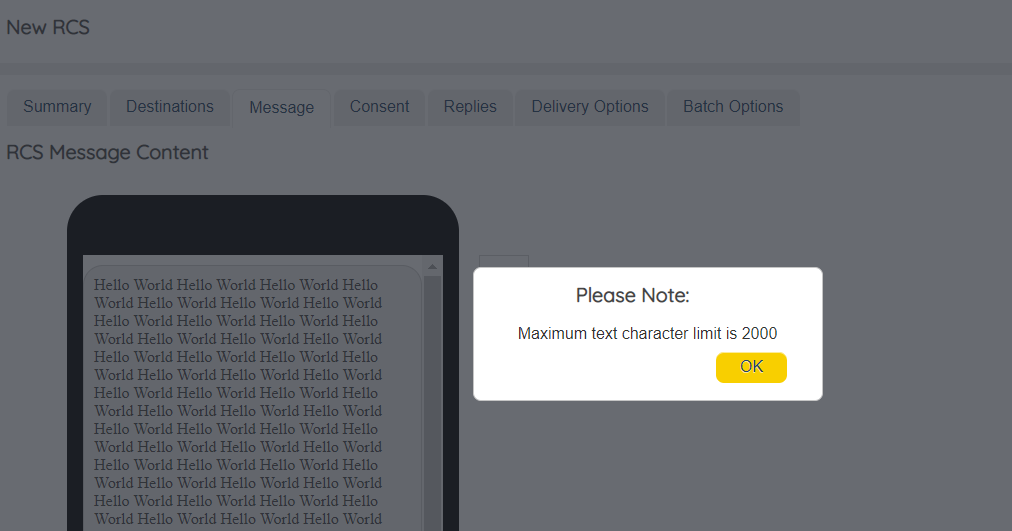
When Users exceed the maximum character limit of 2000 characters, MEMS displays a pop-up alert for the same. |
RCS - Snippet Keyboard Navigation Shortcuts