Note:
•To send Session Messages, MEMS users are required to setup a separate Viber Session Business account with Viber.
•Viber sessions Users need to have procured the Viber Sessions license : Viber Business Messaging.
•End-users must initiate a conversation with the MEMS users for the end-user to be subscribed to Viber Sessions.
End-User Initiates Viber Session
The process of Viber Sessions begins with the end-users initiating the Viber Order to the MEMS users Viber Business Account.
Step 1 : As a MEMS users, a dedicated QR code must be generated (within a separate stand-alone Viber Business Account) inside the Viber mobile application. For details refer to creating a QR code in Viber.
Step 2 : Now that a QR code / chat links are generated and ready, begin sharing this code with end-users. For example; within your company's public facing web-page / marketing material.
Step 3: Once end-users scan this QR code within their individual Viber application (or externally opens a chat-link), this opens up a chat room with a notification that end-users click 'get-started', to begin a chat with the MEMS User's Viber account.
|
After End-User Initiates Chat to Viber Business Account
Two-way communications can commence between MEMS users and end-users.
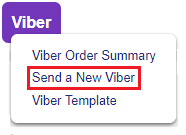
Begin sending a Viber Session Order within MEMS similar to a standard Viber Order as explained here.
New Viber Session Order - Summary Page
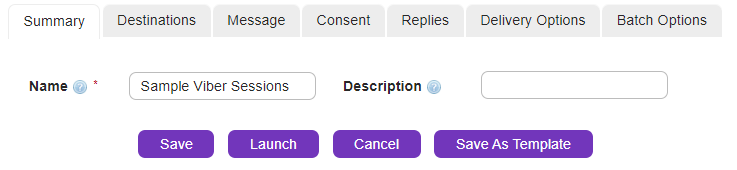
Include a name for a Viber Session Order along with a short summary for the same.
|
New Viber Session Order - Destinations
Users can include recipients to the Viber Session Order. Either enter the destination (Contacts/ Groups / Lists) details manually or use the  to load a pre-loaded Contact / Group / List. to load a pre-loaded Contact / Group / List.
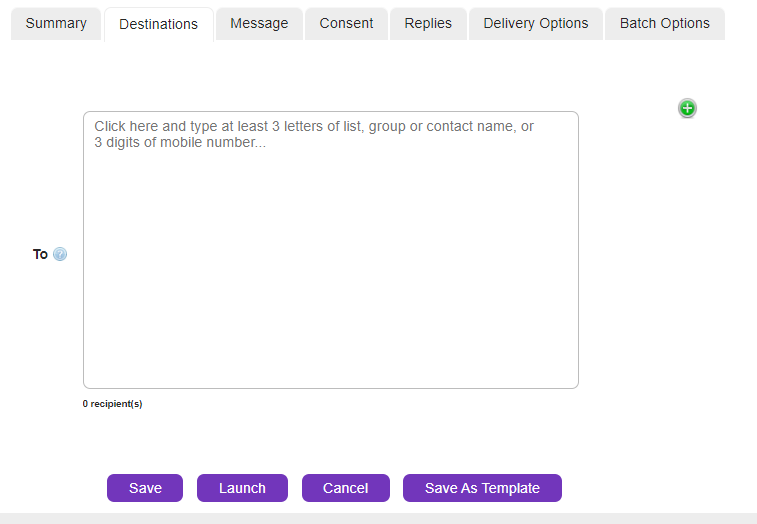 Destinations |
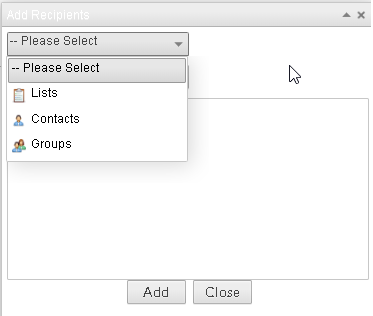 Contacts/Groups/Lists
|
|
New Viber Session Order - Message
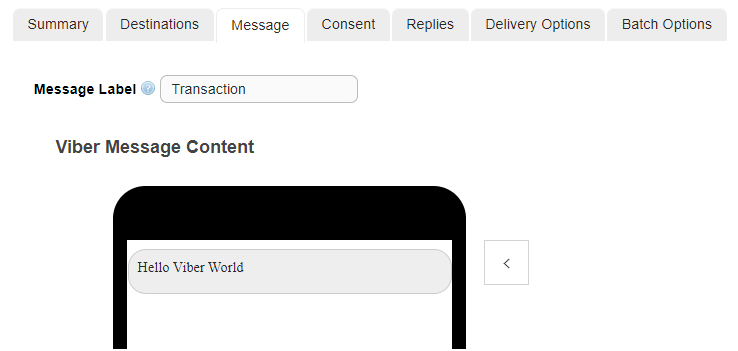
Use the ">" button to add session cards.
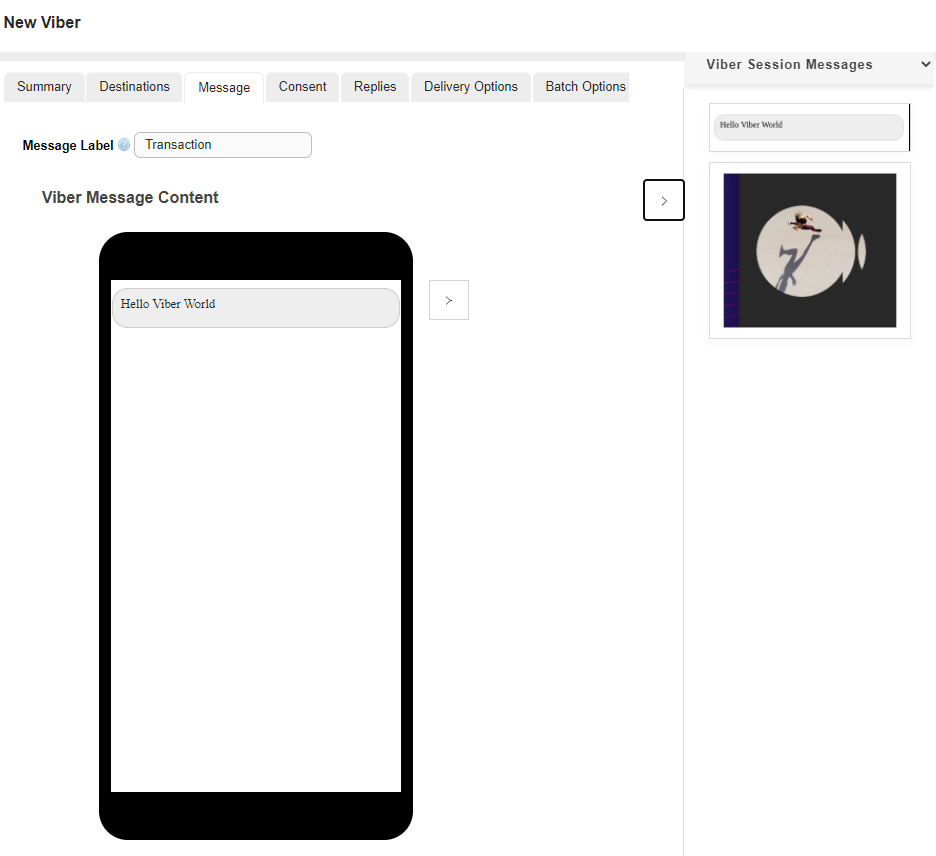
Clicking on the little pointer as shown above, opens a the sessions cards that Users can apply to their Viber orders.
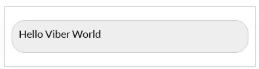
|
Free-text card to send out text messages to Viber Users. Customize the text as needed.
Note: Maximum length of text content is 1000 characters.
|
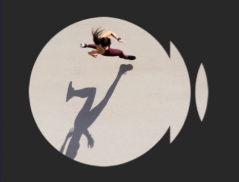
|
Add a custom image (say a promotional advertisement) to Users.
Hovering over the dragged image card, brings up an option to either upload from a local computer or link to an external URL.
Note: Image uploaded can only be JPG/JPEG/PNG format.
|
|
New Viber Session Order - Consent

The Consent tab is used to filter the Viber order from certain audiences.
WHITELIST : Members who have opted to receive future Viber Orders and messages
BLACKLIST : Members who have opted out from receiving future Viber Orders.
|
New Viber Session Order - Replies

Replies tab are used to configure how MEMS Users wish to receive responses to Viber Order Messages.
|
New Viber Session Order - Delivery Options
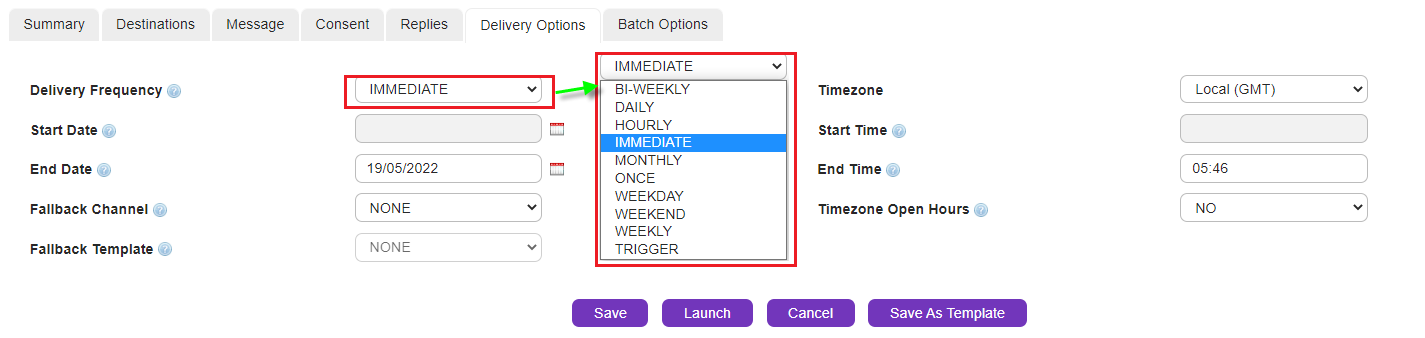
Delivery Frequency
|
Choose how frequent the RCS Orders are delivered, from one of the options available (as displayed).
|
Timezone
|
Based on your customer locations, assign an appropriate Timezone.
|
Start / End Time
|
Choose a suitable time frame to send out the Orders
|
Start / End Date
|
Choose a suitable date frame to send out the Orders
|
Timezone Open Hours
|
Choose this option to make sure the Viber Orders are not delivered during off-hours (after work, nights etc.)
|
Fallback Channel
* To access the SMS Fallback feature, Users are requested to purchase the appropriate license.
|
Under the circumstances where customers do not have access to Viber and it's features, it is possible to setup MEMS in such a way that they still receive the same messages in the form of SMS messages.
*Note: When the recipient cannot receive Viber orders, the delivery receipt is in SMS format :
id:nnnnnnn sub:SSS dlvrd:DDD submit date:YYMMDDhhmm done date:YYMMDDhhmm stat:*UNDELIV* err:E Text: . . . . . . . . .”
|
Fallback Template
|
Similar to other channels, Users can configure specific templates to be called upon to be used in case a Fallback scenario is needed.
|
|
New Viber Session Order - Batch Options
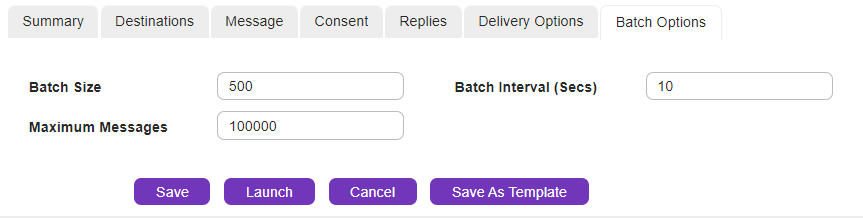
Enter appropriate batch delivery options.
Batch Size
|
Edit the batch size here.
|
Batch Interval
|
Edit the interval between batches here.
|
Maximum Messages
|
This feature is useful if you are not sure how many recipients there are in a list but you want to limit the number of messages sent so that you don’t exceed your broadcast budget
|
|
New Viber Session Order - Launch Options
Once all the above steps have been completed, Users can use any of the launch options below.

|
Save the Viber Order
|
|
Launch your Viber Order
|
|
Cancel and re-start framing the Order
|
|
Save your Viber Order as a Template if this would be a regular Order sent to recipients.
|
|
New Viber Session Order Summary Statistics
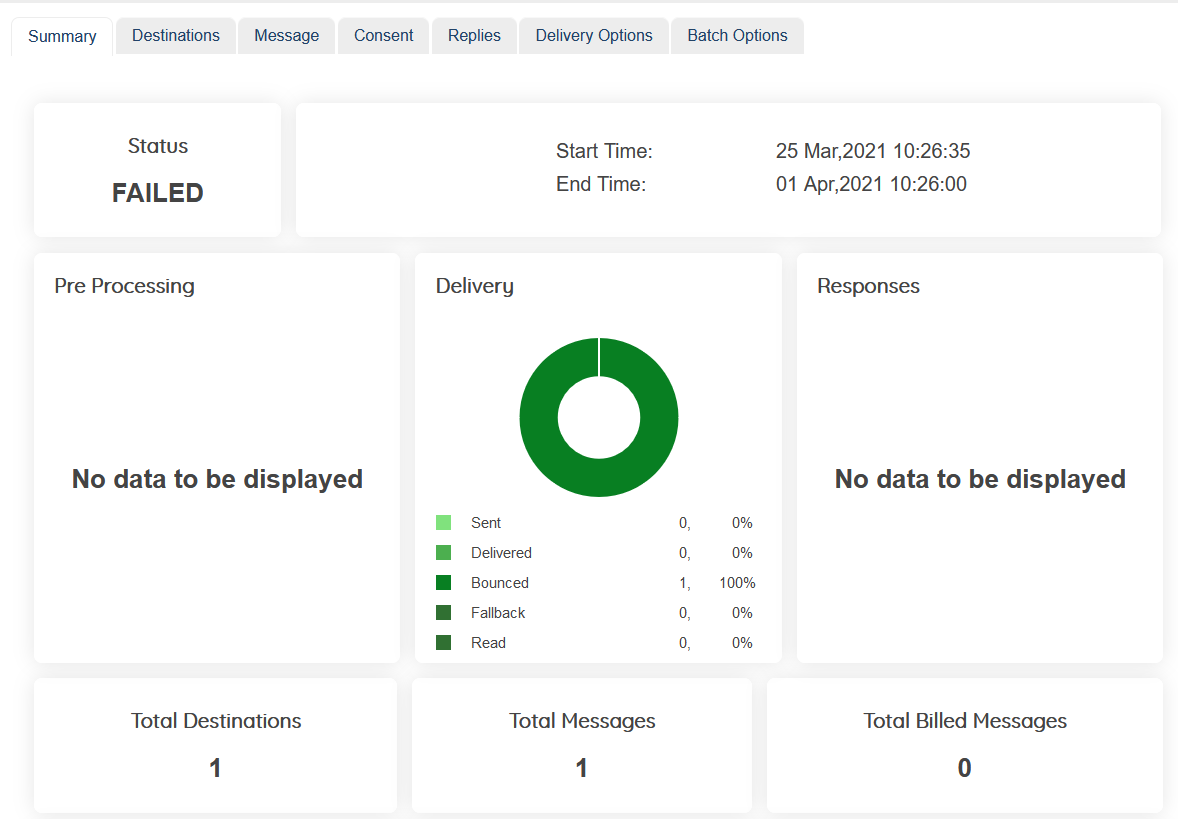
After the Order is launched, the page displays the status of the message along with other critical details.
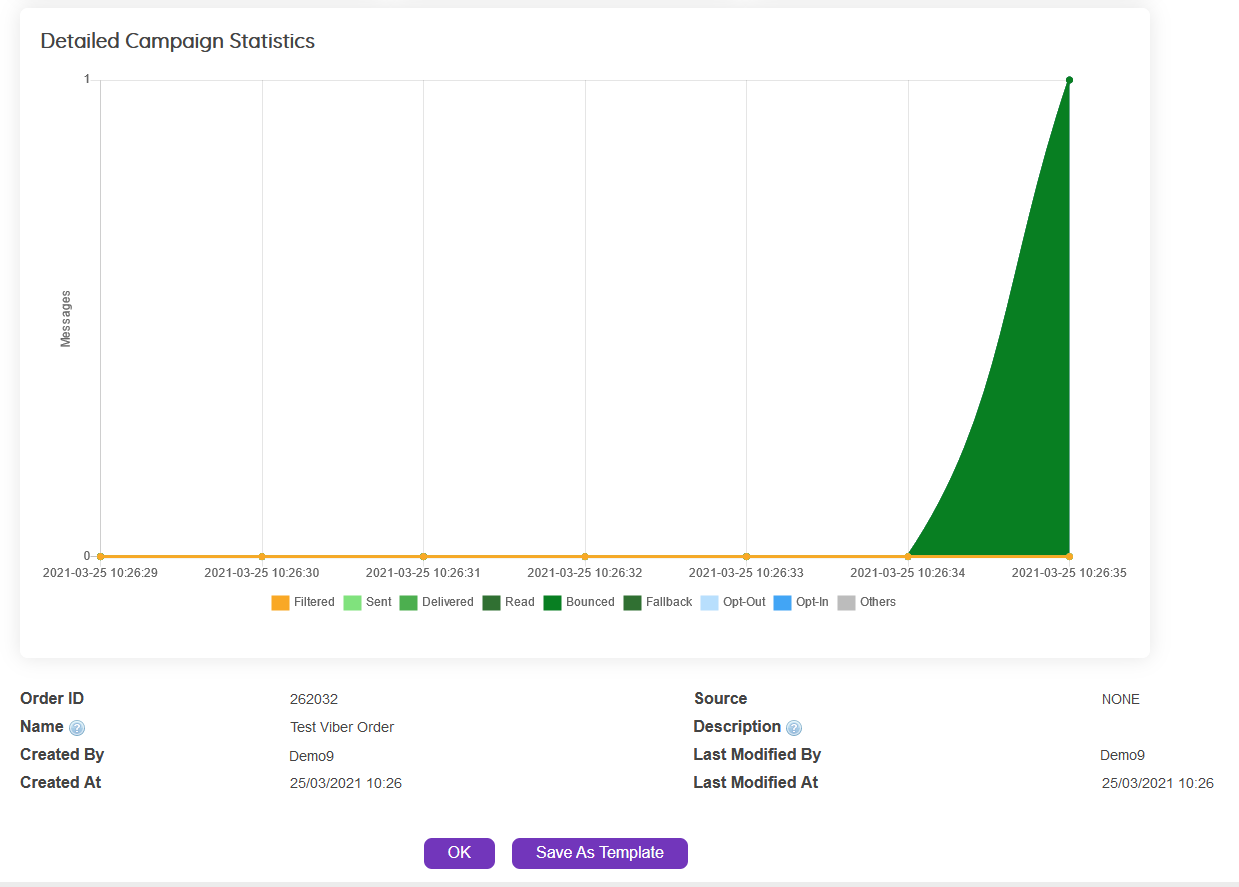
The page also displays the Order's specific Campaign Statistics.
|
|
Things to Note Around Viber Session Orders
Things to consider when working with Viber Session.
As a MEMS user, a maximum of 60 MOs can be initiated to end-users. Post which, a new session is initiated.
Time-out between messages is 12 hours.
Each session will be configured as follows:
● The session is set to a default period of 12 hours.
● Up to 60 messages can be sent in a single session by the business account. After 60 messages have been sent, a new session will begin automatically.
● A fixed rate is set according to the message type. There are two message types : Transactional and Promotional.
● You can send up to 10 messages in a row without the user’s reply, other wise the session will end.
|


