|
<< Click to Display Table of Contents >> Advanced Emailer - Performance Analysis - Reports |
  
|
|
<< Click to Display Table of Contents >> Advanced Emailer - Performance Analysis - Reports |
|
Advanced Emailer makes for detailed and information-rich reports for its User base.
Data Sources
Choose the data source appropriate to the report required. Each data source has a different set of available columns, filters and graphs.
The Details tab in the Edit Report window:
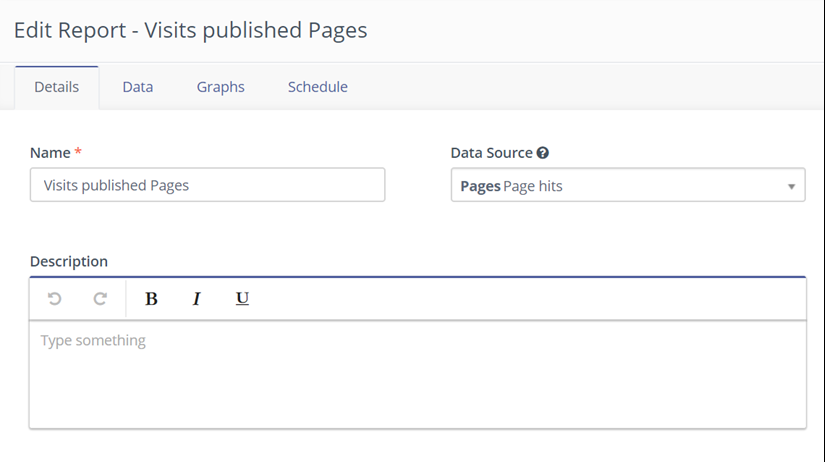
Types of data sources available are as below -
1. Assets
a. Assets
b. Asset Downloads
2. Campaigns
a. Campaign Events
3. Channels Messages
a. Message Queue
4. Emails
a. Emails
b. Emails Sent
5. Forms
a. Forms
b. Form Submissions
6. Contacts
a. Contacts
b. Multi Touch Attributions
c. First Touch Attributions
d. Last Touch Attributions
e. Contact Point Log
f. Frequency Rules
g. Segment Membership
h. Do Not Contact
i. UTM Codes
7. Companies
a. Companies
8. Mobile Notifications
a. Mobile Notifications
b. Mobile Notifications Sent
9. Pages
a. Landing Pages
b. Page hits
10. Videos
a. Video hits
Configuration
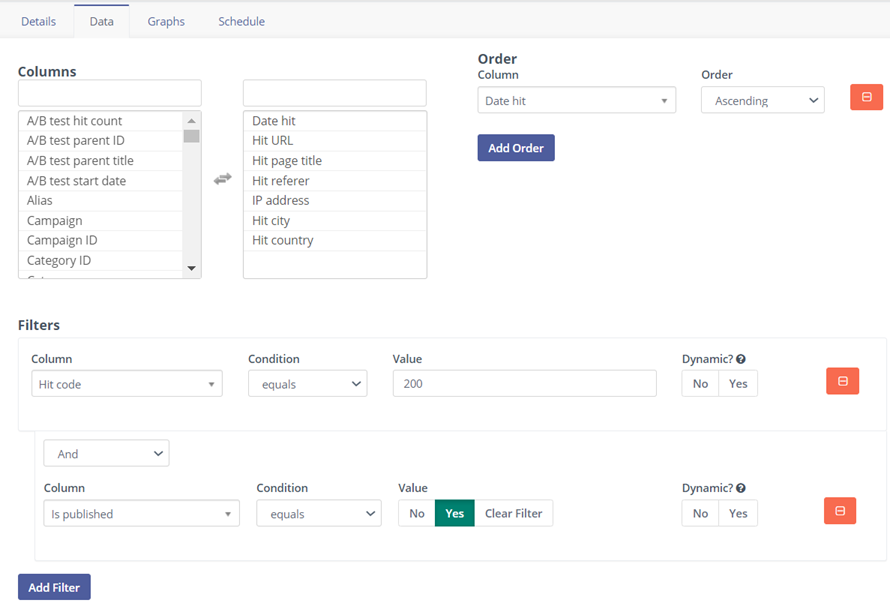
Each report can be customized to include the columns of choice. Filter data based on set criteria and/or set a specific order for the data. In addition Users can also group by and select different function operators to calculate fields.
Note : When you select function operators, a total row will be added to the report. This total row will not be exported when selecting to export a report.
Graphs
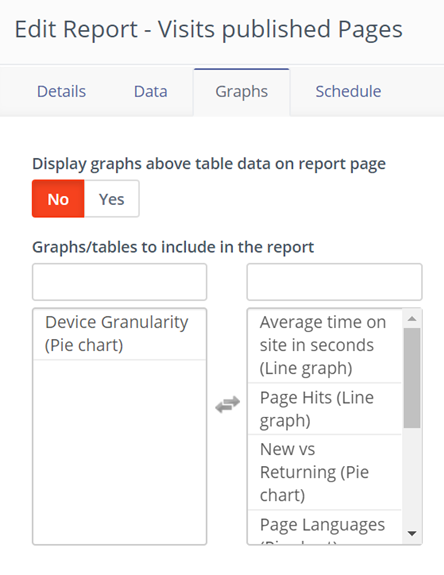
Some reports have graphs available. Select the graph desired from the list on the left. It will be moved to the right and will be part of the report.
Dashboard Widget
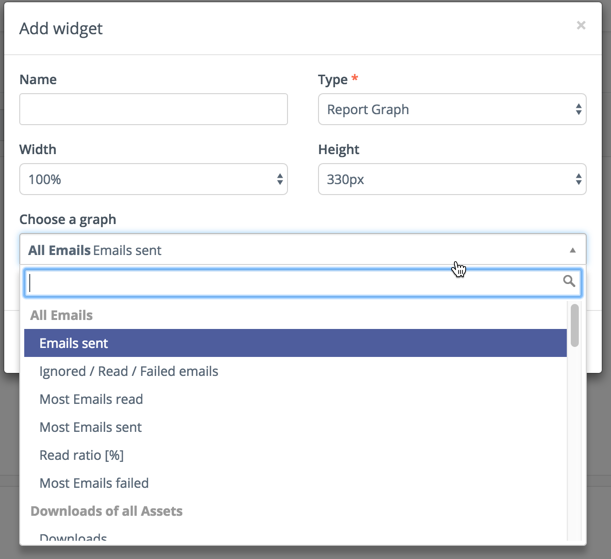
Each graph of every report is made available as a widget on the dashboard, allowing complete customization of the dashboard.
Scheduling Reports
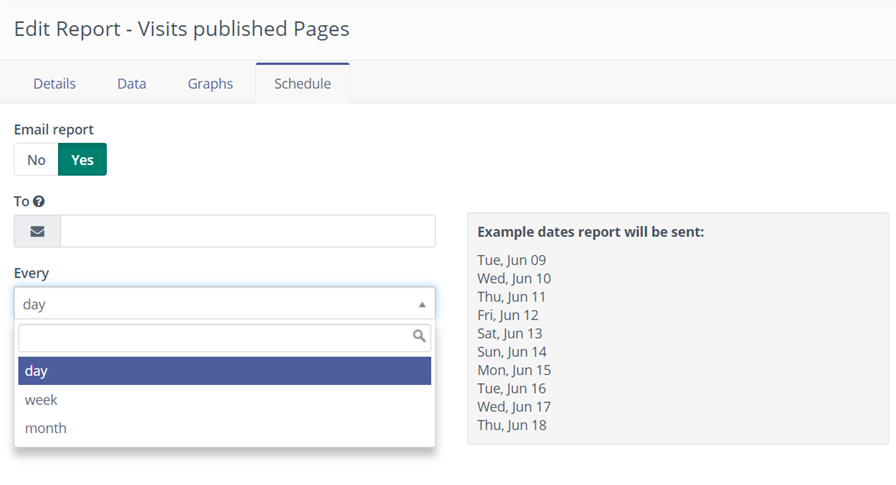
Enable or disable sending reports via email by using the toggle switch.
It is possible to schedule emails that will send reports to one or more email addresses. In the To field, enter a comma-separated list of email addresses and set the frequency of sending reports by choosing day, week, or month from the drop-down list.
Note:
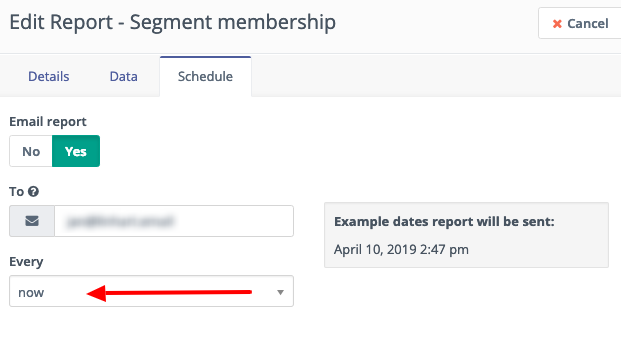
It is possible to send a report just once. This may be helpful if a report takes some time to load. The cron job will process the request, and send the result by email.
The email attachments cannot be too large. This could prevent them being sent. If the file is greater than 5MB (configurable file attachment limit) then the CSV file will be zipped. If the zip package is within the file attachment limit then it will be sent as an email attachment. If it is still too big the zip file will be moved to a more permanent location, and the email will contain a link to download it. The download link works only for logged in Mautic users.
If a User tries to download a compressed CSV report that had been deleted for some reason, Advanced Emailer will schedule the report to NOW again, and send the user the email notification when the CSV report has been created.
The one-time report export and send can be configured 2 ways:
1.By scheduling the email:
2.By a button from the report list:
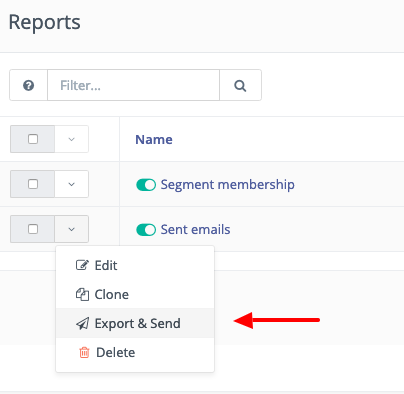
The button is available only for non-scheduled reports as it would otherwise reset configurations for scheduled reports.
Cron job to schedule reports
To be able to send scheduled reports, the following cron command is required:
php /path/to/mautic/bin/console mautic:reports:scheduler [--report=ID]
|
The --report=ID argument allows you to specify a report by ID if required. For more information, refer to section Advanced Emailer - Cron Jobs.