|
<< Click to Display Table of Contents >> Advanced Emailer - Performance Analysis - Dashboards |
  
|
|
<< Click to Display Table of Contents >> Advanced Emailer - Performance Analysis - Dashboards |
|
Advanced Emailer provides a customizable dashboard where each user can compose widgets with information that is to be tracked.
Date Range Filter
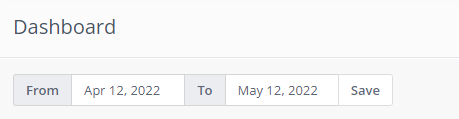
All the widgets will display data in the selected global date range filter at the top of the widget list. The default date range is set from 30 days ago to present-day.
Line charts will change the time unit automatically depending on the day count selected in the date range filter as:
•When date range is equal 1 day: Data will be displayed in hours.
•When date range is between 1 and 31 days: Data will be displayed in days.
•When date range is between 32 and 100 days: Data will be displayed in weeks.
•When date range is between 101 and 1000 days: Data will be displayed in months.
•When date range is greater than 1001 days: Data will be displayed in years.
The only widget exceptions which display the same information irrespective of the date range are Upcoming emails and Recent activity.
Widgets
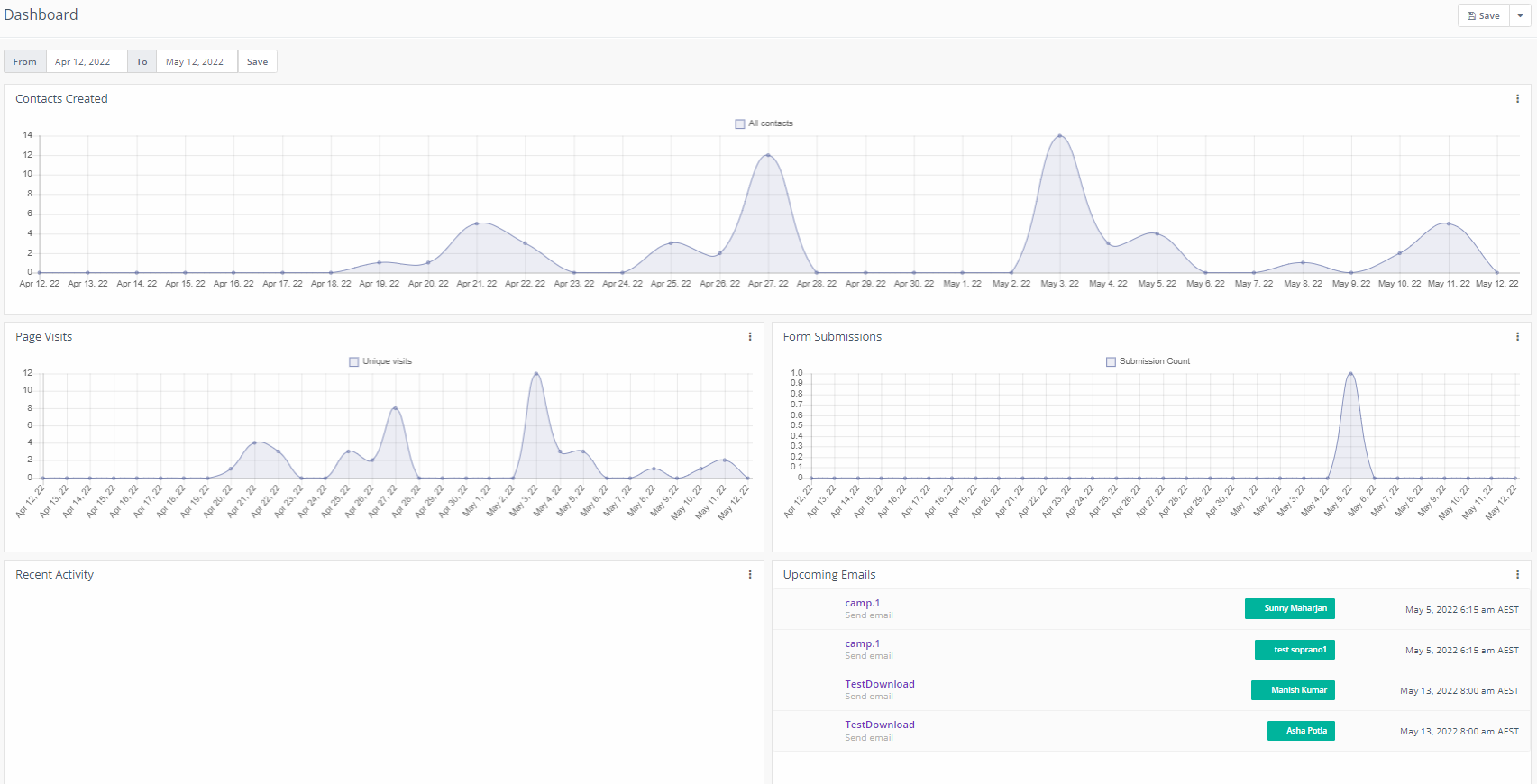
Note: Do not create too many widgets. It can slow down the dashboard page. If Users see performance issues, decrease the amount of widgets.
|
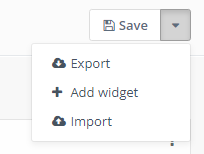
A new widget can be added to the dashboard when clicking on the "Add widget" button.
The "Add widget" form which appears after each widget will let you define:
•Name: Describe what the widget displays. If not filled, Advanced Emailer will call it by the same name as the widget type selected.
•Type: Select what information is to be displayed from the predefined widget types.
•Width: Select how wide the widget should be. The options are 25%, 50%, 75%, 100%. The default option is 100%. The optimal width for line charts is 100%, for tables 50%, for pie charts 25%.
•Height: Each widget can have different height. Five height settings are pre-defined. The dashboard will look best if you select a consistent height for each widget in the same row.
Some widgets have additional options:
Created contacts over time
•Show all contacts: Displays one line with all contacts created.
•Only identified: Displays one line with only contacts that are created and identified.
•Only anonymous: Displays one line with only anonymous visitors.
•All identified vs anonymous: Displays two lines with anonymous visitors and known contacts.
•Top segments: Displays up to six lines representing the number of contacts added to the top six segments. If no such segment exists for the selected date range, the chart will not be displayed.
•Top segments with Identified vs Anonymous: Displays up to six lines representing the top three segments for the selected date range. Each segment will show two lines with anonymous visitors and known contacts.
Emails in time
•Only sent emails: Displays a single line of sent emails.
•Only opened emails: Displays a single line of opened emails.
•Only failed emails: Displays a single line with failed emails.
•Sent and opened emails: Displays two lines with sent and opened emails.
•Sent, opened and failed emails: Displays three lines with sent, opened and failed emails.
Page visits in time
•Total visits: Displays a single line with all visits (page hits).
•Unique visits: Displays a single line with unique visits (contacts).
•Total and unique visits: Displays two lines with unique and all visits.
Widget re-ordering
Each widget can be moved on the dashboard using the drag and drop interface. Click and hold on the name of the widget to move it to another position.
Dashboard Export
Each dashboard, once configured, can be exported to a single file and shared with others. Users can create a backup, send it to a colleague or share it online. It exports only the widget configuration. The data which it pulls is not included in the exported file.
Dashboard Import
If Users export a dashboard, it can be uploaded and imported again back into the Dashboard Import page.
Advanced Emailer comes pre-loaded with 3 pre-defined dashboards. The one named default.json is imported automatically, when the dashboard does not contain any widgets. The other 2 predefined dashboards are provided as samples. Users can export and import any other dashboards and switch between them.
Pre-defined dashboards can be:
Previewed - This displays the dashboard widgets for preview. The dashboard will be loaded using the existing Mautic data. Nothing is saved or changed.
Applied - This sets the dashboard as the primary dashboard. *Note: Your current widgets will be deleted by this action! Export the current dashboard if User would like to go back to it at a later time.
Deleted - This deletes the predefined dashboard.
Widget Cache
The WidgetDetailEvent automatically caches the widget detail data for a period of time defined in the configuration. The default cache expiration period is 10 minutes.
Dashboard Permissions
If an Advanced Emailer user does not have the 'see others' or 'see own' permissions in their bundle, they will not be able to create widgets for that bundle. However, the widget can still be visible on their dashboard. For example; If a user creates a widgets after which the admin removes permissions for that bundle, or if a user imports a dashboard which has widgets for bundles they are not permitted to access, the widget is displayed on the dashboard, along with a message that the user does not have permission to see the data.
If an Advanced Emailer user has permission to see only their own data from a bundle, they will see only their own data in the Dashboard widgets. For example ; only contacts which they own, page hits from pages they created etc.