|
<< Click to Display Table of Contents >> Advanced Emailer - Companies |
  
|
|
<< Click to Display Table of Contents >> Advanced Emailer - Companies |
|
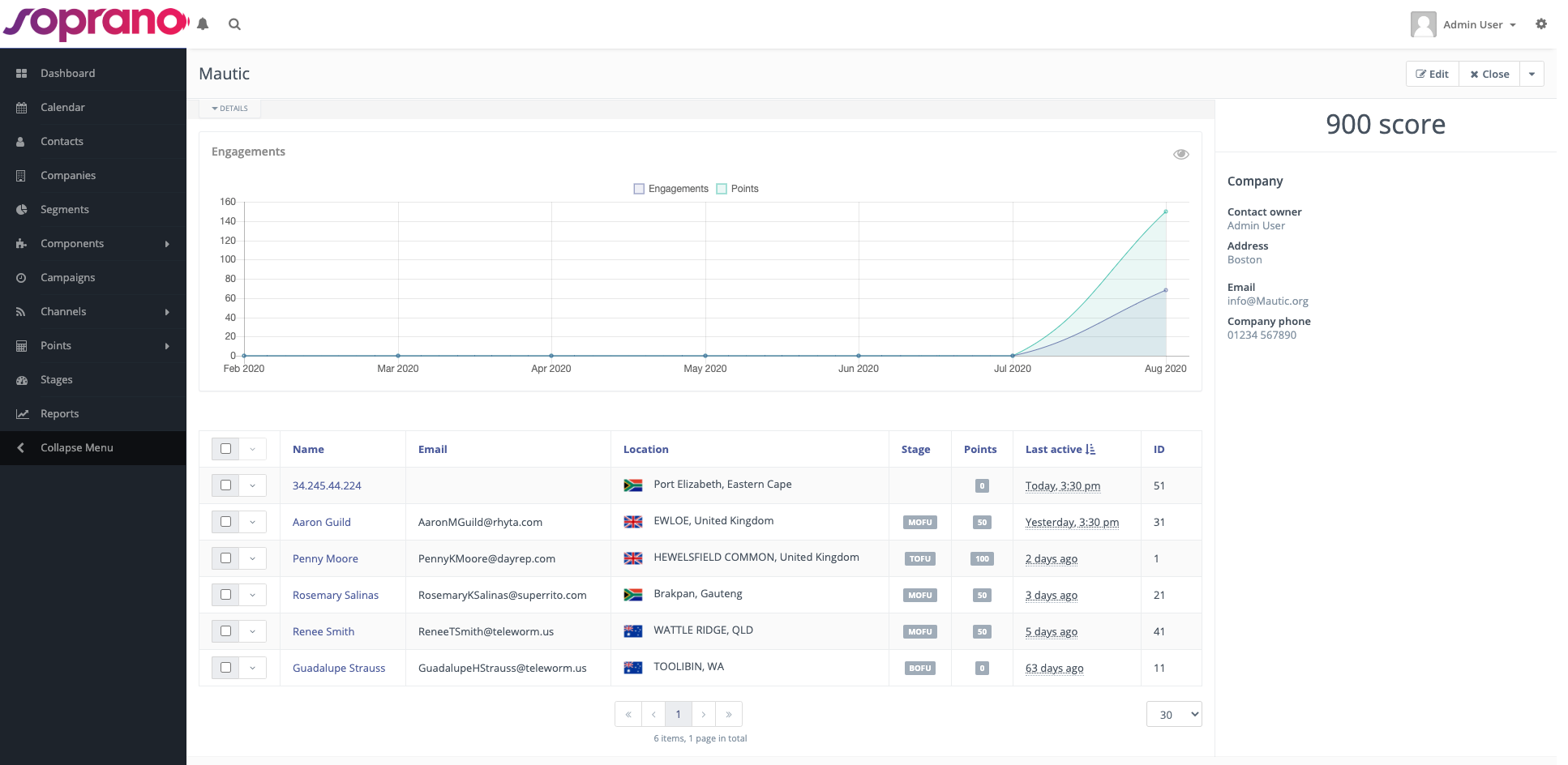
Companies are a way to group contacts based on the company(ies) the contact is assigned to. Every Company configured within MEMS has it's own page to lay out all of the Company's details.
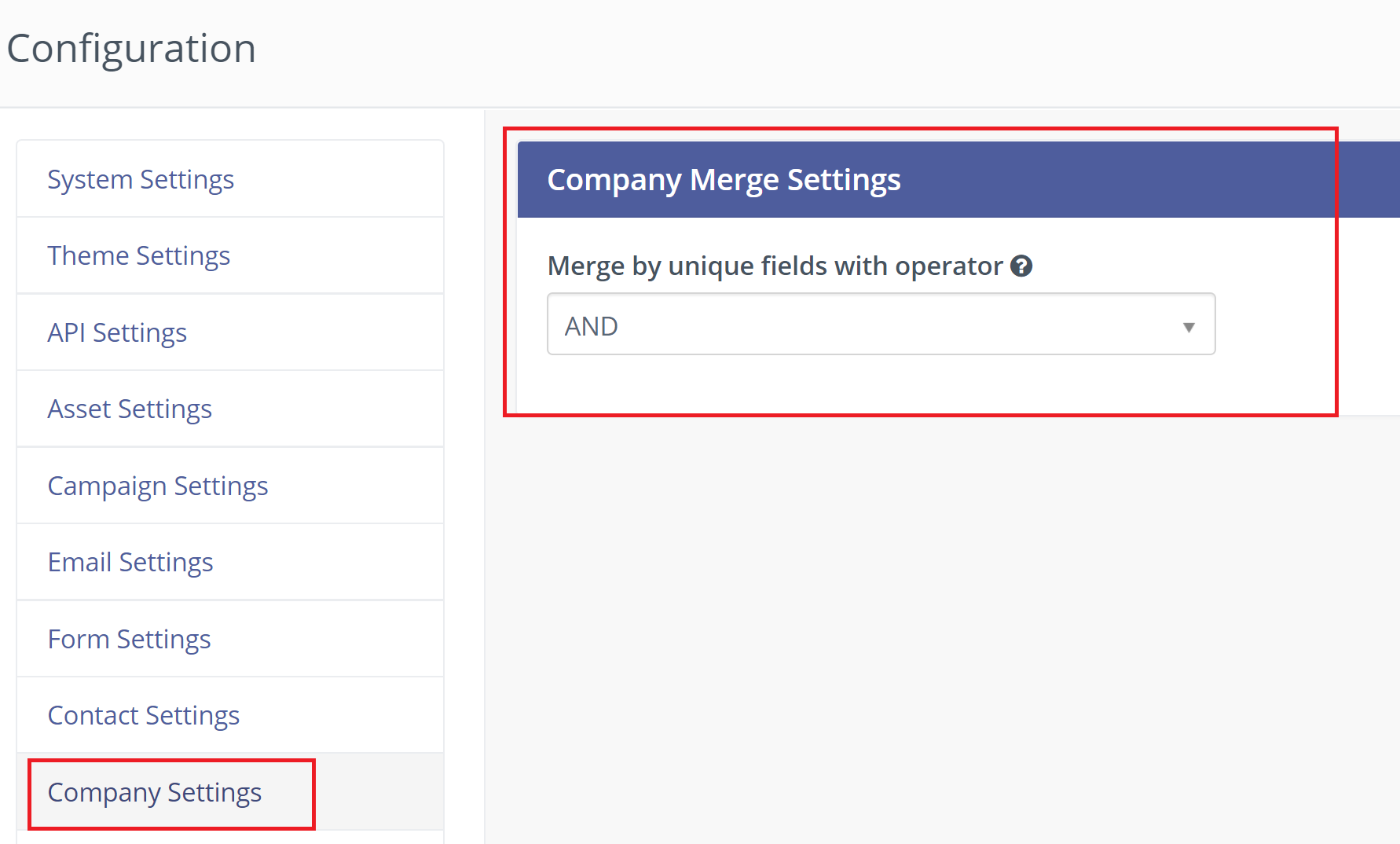
These settings allow Advanced Emailer to find and merge duplicate companies during import, using the integrations framework and in other parts of Advanced Emailer.
Actions performed on Company:
Merging Companies
When editing a company, Users can merge this company into another existing company via the Merge button.
Search for the company to merge into and the fields from the current company that are not populated in the selected company will be copied to the selected company. Contacts that are not in the selected company will also be transferred.
After the current company has been merged into the selected company, you will be redirected to the selected company and the old company will be deleted from the database.
Company Custom Fields
With Advanced Emailer's installation, a set of custom fields are provided for companies, but Users can customize these fields to their needs.
• Navigate to Custom Fields and create any company field Users need.
• in the right hand side, select the box to assign this field to the 'Company'.
Company Segments
Users can create a segment based on a company record. Select any company field to filter with and the matching criteria for it with the contacts that match any company filtered that might be added to the segment.
Identifying Companies
Companies are identified strictly through a matching criteria based on Company Name, City, Country (and/or State). If city or country are not provided as identifying fields to identify a contact, a company will not be matched or created.
Campaign Company Actions
A contact can be added to a new company based on a campaign action.
Create/Manage Companies
To create or manage companies, navigate to the companies menu identified by the building icon. In this area Users can create, edit or delete companies.
Assigning Companies to Contacts
There are different ways to assign a company to a contact.
Contact's Profile
You can assign a contact to companies in the contact's profile page when creating or editing an existing one. The latest company assigned will be treated as the primary company for the contact.
Contacts List View
You can batch assign companies to selected contacts in the contact's list view.
Through a Campaign
You can assign a company to identify contacts through a campaign by selecting the 'Assign contact to company' action.
When Identifying a Contact Through a Form
If a contact is identified through a form, a company can also be identified/created if:
• Company name is selected as a form field (mandatory for company matching/creation).
• City is selected as a form field (mandatory for company matching/creation).
• Country is selected as a form field (mandatory for company matching/creation).
• State is selected as a form field (optional for company matching/creation).
Company Scoring
A company's score can be changed through a campaign action or a form action. When one of these actions is selected, a contact must first be identified, and the companies assigned to that contact will have their score changed.
Select contact's Change company score action either through a form or a campaign.
Once a form is submitted or a campaign is triggered it will identify companies within the campaign or form to change its score.
Setting Primary Company
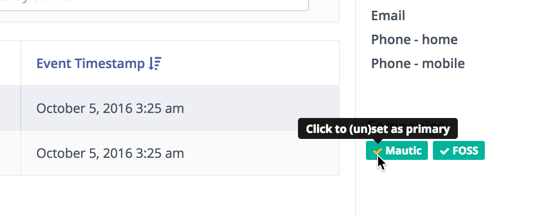
Set a primary company through the Contact Details page (shown below).