|
<< Click to Display Table of Contents >> Working with Contacts |
  
|
|
<< Click to Display Table of Contents >> Working with Contacts |
|
SOPRANO GAMMA utilises the SOPRANO MEMS Address Book. The process for maintaining contacts, groups and lists is consistent across the platform. A personal contact record is automatically created when your user record is created in the SOPRANO GAMMA web portal by an Administrator.
To learn more about Contacts, Groups and Lists, click here - Address Book - Contacts, Groups and Lists. Your contact list is where all of the contacts available to you live in the app. GAMMA offers extra features to help you manage your contacts list.
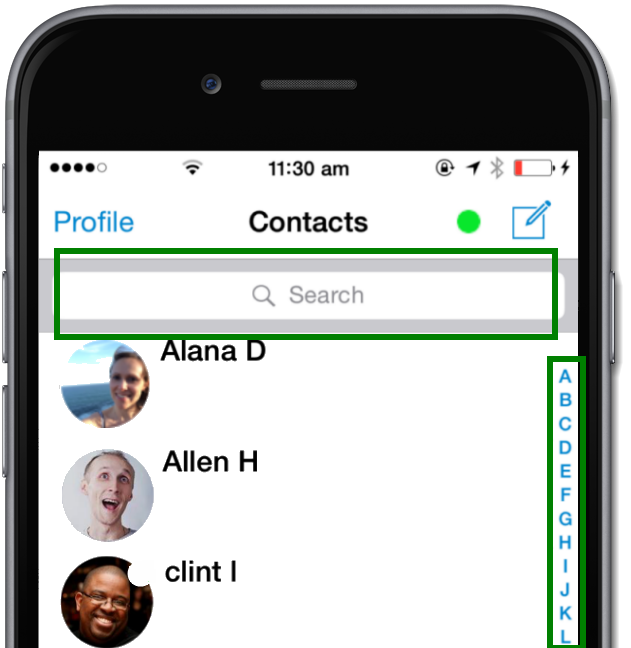
Search Contacts - In the Contacts screen, use the alphabet scroll bar or the search bar at the top of the list to find the contact you're after.
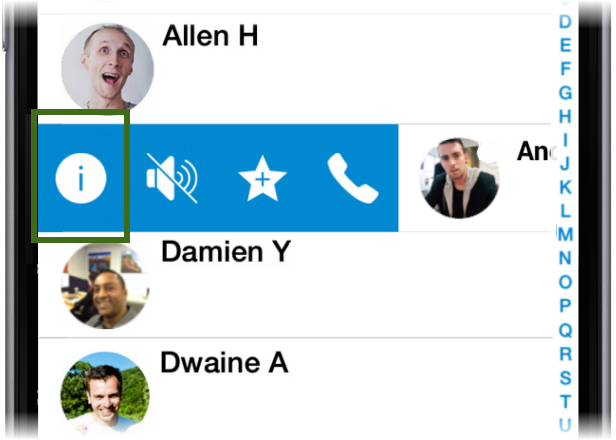
View Contact Details - Once you've located the contact, swipe right to bring up the swipe controls and press the 'i' icon.
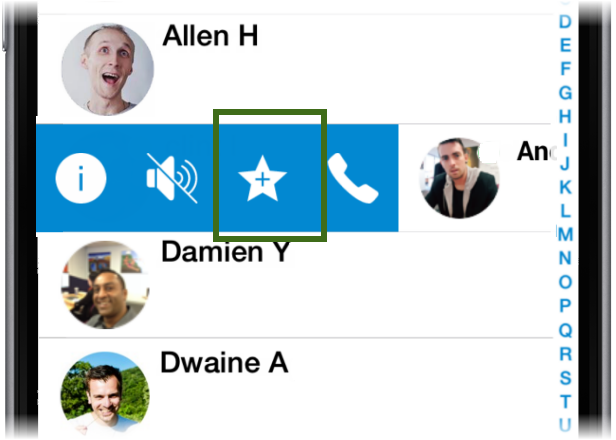
Add/Remove Contact from Favourites - Once you've located the contact, swipe right to bring up the swipe controls and press the star icon.
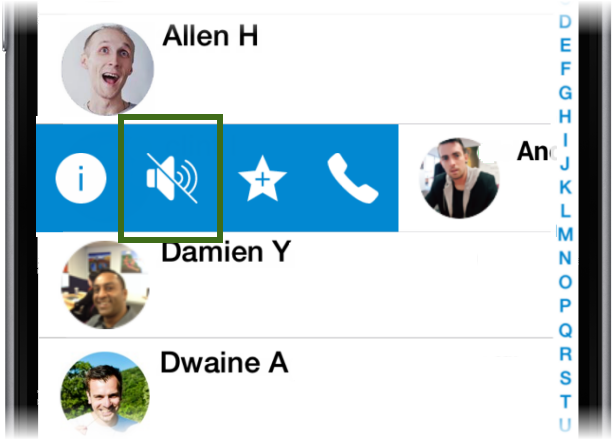
Mute/Unmute - Once you've located the contact, swipe right to bring up the swipe controls and press the mute icon. The mute icon will appear to the right of the contact. To unmute, swipe right on the contact and press the mute icon again.
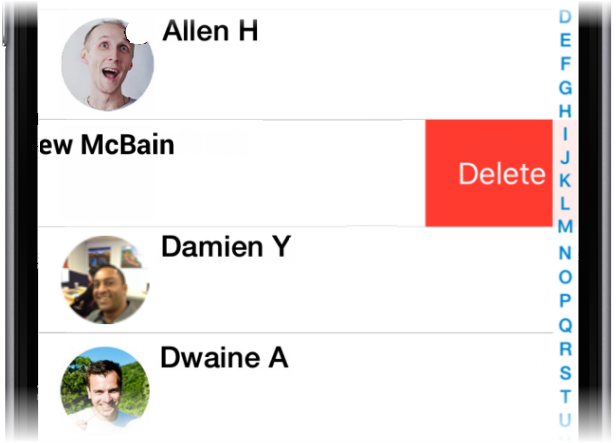
Delete Contacts - Once you've located the contact, swipe left to bring up the delete button. Tap the delete button. This stops a contact from displaying in your app, but they will still appear if you start entering their number when creating a new message using the New Message function.
|
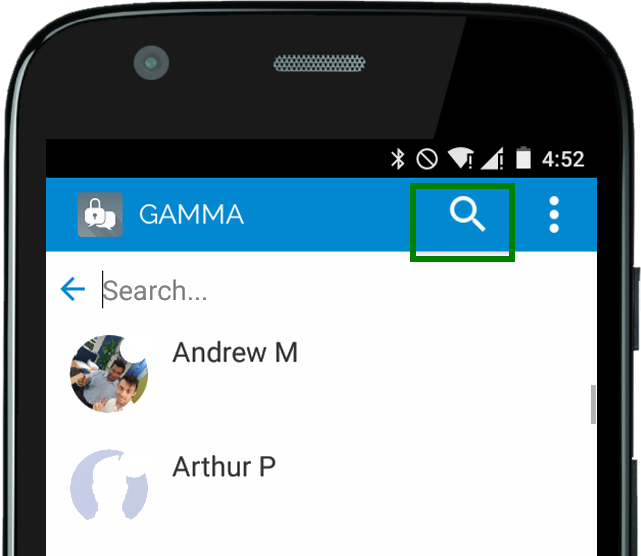
Search Contacts - Use the magnifying glass at the top of the screen to bring up the search bar and search for a contact.
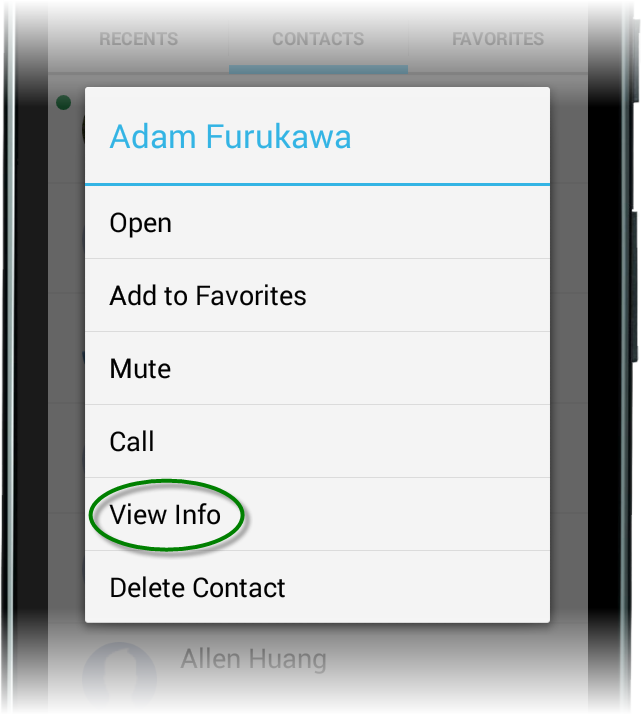
View Contact Details - Once you've located the contact, tap and hold (long press) on the contact to bring up the menu, then select View Info.
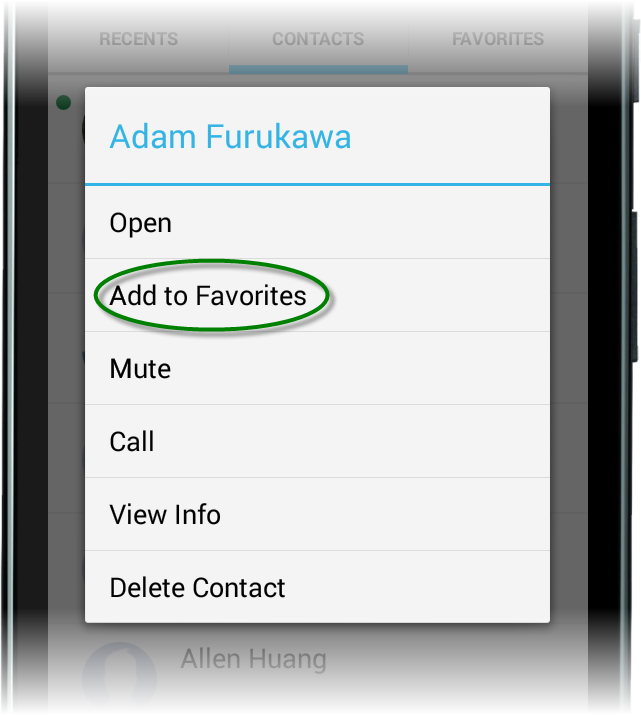
Add/Remove Contact from Favourites - Once you've located the contact, tap and hold (long press) on the contact to bring up the menu, then select Add to Favourites/Remove from Favourites.
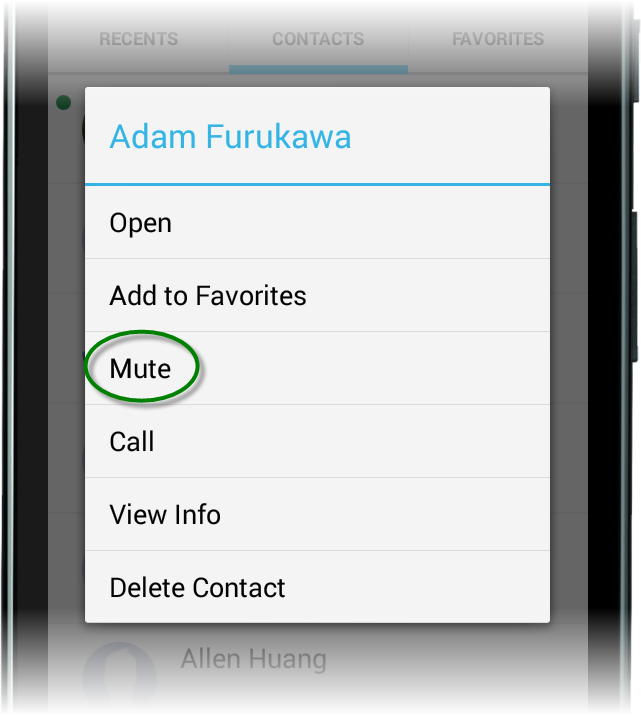
Mute/Unmute - Once you've located the contact, tap and hold (long press) on the contact to bring up the menu, then select Mute. The mute icon will appear to the right of the contact. To unmute, tap and hold (long press) on the contact and select Unmute from the menu.
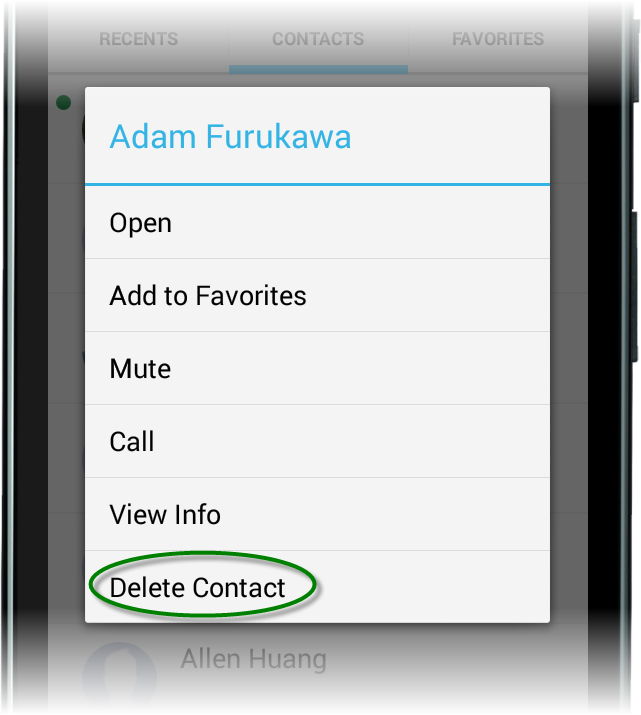
Delete Contacts- Once you've located the contact, tap and hold (long press) on the contact to bring up the menu, then select Delete. This stops a contact from displaying in your app, but they will still appear if you start entering their number when creating a new message using the New Message function.
|
Finding a contact
iOS |
Android |
In the Contacts screen, use the alphabet scroll bar or the search bar at the top of the list to find the contact you're after.
|
Use the magnifying glass at the top of the screen to bring up the search bar and search for a contact. |
|
|
The following commands work on any tab - Contacts, Recents, or Favourites.
Viewing contact details
iOS |
Android |
Once you've located the contact, swipe right to bring up the swipe controls and press the 'i' icon.
Note : Contacts do not display the most recent messages and only their names and numbers are displayed. |
Once you've located the contact, tap and hold (long press) on the contact to bring up the menu, then select View Info.
Note : Contacts do not display the most recent messages and only their names and numbers are displayed. |
|
|
Add/Remove a contact from your FavouriteS
iOS |
Android |
Once you've located the contact, swipe right to bring up the swipe controls and press the star icon. |
Once you've located the contact, tap and hold (long press) on the contact to bring up the menu, then select Add to Favourites/Remove from Favourites. |
|
|
Mute/Unmute a contact
iOS |
Android |
Once you've located the contact, swipe right to bring up the swipe controls and press the mute icon. The mute icon will appear to the right of the contact. To unmute, swipe right on the contact and press the mute icon again. |
Once you've located the contact, tap and hold (long press) on the contact to bring up the menu, then select Mute. The mute icon will appear to the right of the contact. To unmute, tap and hold (long press) on the contact and select Unmute from the menu.
|
|
|
Delete a contact
iOS |
Android |
Once you've located the contact, swipe left to bring up the delete button. Tap the delete button. |
Once you've located the contact, tap and hold (long press) on the contact to bring up the menu, then select Delete. |
|
|
This stops a contact from displaying in your app, but they will still appear if you start entering their number when creating a new message using the New Message function.