* Expand the below topics to read further
New WhatsApp - Summary
The WhatsApp Summary is a section to enter a basic Title and Description to your WhatsApp Order.
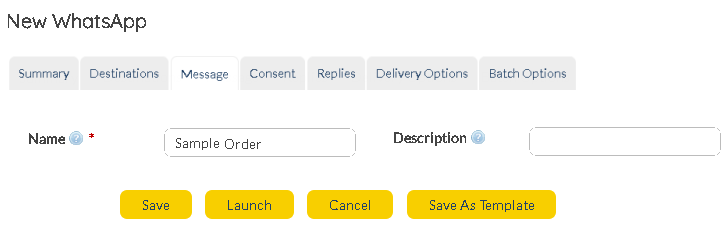 New Whatsapp Summary Details |
New WhatsApp - Destinations
Users can include recipients to the WhatsApp Order. Either enter the destination (Contacts/ Groups / Lists) details manually or use the  to load a pre-loaded Contact / Group / List. to load a pre-loaded Contact / Group / List.
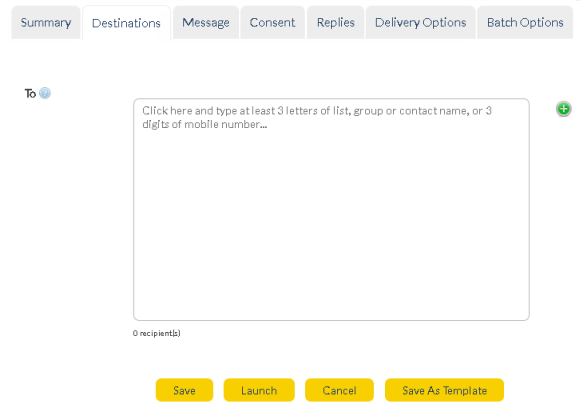 New Whatsapp Order Recipient |
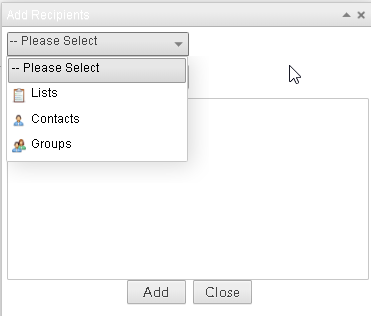 Add Contacts/Groups/Lists |
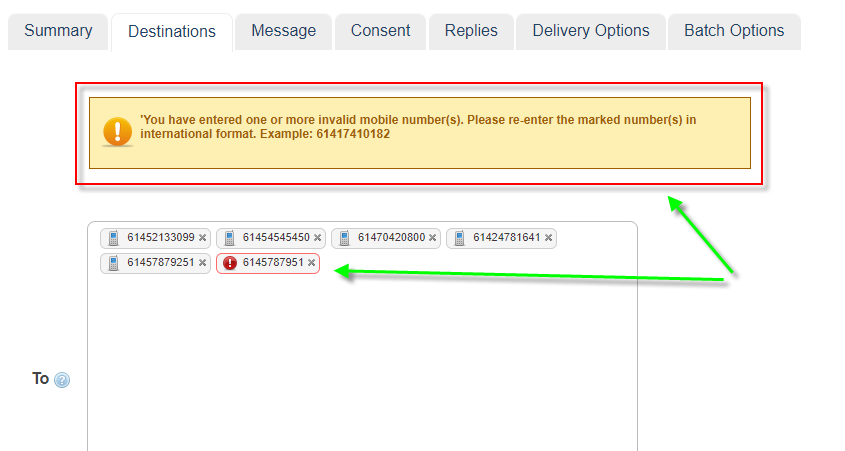
Anytime, a User enters an invalid mobile number, they are provided with a warning message prompting the User to re-enter a valid mobile number.
|
|
New WhatsApp - Message
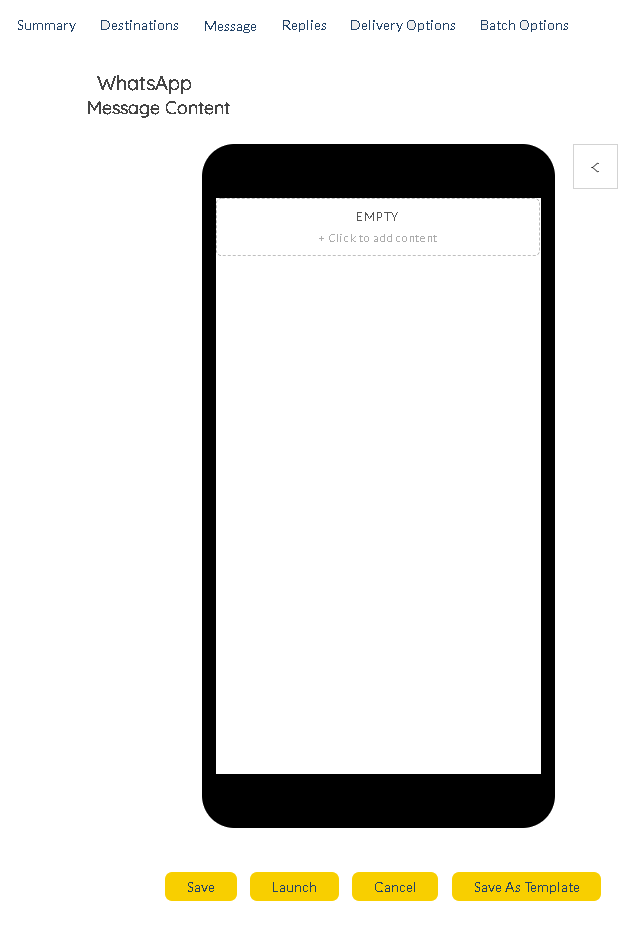
Once Users decide the recipients, proceed to create the message using the HTML builder provided.
This is the work space to build your WhatsApp Message
 HTML Builder |
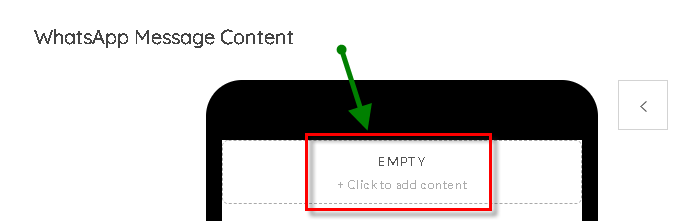
Select the "Click to add Content".
 click to add content |
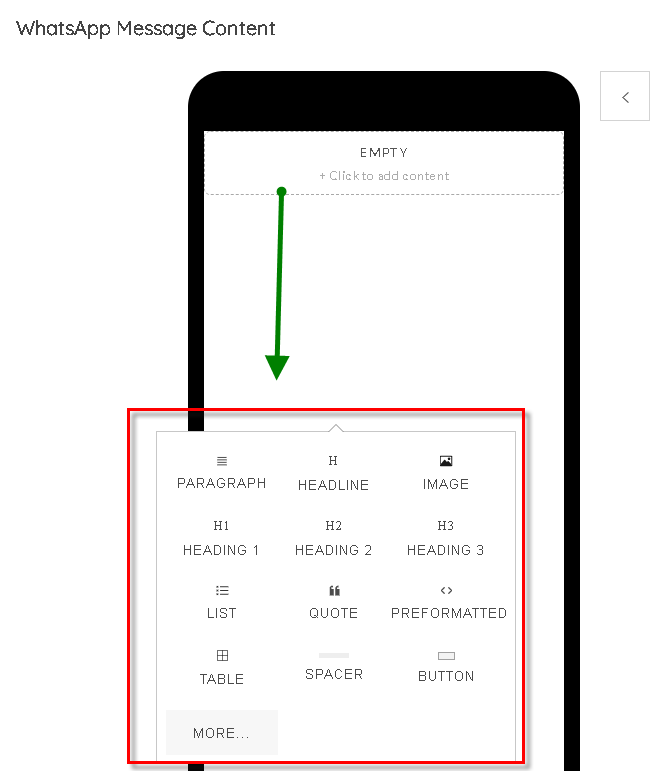
Choose and add a variety of custom content.
|
WhatsApp message drag-and-drop options button is highlighted below.
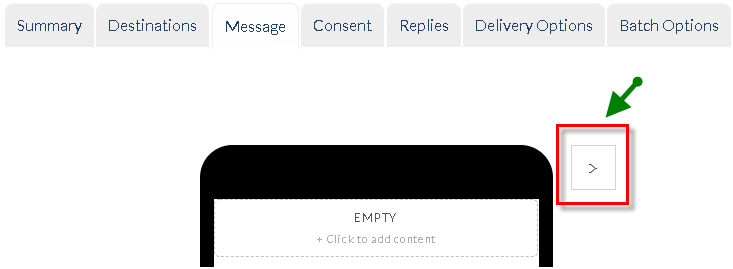 HTML Builder Template Button |
Note: WhatsApp Cards provide Users with the ability to hit enter and create a "new line". This helps with formatting and alignment.
|
|
The options available as Cards, allow MEMS WhatsApp Users to customize their messages as per their requirement.
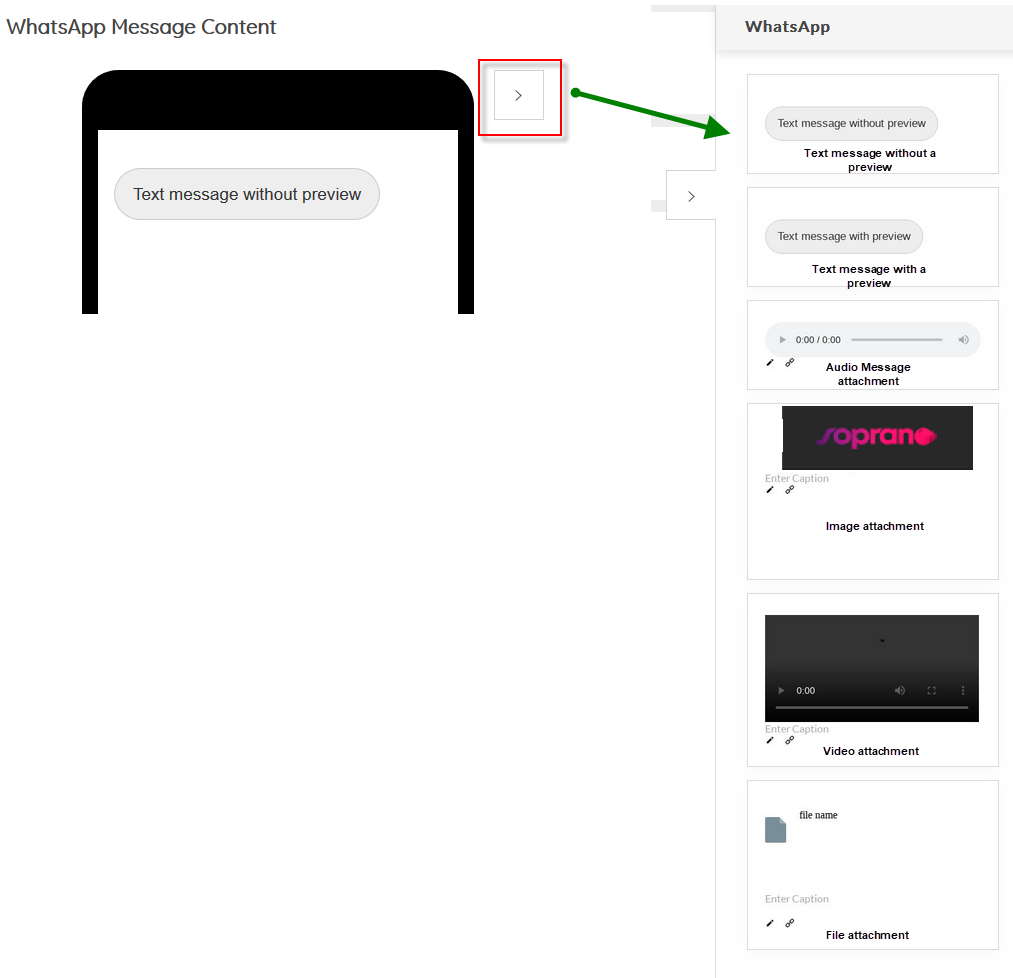
The Audio, Video, Image and File attachments allow Users to attach custom images and attach images via URLs.
When including plain text content, Users can press "Enter" on their keyboard twice to induce a newline formatting.
Mailmerge feature is available to be used within the Text Box field and attachment captions.
|
New WhatsApp- Consent
Similar to other applications in MEMS, WhatsApp provides the options to user to either opt-in / opt-out from receiving messages.
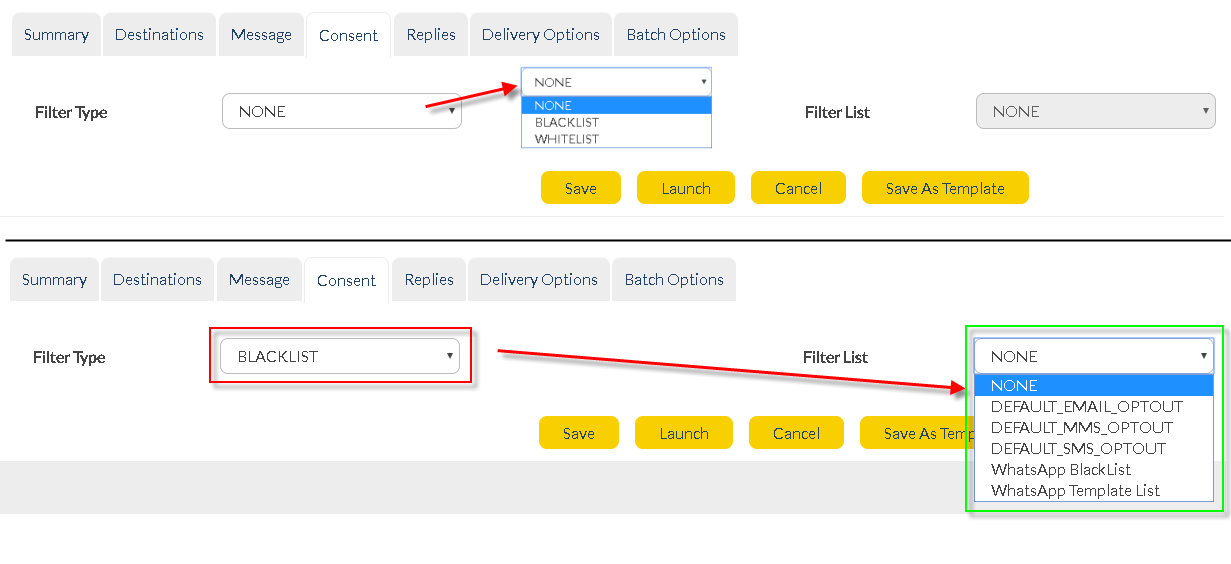
once you've chosen the type of filter (BLACKLIST / WHITELIST) you are presented with the lists that you have pre-loaded into SOPRANO MEMS.
|
New WhatsApp - Replies
Users can choose how they wish to receive replies from customers. Choose from one of the below options. Once chosen, enter an appropriate Reply To Address.
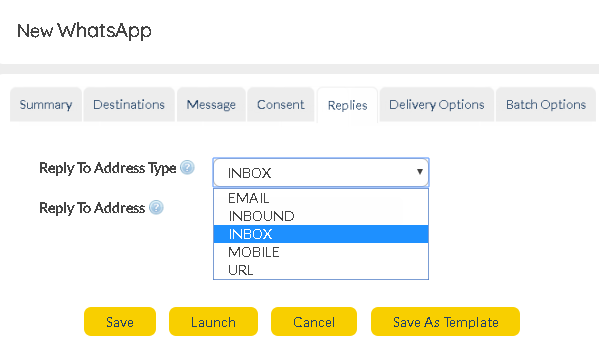 New Whatsapp Replies |
New WhatsApp - Delivery Options
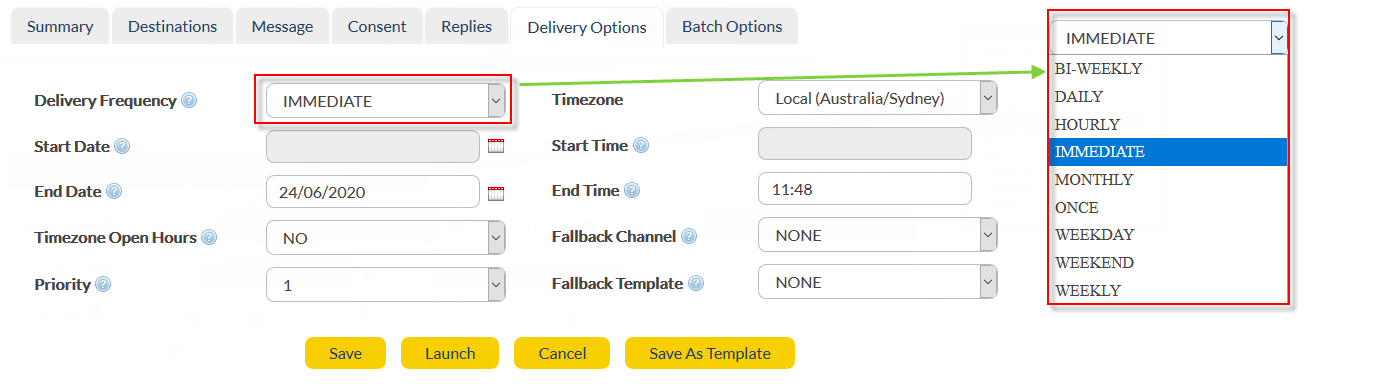
Delivery Frequency
|
Choose how frequent the WhatsApp Orders are delivered, from one of the options available (as displayed).
|
Timezone
|
Based on your customer locations, assign an appropriate Timezone.
|
Start / End Time
|
Choose a suitable time frame to send out the Orders
|
Start / End Date
|
Choose a suitable date frame to send out the Orders
|
Timezone Open Hours
|
Choose this option to make sure the WhatsApp Orders are not delivered during off-hours (after work, nights etc.)
|
Priority
|
Pick an appropriate priority for your WhatsApp Order
|
Fallback Channel
* To access the SMS Fallback feature, Users are requested to purchase the appropriate license.
|
Under the circumstances where customers do not have access to WhatsApp and it's features, it is possible to setup MEMS in such a way that they still receive the same messages in the form of SMS messages.
*Note: When the recipient cannot receive WhatsApp orders, the delivery receipt is in SMS format :
id:nnnnnnn sub:SSS dlvrd:DDD submit date:YYMMDDhhmm done date:YYMMDDhhmm stat:*UNDELIV* err:E Text: . . . . . . . . .”
|
Fallback Template
|
Similar to other channels, Users can configure specific templates to be called upon to be used in case a Fallback scenario is needed.
|
Note: Fallback message progression and usage can be viewd inthe Order Summary Statistics page.
|
New WhatsApp - Batch Options
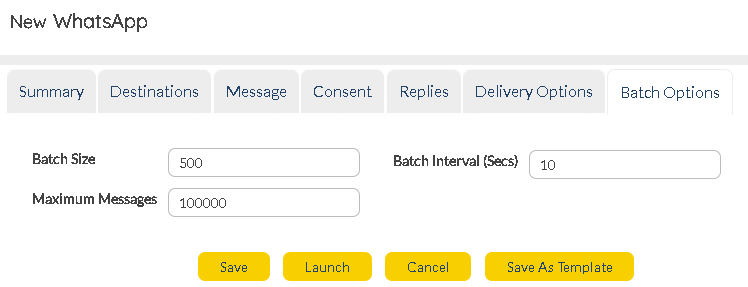 Batch Delivery Options
Enter appropriate batch delivery options.
Batch Size
|
Edit the batch size here.
|
Batch Interval
|
Edit the interval between batches here.
|
Maximum Messages
|
This feature is useful if you are not sure how many recipients there are in a list but you want to limit the number of messages sent so that you don’t exceed your broadcast budget
|
|
New WhatsApp - Launch Options
Once all the above steps have been completed, Users can use any of the launch options below.

|
Save the WhatsApp Order
|
|
Launch your WhatsApp Order
|
|
Cancel and re-start framing the Order
|
|
Save your WhatsApp Order as a Template if this would be a regular Order sent to recipients.
|
|
New WhatsApp - Order Statistics
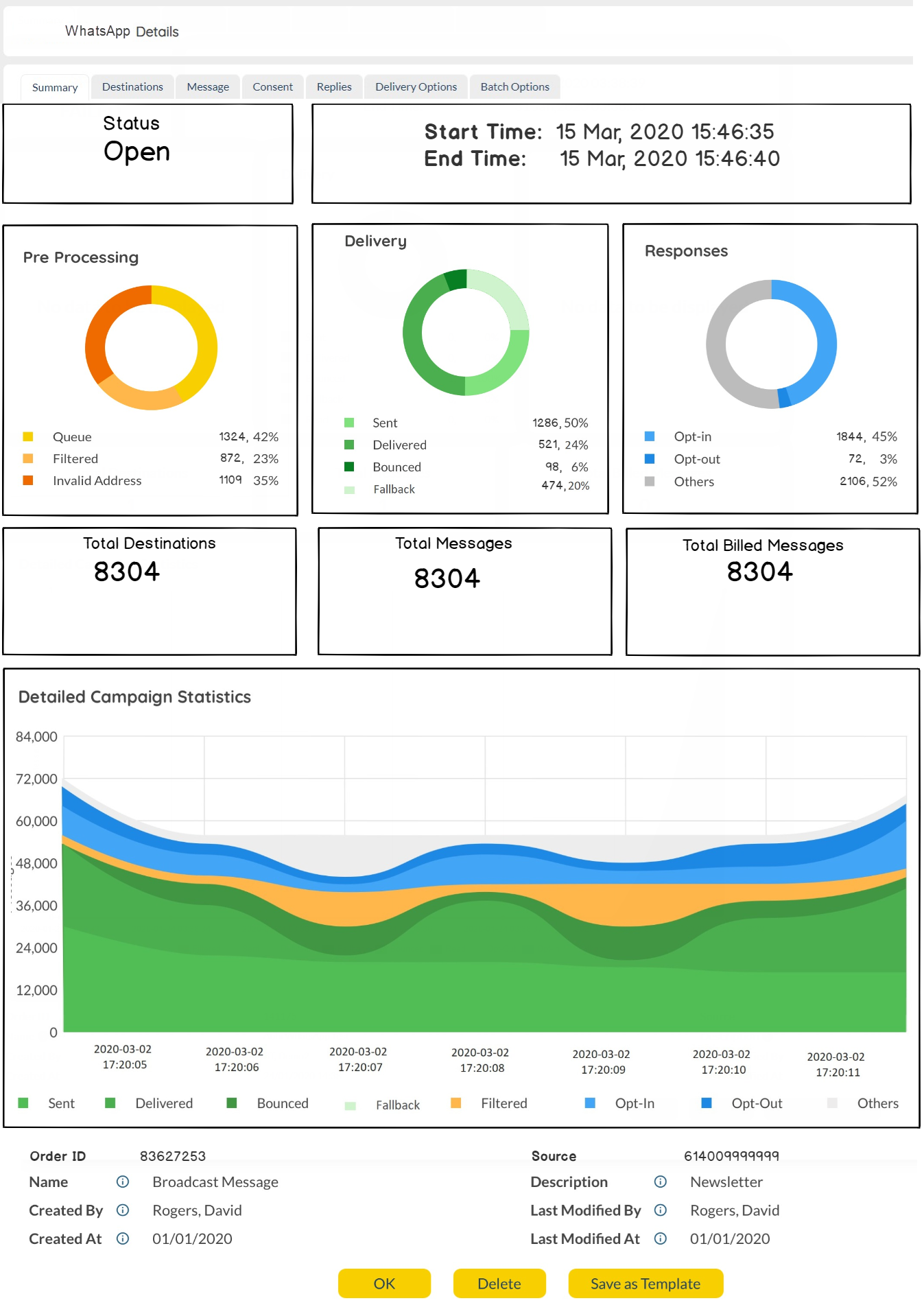
After sending out the WhatsApp Order, the Users are presented with some statistical charts that provide some valuable insights.
The chart presented with other statistics provides details like if the Order was Delivered, Bounced or Failed with precise time stamps.
|
Customers receiving WhatsApp Orders from Users can choose to respond back accordingly. These responses can be tracked in the Reports section by choosing message type as WhatsApp.
WhatsApp - Rich Media Limitations
WhatsApp - Template
WhatsApp - Preferences