|
<< Click to Display Table of Contents >> Portal Settings - Marketplace (beta) |
  
|
|
<< Click to Display Table of Contents >> Portal Settings - Marketplace (beta) |
|
Note:
Do not manually install plugins you see as they may not work with your version of Advanced Emailer. Always verify if the plug-ins is supported in the current version of Advanced Emailer, before installing. Developers can refer to the Developer Documentation on how to make the plugin compatible with the Advanced Emailer Marketplace.
Enabling the Advanced Emailer Marketplace
A setting in the Advanced Emailer Configuration specifies that the instance uses Composer, which allows the installation, update, and removal of plugins in the Advanced Emailer Marketplace. This is a requirement due to the technology which underpins the Advanced Emailer Marketplace.
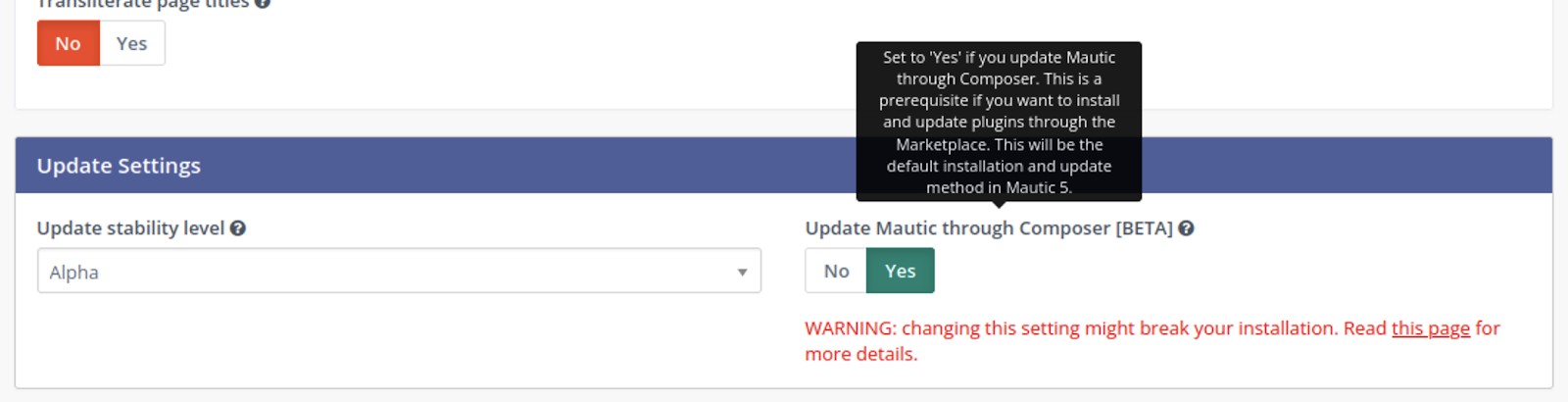
Once configured, Users can search the marketplace using the filter, and install plugins by selecting the option from the dropdown.
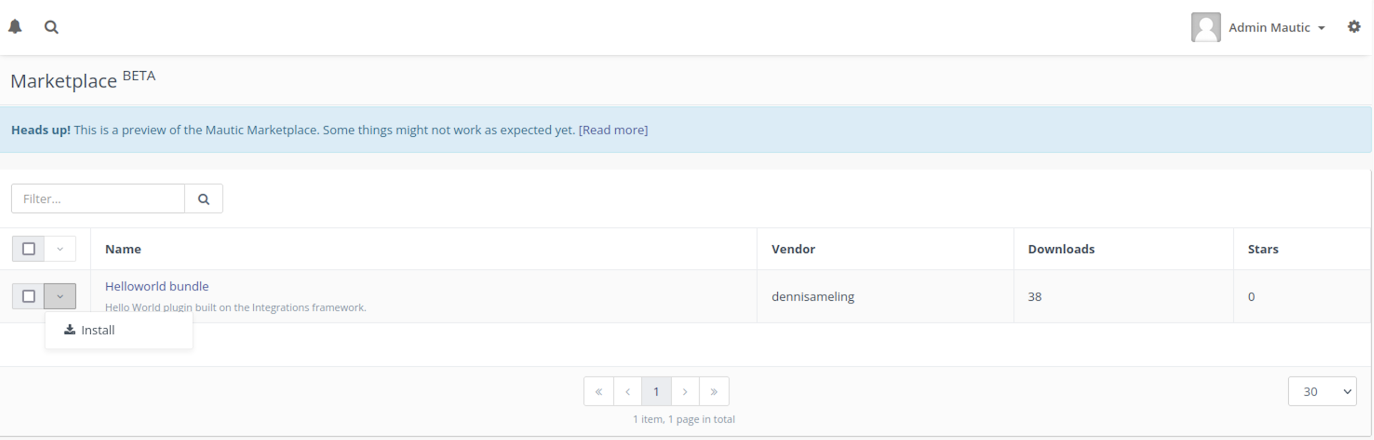
If Users have not correctly set the Composer setting, Advanced Emailer displays a warning that the Advanced Emailer Marketplace is available in read-only mode, with a link which explains how to transition to a Composer-managed installation.
List of Plugins
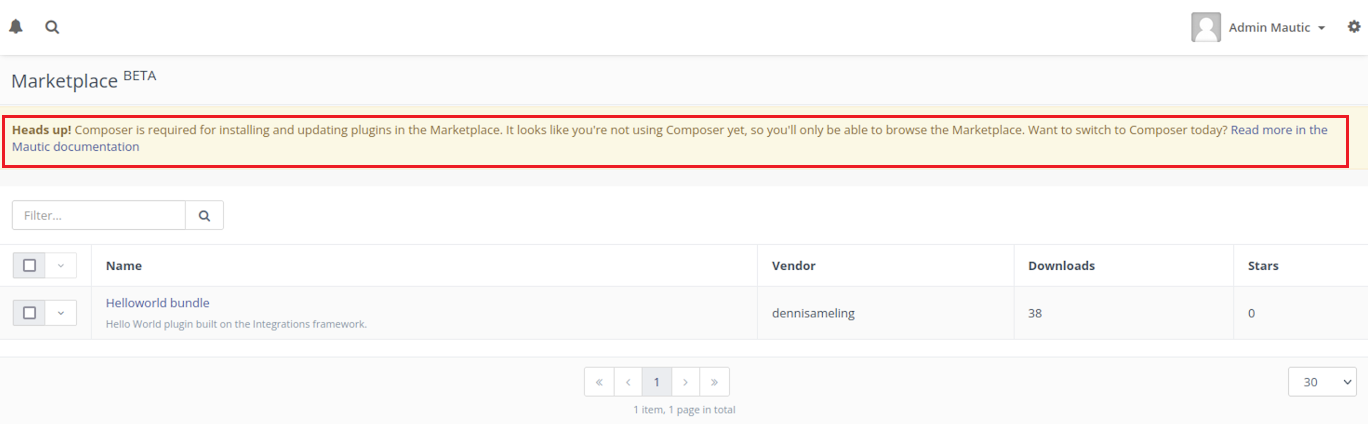
The list of Plugins available in the Marketplace is accessible from User's Advanced Emailer administration menu. Click the  icon in the top right hand corner to display the menu.
The list view allows Users to search for specific keywords. It displays quick stats including Plugin downloads and how many stars it has in Packagist. It also shows the vendor has developed the plugin. However, sorting by columns is not available at the moment because it's not supported by the Packagist API. Click a Plugin name to view details.
Plugin Detail Page
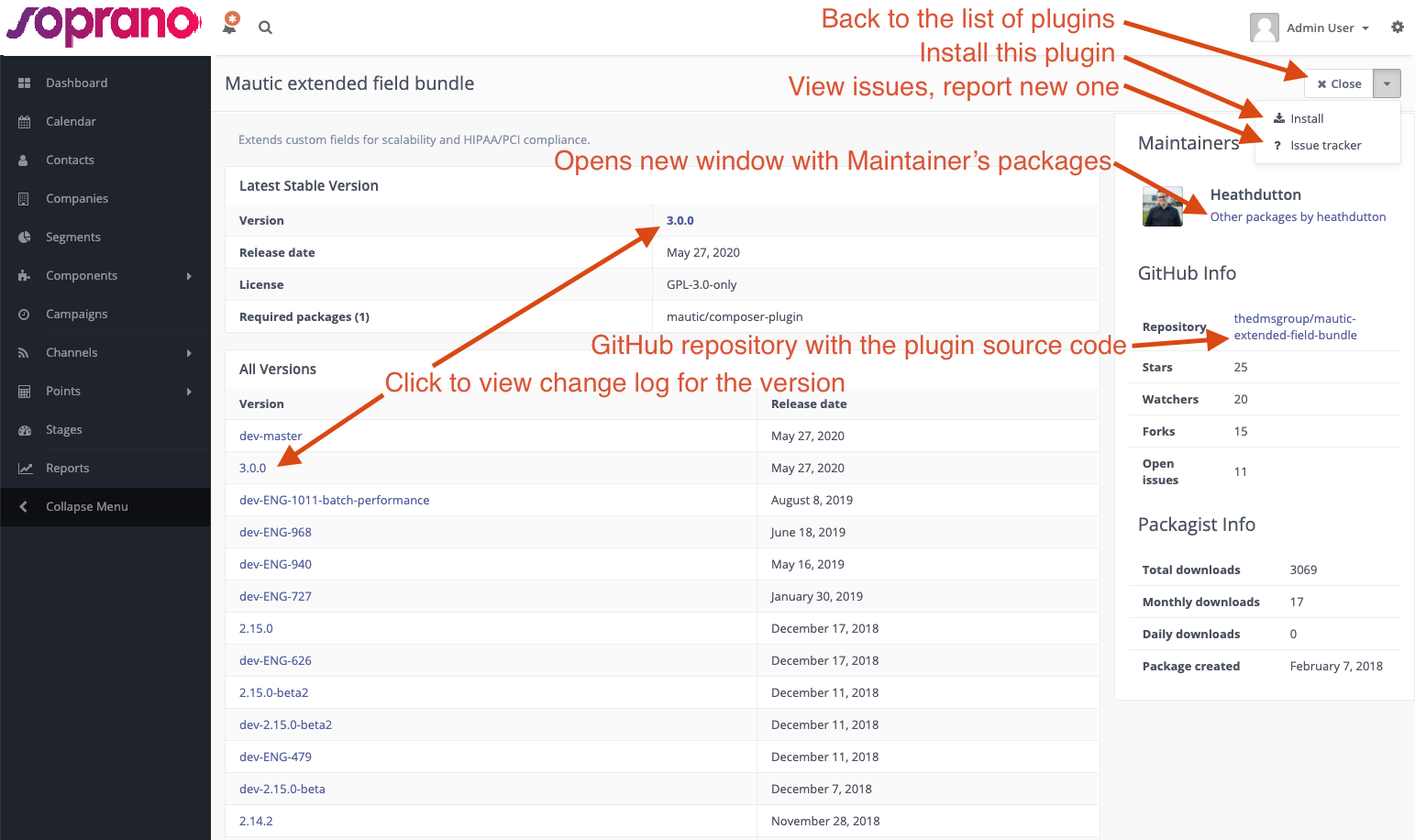
The detail page gives Users enough information together with links to additional resources to decide whether Users want to install the Plugin or not.
Latest Stable Version
The first information Users see is the latest stable version. This includes the currently installed (if any) version and the ability to upgrade.
All Plugins should follow semantic versioning so Users can see from the first glance whether it is a breaking change version, feature version or bug fix (patch) version. In short, it is more risky to install breaking change versions and less risky to install a bug fix version.
The license should be GPLv3 mostly as Advanced Emailer uses this license, and is it a viral license. This means anything using Advanced Emailer's code base should also use the same license.
Required packages are dependencies. The bigger the list of dependencies, the bigger the size of the Plugin. More dependencies also translates to more security risks and incompatibility issues with future upgrades.
All Versions
The next table few headings below, shows the list of all versions.
From the list, Users can see Plugin versions, and the release cadence. When clicking a specific version, a new window opens where the Plugin Maintainers should provide a changelog. This tells you what has been added or bugs fixed in the specific version.
Maintainers
In this section is a list of maintainers of the Plugin on Packagist. There may be more contributors in the GitHub repository. There is also a link to the maintainer's Packagist detail page where Users can browse other PHP packages by the same maintainer.
GitHub Information
GitHub is where many developers host their code. The majority of Advanced Emailer Plugins are available on GitHub. There are some stats available directly in this location, but you can find more if you follow the link to the repository.
Packagist Information
Packagist is a PHP package repository. It's not related specifically to the Advanced Emailer Community, but to the PHP community.
All the PHP packages listed in Packagist are installable by Composer which is a tool for dependency management used when Users install an Advanced Emailer Plugin. The Packagist section shows download stats of Plugin installations in different time frames.
Context Menu
The context menu shows actions Users can take.
•Close - takes Users to the List View
•Install - installs the Plugin
•Issue Tracker - opens a new window with the issue tracker for the Plugin. It shows only if the Plugin has this information available. Use this option to search for issues with the Plugin and to report new issues to the maintainers.
CLI Command
The Marketplace has commands for Users that prefer using the command line to the user interface, or for automation of processes.
List Plugins
bin/console mautic:marketplace:list lists first page of available Plugins like so:
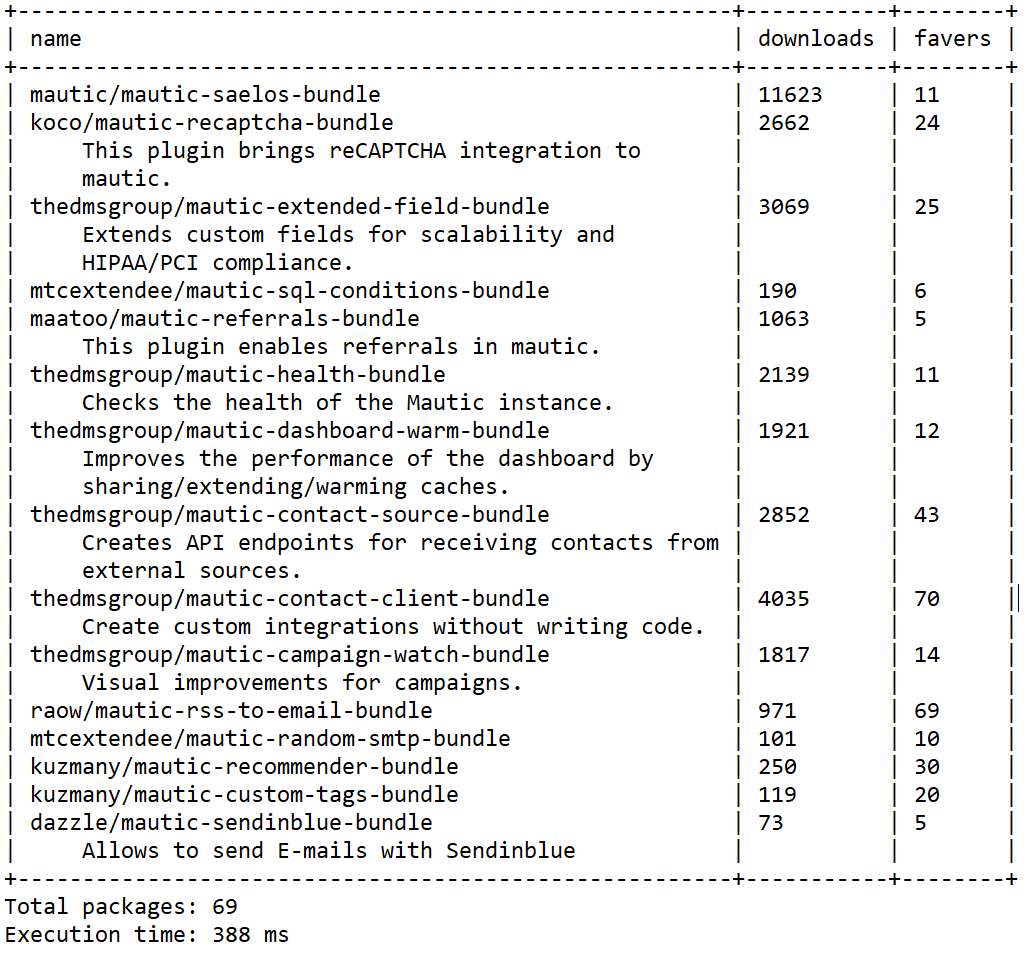
There are options allowing Users to filter or go to next pages. To display the full list, add --help after the command, as used in other Advanced Emailer commands.

Example usage how to search for a Captcha Plugin: bin/console mautic:marketplace:list --filter=captcha
How to get the plugin listed on the Mautic Marketplace
Review the resources on the Developer Documentation for more information.