|
<< Click to Display Table of Contents >> Portal Settings - Custom Fields |
  
|
|
<< Click to Display Table of Contents >> Portal Settings - Custom Fields |
|
The Custom Fields page will let Users view all existing Contact fields as well as any custom contact fields that have been created.
Access the Custom Fields section via the Admin Settings access button  to the top right.
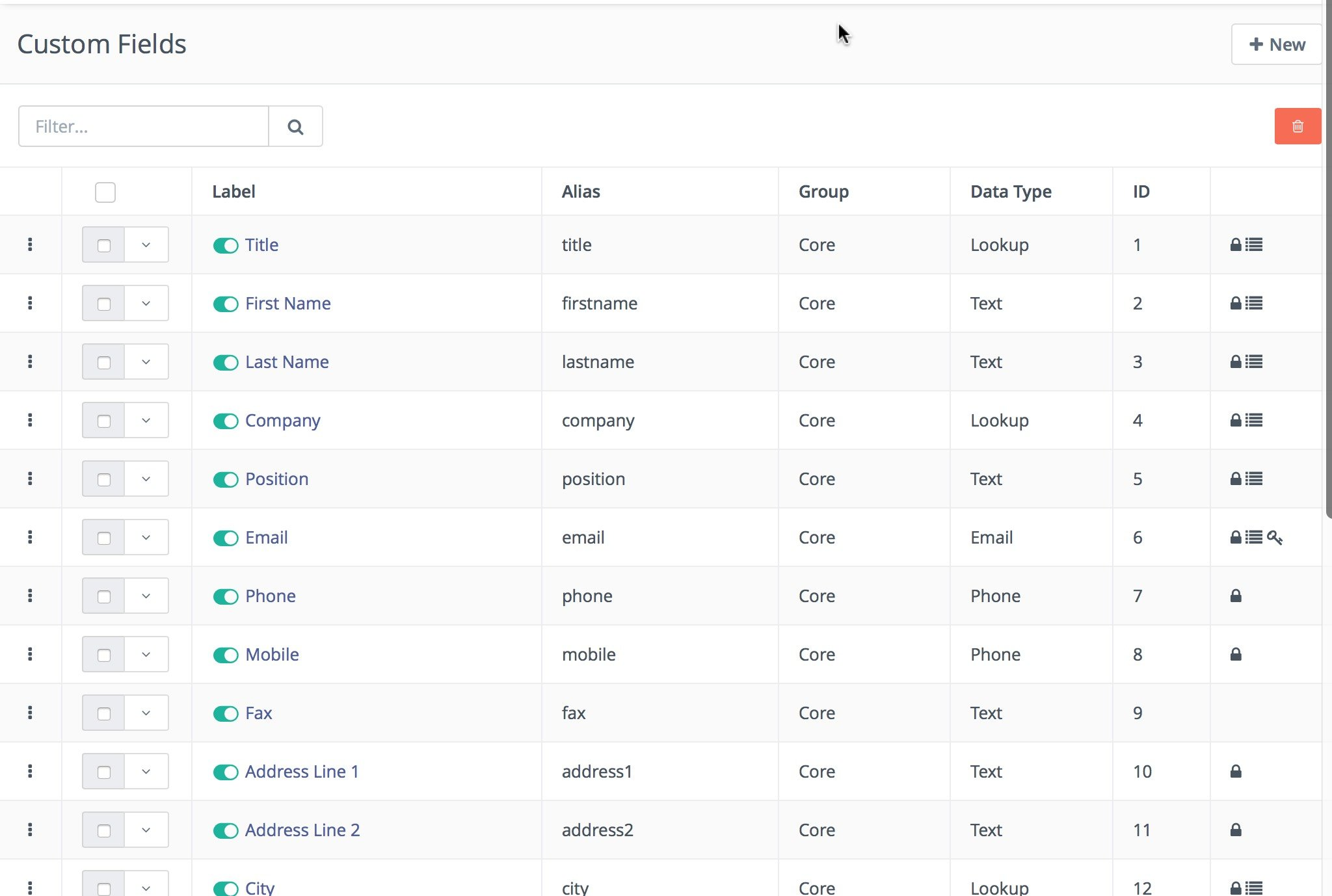
Users will notice the group column that shows where the specific field will be shown on the Contact profile. In the last column, Users may see several icons which signify various properties of the field:

1.Lock icon - These fields are unable to be removed as they are used by the core installation.
2.List icon - These fields can be used as filters of segments.
3.Asterisks icon - These fields are required when filling in the contact form.
4.Globe icon - These fields can be publicly updated through the tracking pixel URL query (see Contact Monitoring for more details).
Published Fields
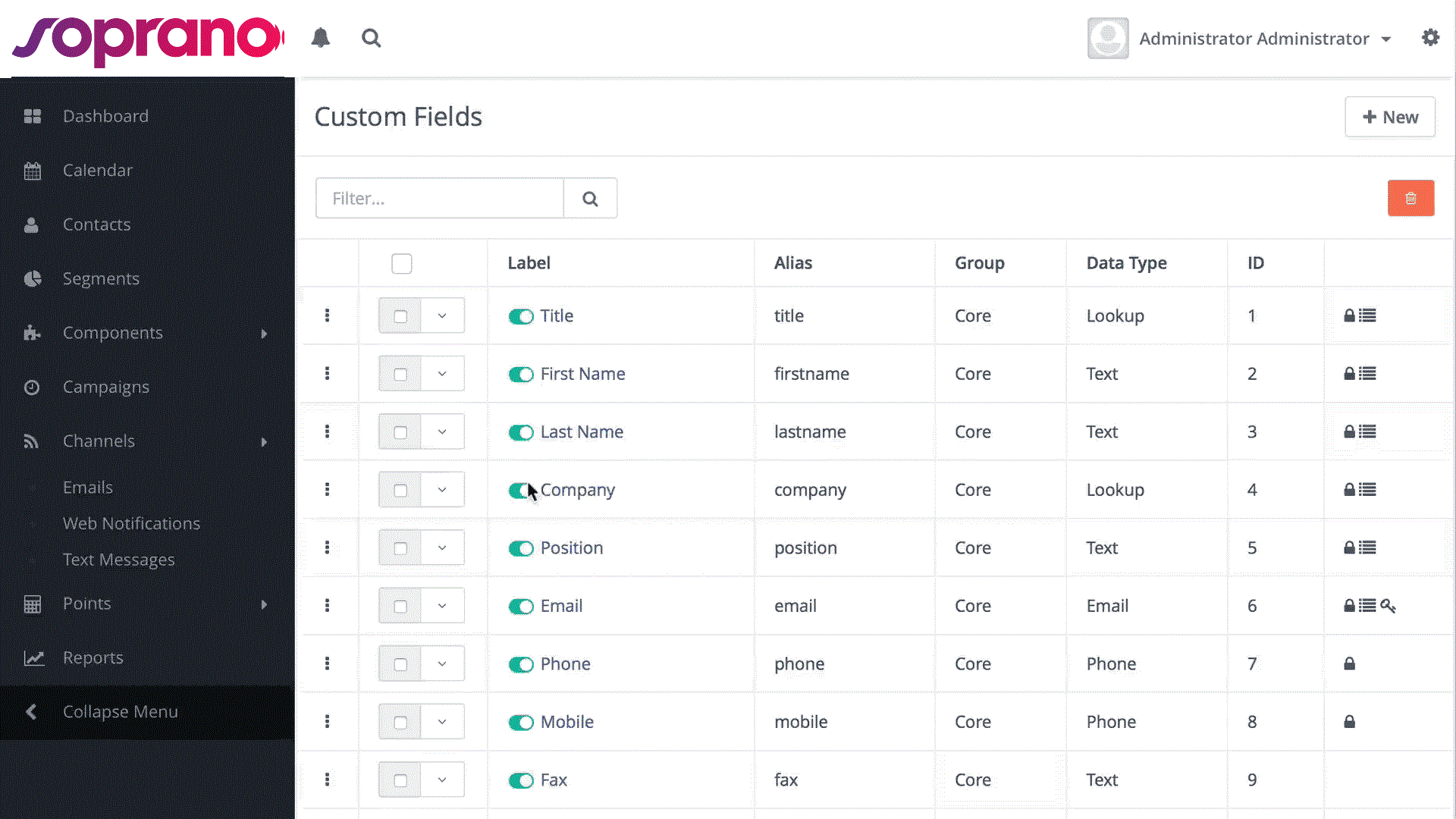
There is a toggle switch that shows before each label title. \ This type of switch is used throughout the Advanced Emailer UI to publish and unpublish items.
Adding A New Field
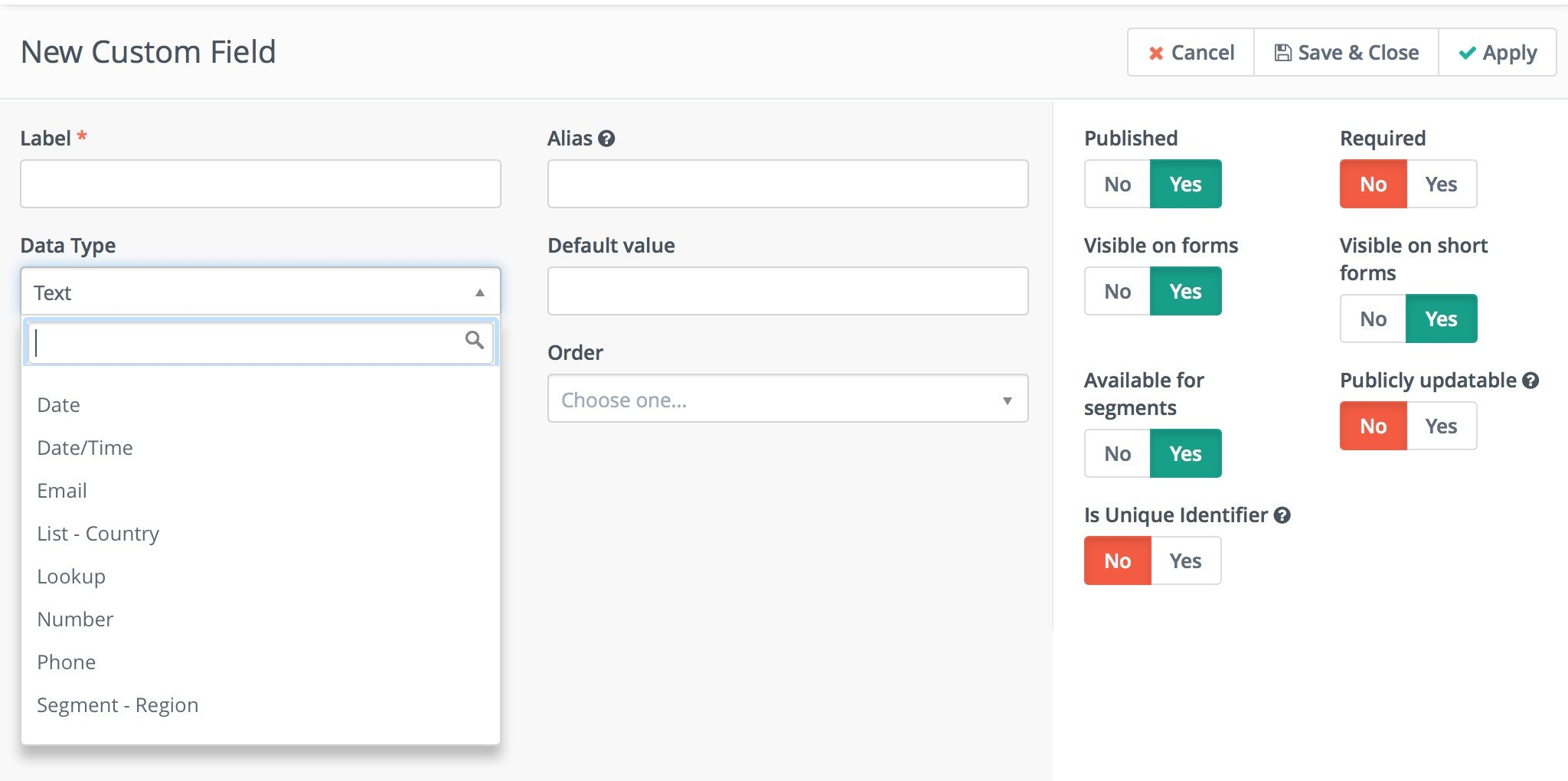
Users can create additional custom fields and define the data type that the field wants to hold. In addition to the data type Users will also select the group for that particular field. This will define where the field displays on the Contact edit and detail view.
Each new Custom Field for Contacts or Companies adds a new column to the database. This operation gets slower with larger instances of Advanced Emailer, and it locks the table while it is running, meaning that no changes can be made until the field is created. It will also time out the HTTP request, so that the User Interface will report the column exists, but Contact/Company updates will actually fail, because the column is still missing.
There is a way around this when Users configure the processing of field creation in the background.
Set this option in the app/config/local.php file: 'create_custom_field_in_background' => true,.
If this is configured, only the field metadata will be created, so Users will be able to see the new Custom Field in the list of Custom Fields. It will be unpublished until a command bin/console mautic:custom-field:create-column runs. This command will create the actual column in the table and publishes the field metadata.
With this configuration enabled, the HTTP request timeout is prevented because the long running SQL query that is creating the new table column is handled in a background task.
The table lock issue can be mitigated if Users run the command only once per day when you know that most of your audience is offline, therefore less traffic will be going into Advanced Emailer and there is less chance of this being a problem.