|
<< Click to Display Table of Contents >> Edit an RCS Broadcast Template |
  
|
|
<< Click to Display Table of Contents >> Edit an RCS Broadcast Template |
|
Overview
Edit a stored Email Broadcast template.
Choose a template by clicking its name in the RCS Broadcast Template screen.
|
The 'Email Broadcast Template Edit' screen will be displayed.
Description
|
Summary
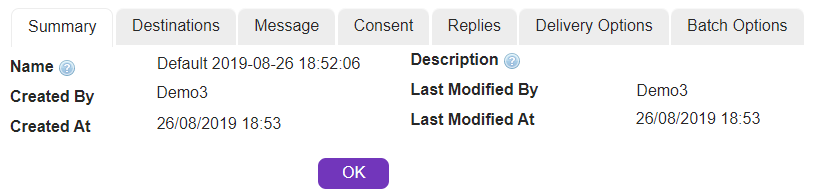
Name |
A word or number to identify the order in summaries and reports (not seen by message recipients).
|
Description |
Type/paste any extra descriptive information which might be useful.
|
Destinations
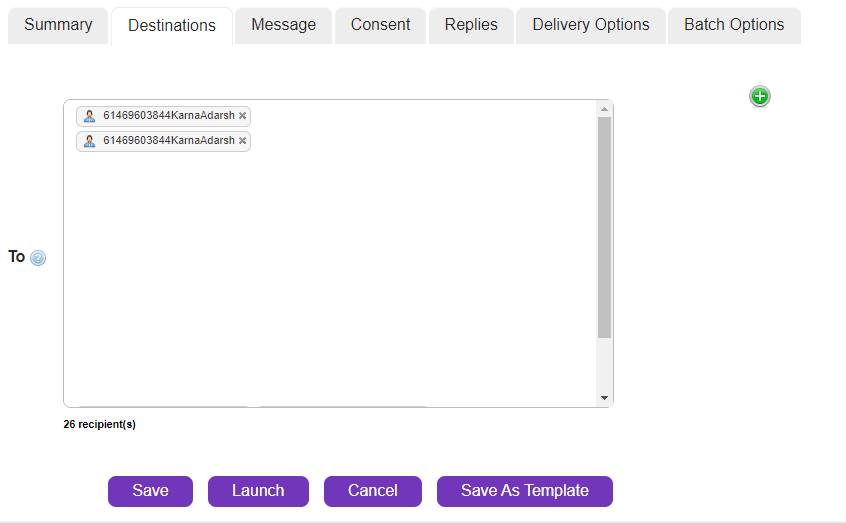
To |
Type/paste email address(es) in international format.
e.g. name@domain.com.
You can add multiple addresses, 1 per line. There is no limit to the number of destination addresses you can add in this field.
e.g. name1@domain.com name2@address.co.nz name3@internet.com.au
•How to personalise using Mail Merge
|
List/Contact/Group |
Choose pre-existing destination(s) for your message. Select 'Lists', 'Contacts' or 'Groups' from the drop-down list. Click here for information about lists, contacts and groups.
Left-click to select the destination list(s) / contact(s) / group(s). Ctrl + left-click to select multiple list(s) / contact(s) / group(s).
|
Message
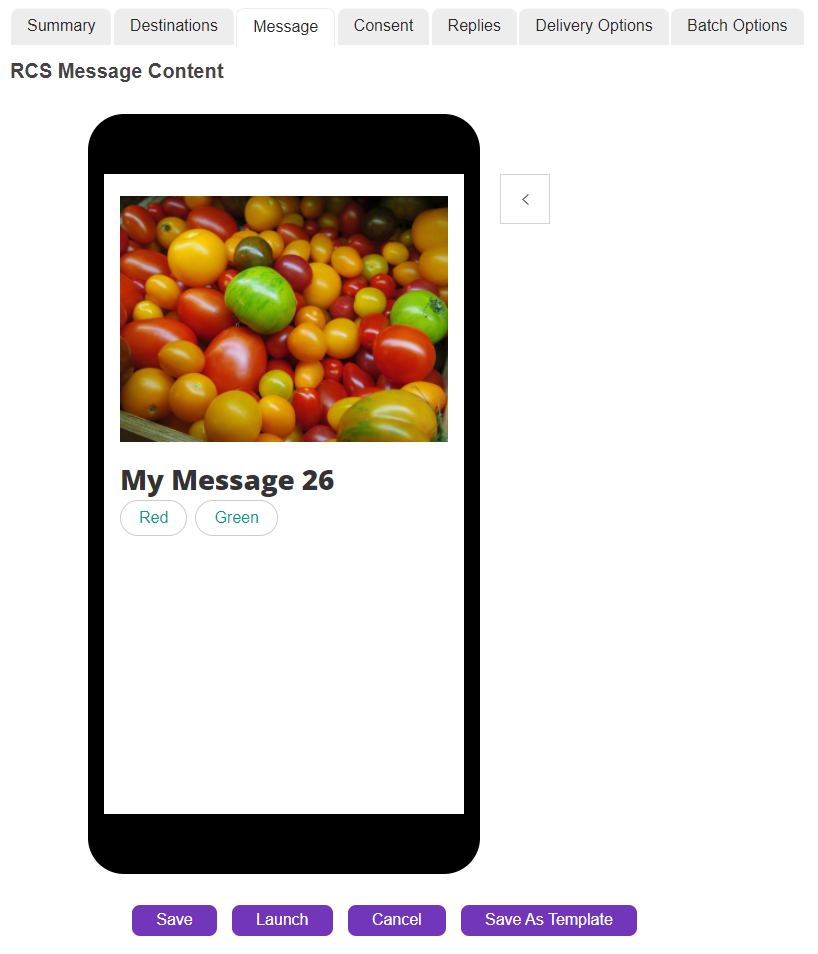
This is where you specify the content of the message.
Create a custom HTML message via the HTML editor space available.
Consent

Filter Type |
Choose options WHITELIST or BLACKLIST
|
Reply to Filter List
|
Depending on the option chosen, select the appropriate list from the drop-down
|
Replies

Reply to Address Type
|
Defaults to 'Email'.
|
Reply to Address
|
Type/paste email address for inbound responses.
|
Delivery Options
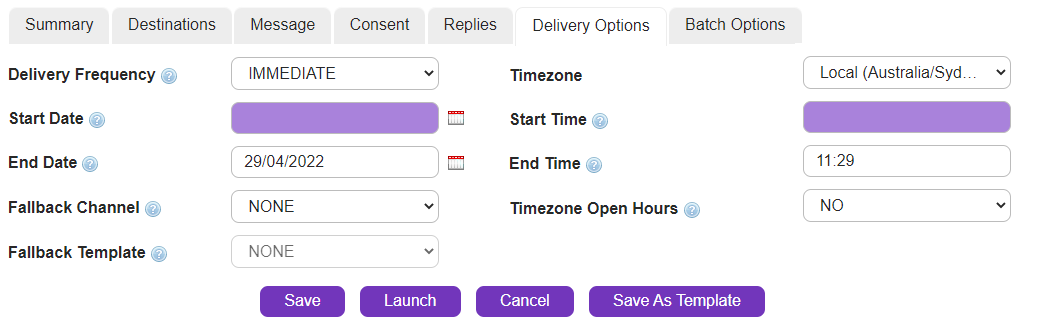
Delivery Frequency |
Select from the drop-down menu. This is how often your message will be sent.
•BI-WEEKLY - Every 2 weeks
•DAILY - Once per day.
•HOURLY - Once per hour.
•IMMEDIATE - Once.
•MONTHLY - Once per month.
•ONCE - Once (at a future date and/or time).
•WEEKDAY - Once per weekday.
•WEEKEND - Once each weekend day (usually Saturday/Sunday however this may be configured differently for different nationalities).
•WEEKLY - Once per week.
•LIST_TRIGGER - Automatically sent upon retrieval of a list.
•CONTENT_TRIGGER - Automatically sent upon the retrieval of new content from a specified feed. More information about content feeds.
|
|
If a recipient opts-out from receiving messages after an order has been scheduled, the scheduled message will NOT be sent to them. |
Start Date |
Click
e.g. if 'Delivery Frequency' is 'MONTHLY' and 'Start Date' is '01/09/2012', the message will be delivered on the first day of each subsequent month (01/10/2012, 01/11/2012, 01/12/2012 etc).
|
Start Time |
Type/paste the time when you would like the message to be sent. If your message is recurring, it will always be sent at this time of the day.
|
End Date |
Click
|
End Time |
Type/paste the time when you would like the final message to be sent (format HH:mm).
|
Timezone Open Hours |
Select from the drop-down menu. Click here for more information.
|
Handset Profile |
Select from the drop-down menu (if enabled) or choose 'NO'. Click here for more information.
|
Registered Delivery |
Click check box to receive confirmation that a message has reached its destination(s).
The delivery receipt message will be delivered to the platform inbox.
This field can be pre-populated by flagging the 'Registered Delivery' check box in Company SMS Preferences (Customer Administrators only).
|
|
Note: If you select monthly, and the start date is the last day of the month, then the platform will launch subsequent orders on the last day of the given month, regardless of the date.
e.g. Start date - 31 January 2019 Next monthly delivery date - 29 February 2019 |
|
Note: The service checks for, and executes new orders in 5 minute intervals. |
Batch Options
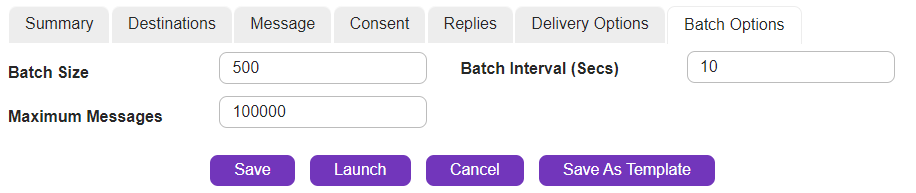
This feature allows you to control the rate at which messages are delivered.
e.g. if your message contains a prompt to call a phone number, you may want to stagger the delivery of the messages so that your phone system is not overloaded with calls.
Batch Size
|
Edit the batch size here.
|
Batch Interval
|
Edit the interval between batches here.
|
Maximum Messages
|
This feature is useful if you are not sure how many recipients there are in a list but you want to limit the number of messages sent so that you don’t exceed your broadcast budget
|
Once all required fields are complete:
|
Store changes and exit.
|
|
Discard changes and exit.
|


 icon to select a date. Your message will be sent for the first time on this date, and recurring messages will be scheduled based on this date.
