|
<< Click to Display Table of Contents >> Advanced Emailer - Landing Pages |
  
|
|
<< Click to Display Table of Contents >> Advanced Emailer - Landing Pages |
|
Pages within Advanced Emailer are a powerful tool for quickly creating compelling content with a single focus. Use pages for directing contacts through a form or provide a way to download an asset, or merely tracking interest in a particular subject.
Advantages of Landing Pages
These pages allow Users to create an A2B testing environment, multilingual pages, and template pages unique to a variety of pre-defined templates.
Page Details
When viewing a page within Advanced Emailer, Users can find a plethora of information on a single page overview.
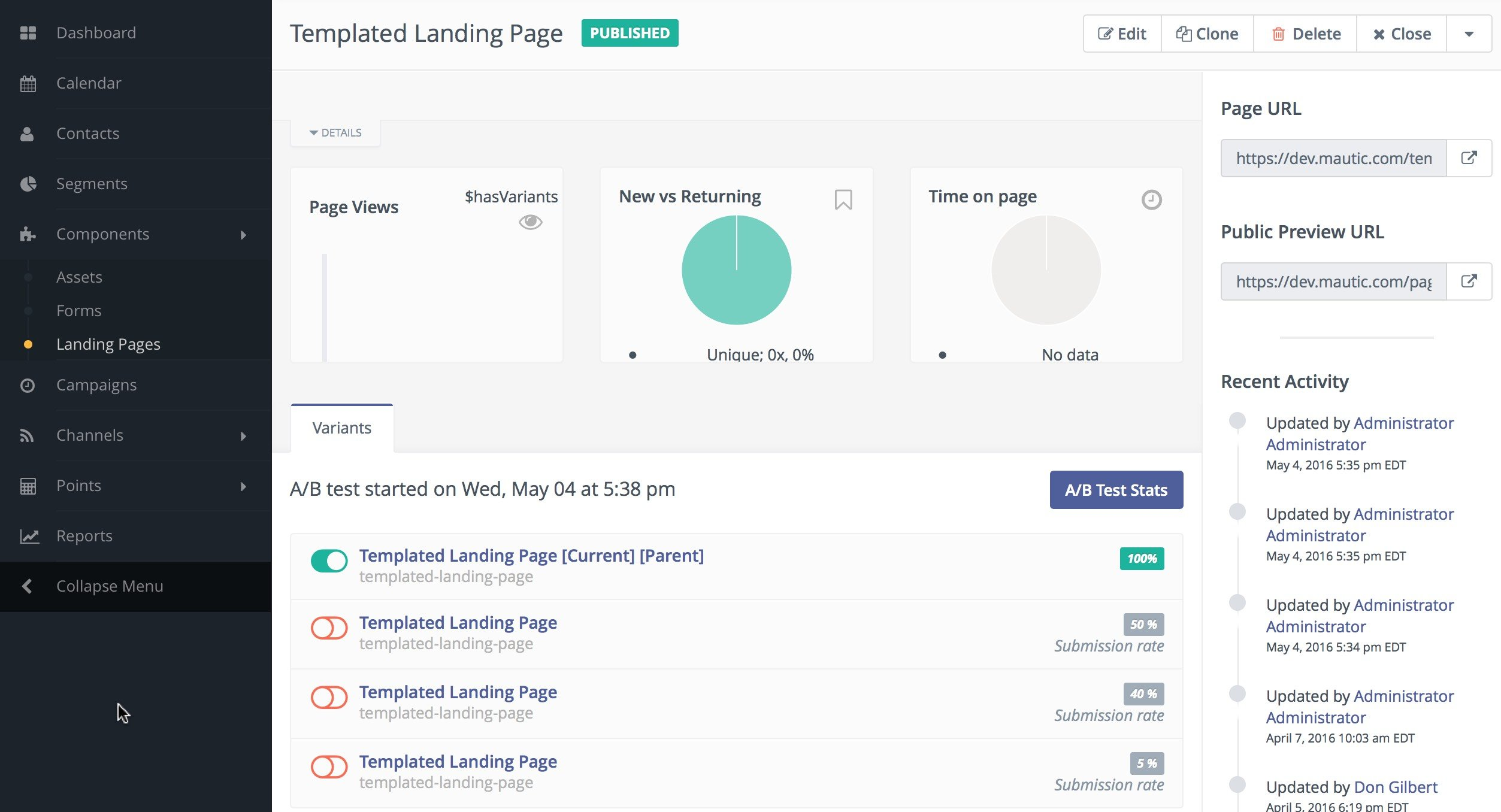
Users can see the page description on top, situated below the page title. Quickly see charts with the page views, new versus returning visitors, and the average time on page. These charts are updated in real-time, based on traffic.
On the right you will find a link to preview the page and a list of recent activities that are related to the page.
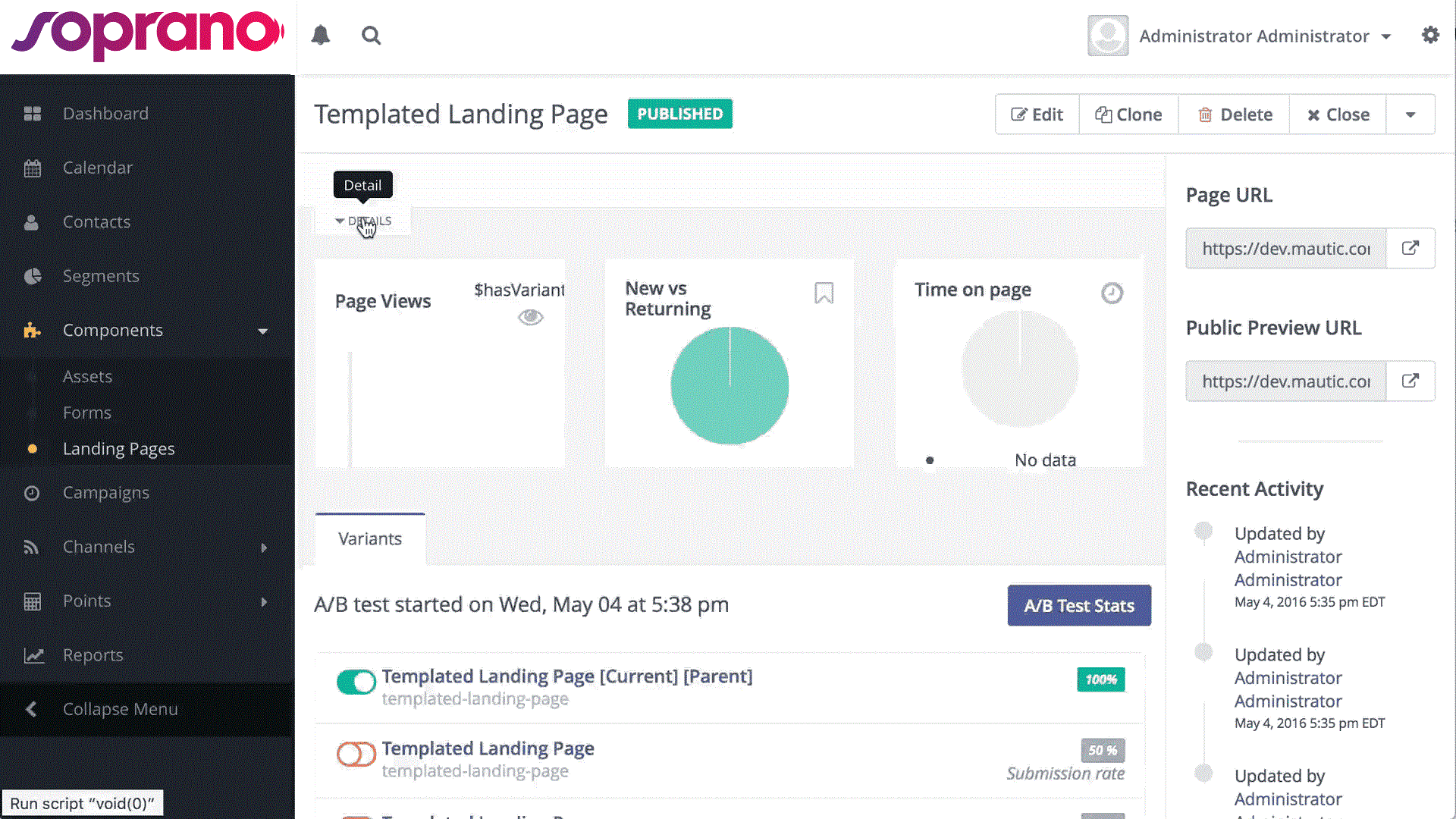
When viewing the page details Users can select the Details tab located just below the description to expand the area and see more specific details.
Translations and Variants
As mentioned previously, when viewing the page details Users can also view the various translations and page variants which have been created. These variations are also useful when performing A2B testing.
When creating/editing a landing page, there are the options to configure a language and translation parent. By selecting a translation parent, the current item is then considered to be a translation in the selected language of that parent item.
If the contact has a preferred locale or browser set in an available translation, and that translation exists, the translated landing page will automatically display for that contact. A contact's preferred locale is automatically gleaned from the browser's settings but can be overridden by editing the contact's preferred locale profile field.
It is also possible to have translations of A2B test variants.
New/Edit Pages
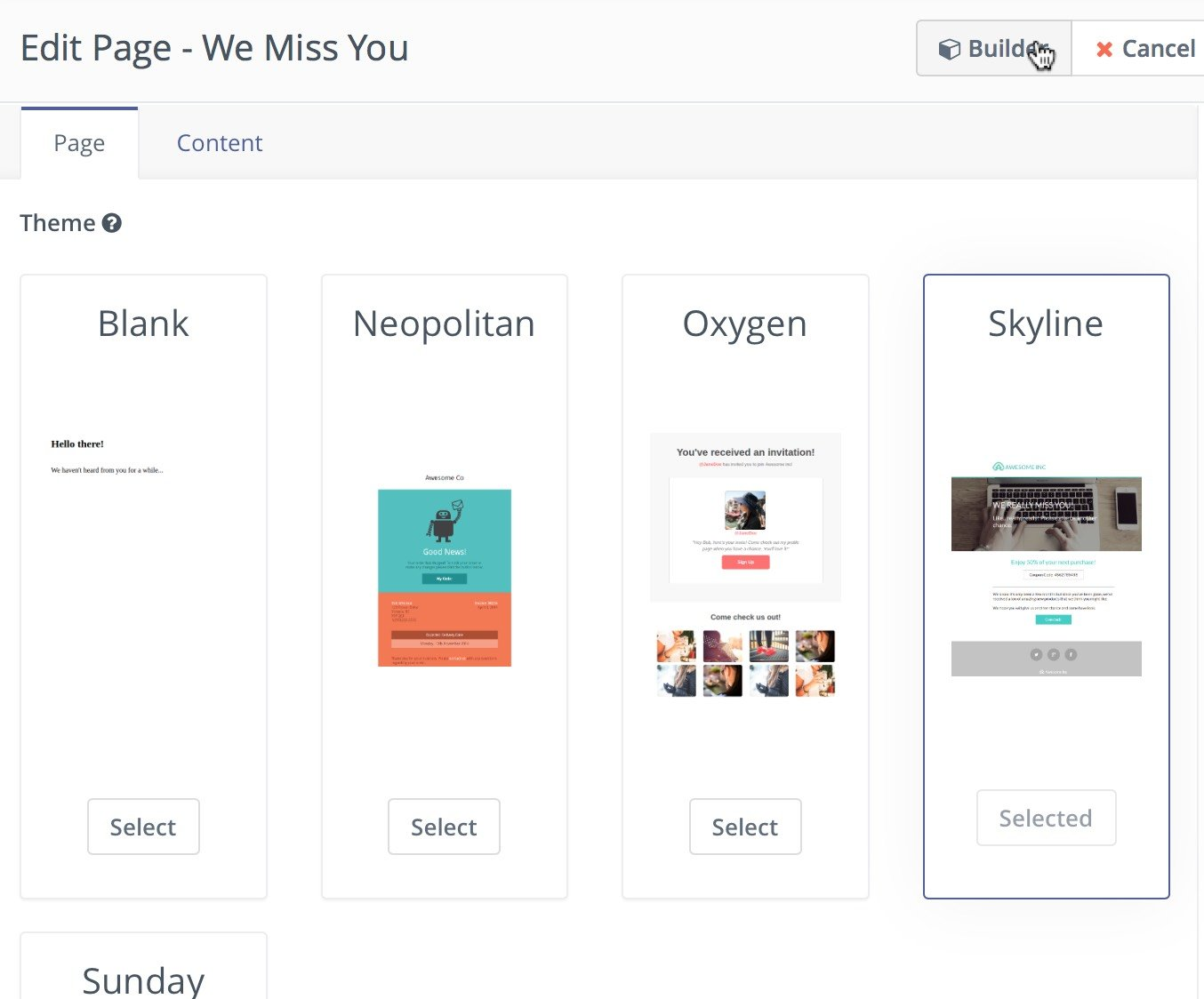
The page form allows Users to create new landing pages and offers a number of fields to be used. Users will notice most of them in the following screenshot (below). In particular notice the Page Builder button on the top toolbar. This is where Users will launch the page builder to easily create your page layouts.
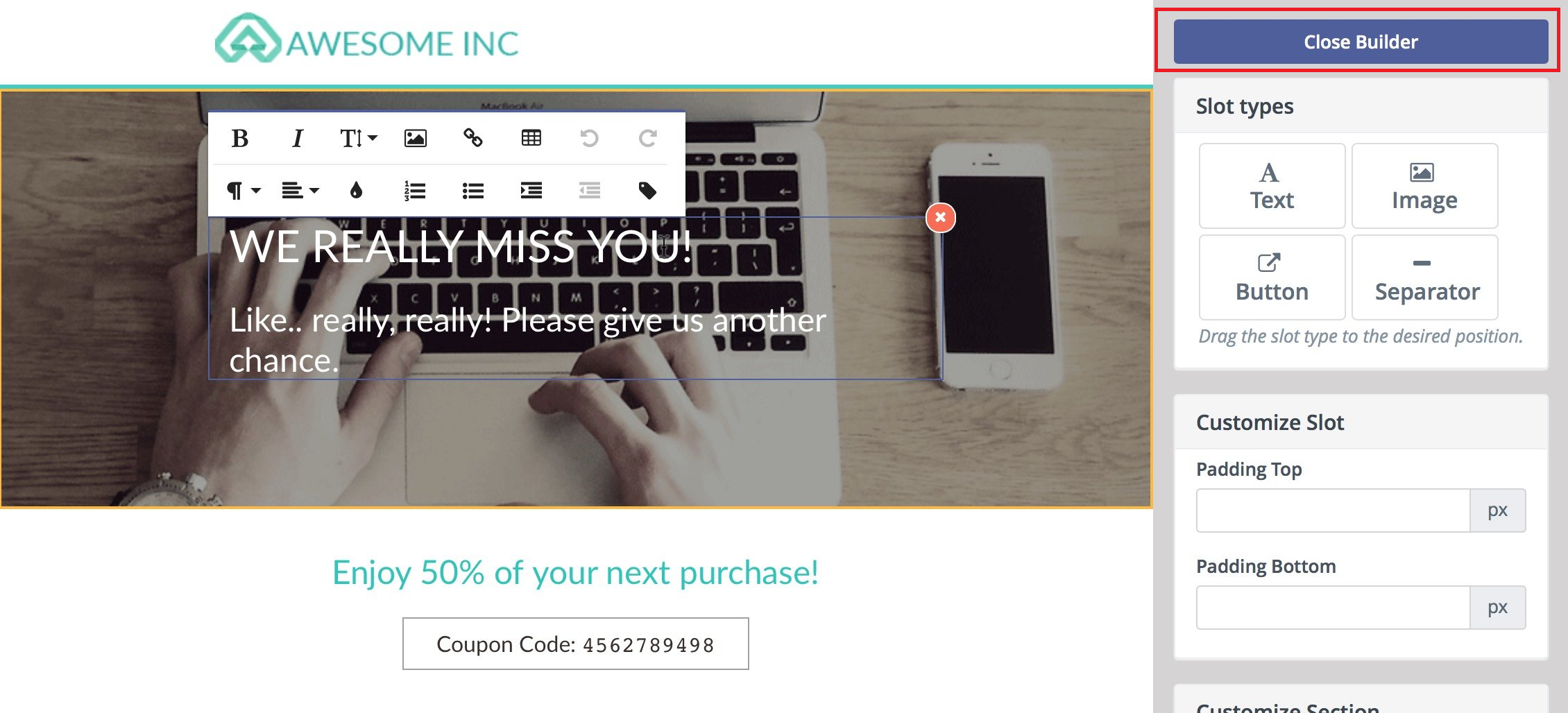
Every part of the template is editable via drag and drop. Click in a text box to edit. Click on an image to replace. Once Users are satisfied with the edits, click "Close Builder" to see a representation of the page.
Users can fine tune any aspect of the page via the Content tab and Source Code view. You can even paste your own HTML inside.
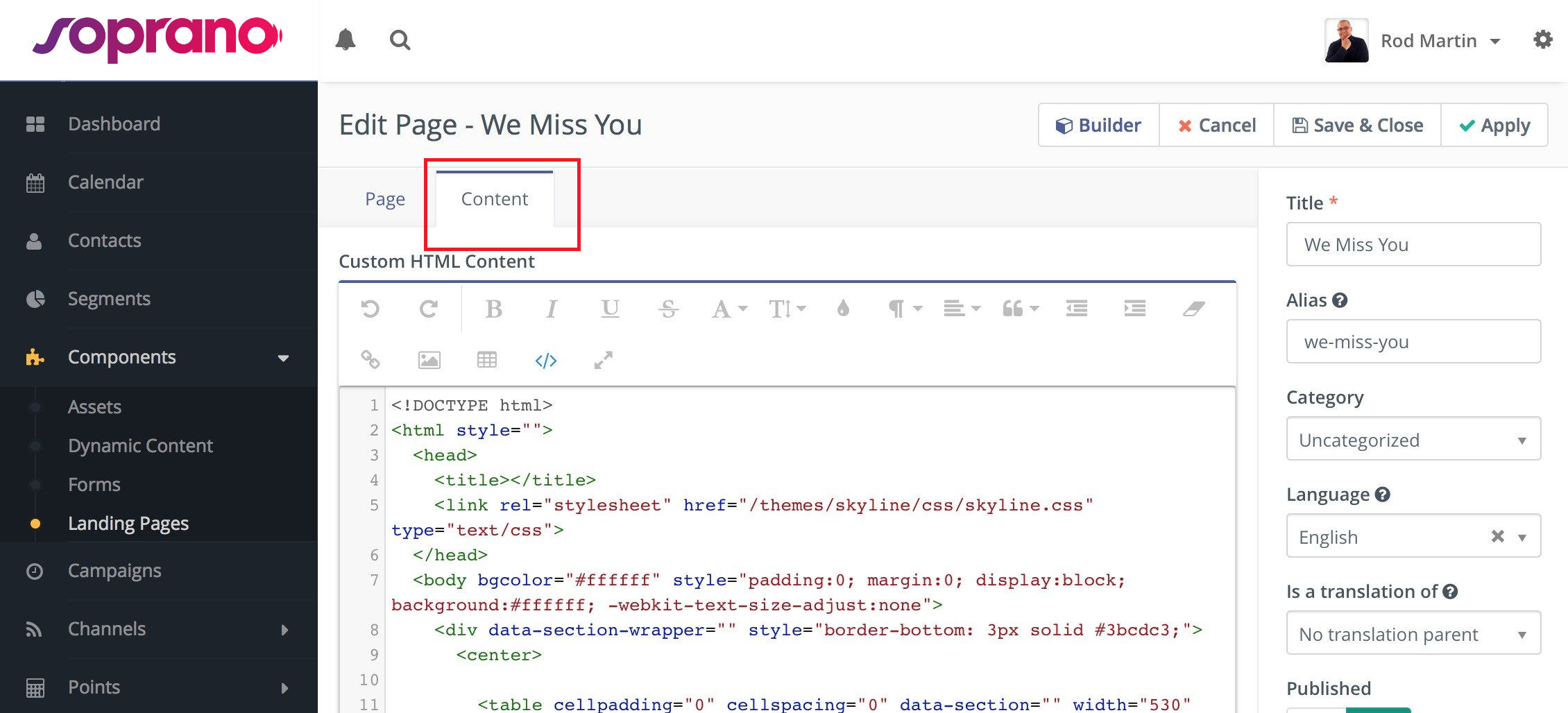
Users can define a template to use with the page as well as the language of the page. Notice the convenience field where you can define the parent page as well. This allows pages to be linked together.
The page builder provides quick and convenient access to assets, other landing pages, and forms. All of them are accessible via tokens in format {component=item}, for example {form=4}. A drop-down with options will appear when you type { character and you can search for the right token by typing its name. For example ; if you type {for, it will suggest the right token for a form which has "for" in its name and you can select it via keyboard or by clicking on it.
The builder will let Users drag the predefined content sections from the right hand toolbar and drop them to the position you choose. It's possible to select from layout of 1, 2 or 3 columns. The existing sections can be re-ordered or removed.
Unpublish a page
The pages can be unpublished and published again with a click of a button or by setting publish/unpublish date in the page configuration. Un-publishing a page means that contacts will see the 404 message (page not found) instead of the page itself.
Redirect when a page is unpublished
Advanced Emailer allows Users to configure a 301 (permanent) or a 302 (temporary) redirect. The redirects will work if the page is unpublished.
Note: When Users are logged in as an Advanced Emailer administrator, they will always see the page content even though it is unpublished. But if you log out of Advanced Emailer or open the page in an incognito window to emulate access of a normal contact, you will be able to see the 404 message or the redirect if configured.
Disable search indexing
Block search indexing with noindex. Users can prevent a page from appearing in search engines like Google, Bing etc.