|
<< Click to Display Table of Contents >> Advanced Emailer - Email - New Template Email |
  
|
|
<< Click to Display Table of Contents >> Advanced Emailer - Email - New Template Email |
|
Users can begin creating a new Template Email from the  button.
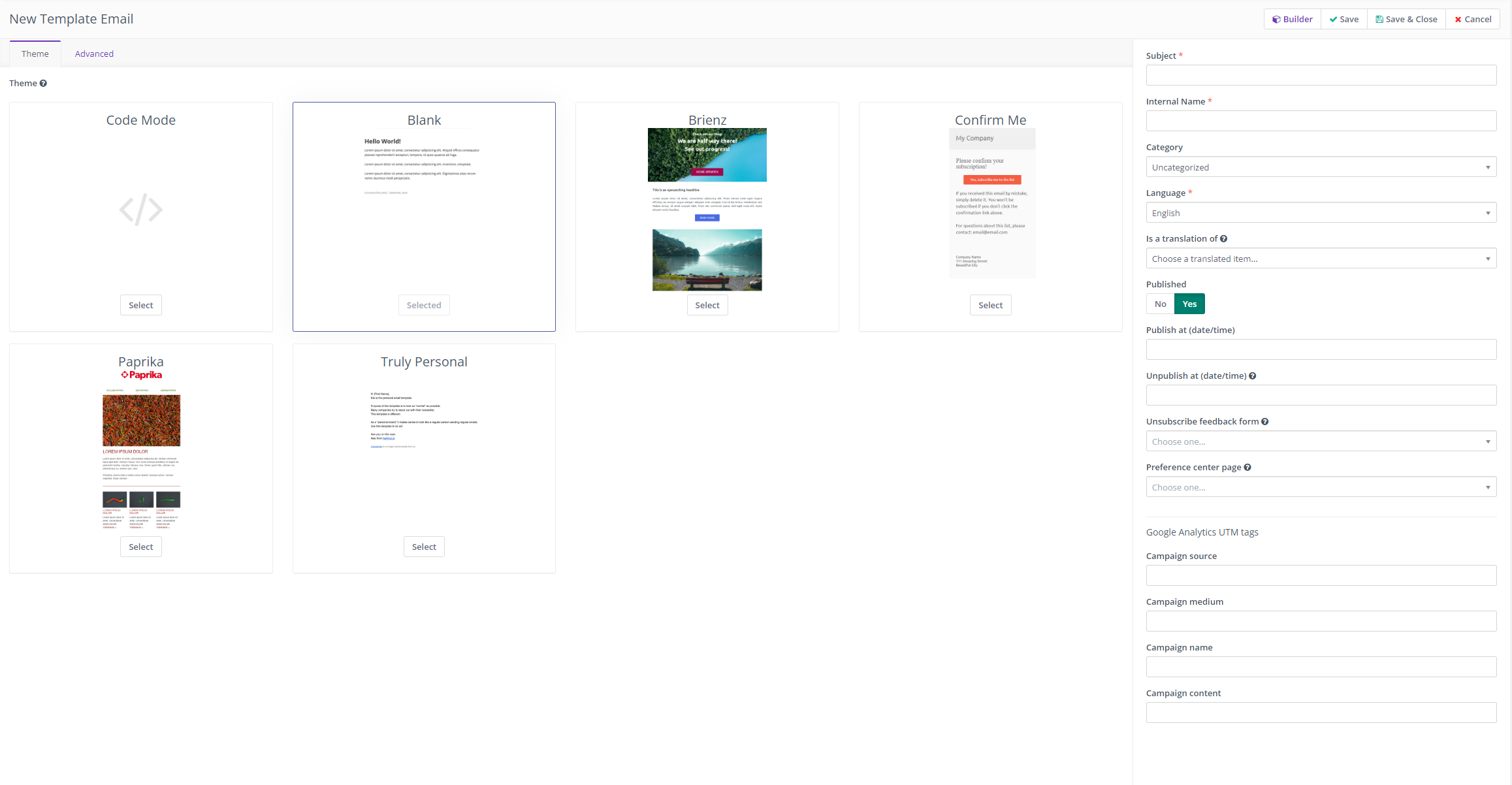
As an example let us view a pre-existing template called Truly Personal.
Fill in the fields presented to the left to establish basic information around the Email bring created.
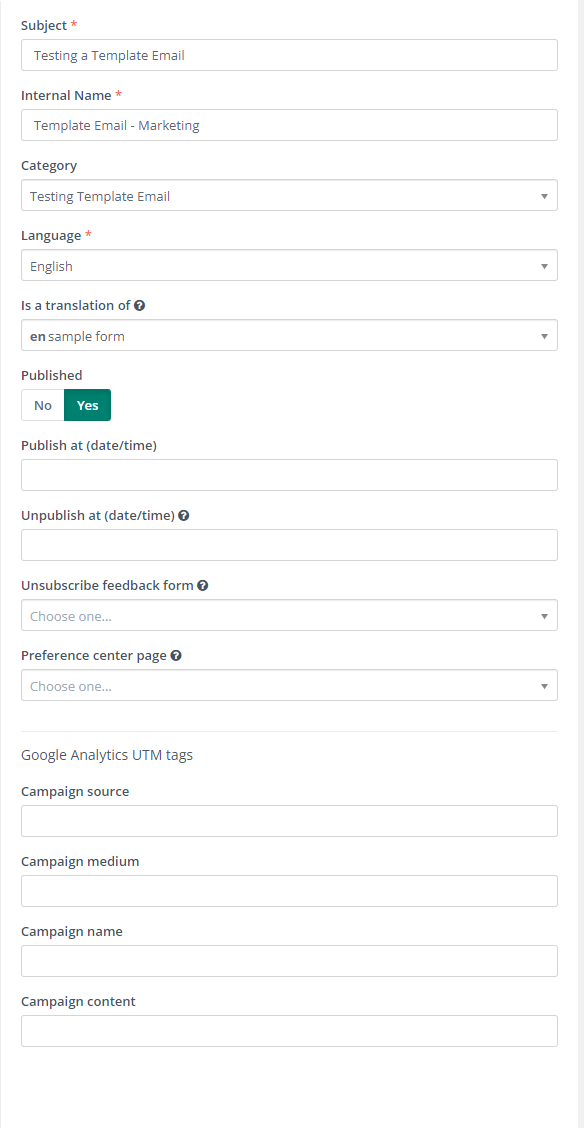
The Is translation of field : if this Email is a translation of another, choose the item this is translating so that they are tagged as being associated. Start typing the desired value then choose from the autocomplete list.
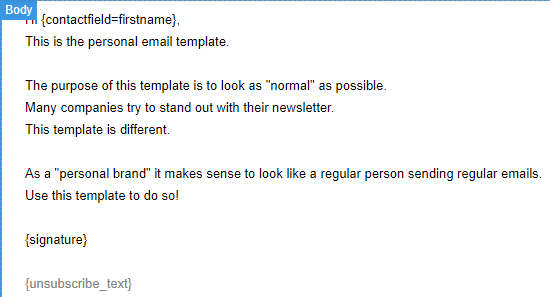
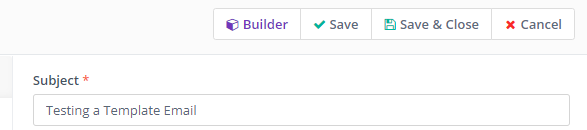
Once filled in, click on the builder button on the top-right to being formatting and "building" the Email.
1. Select View
|
|
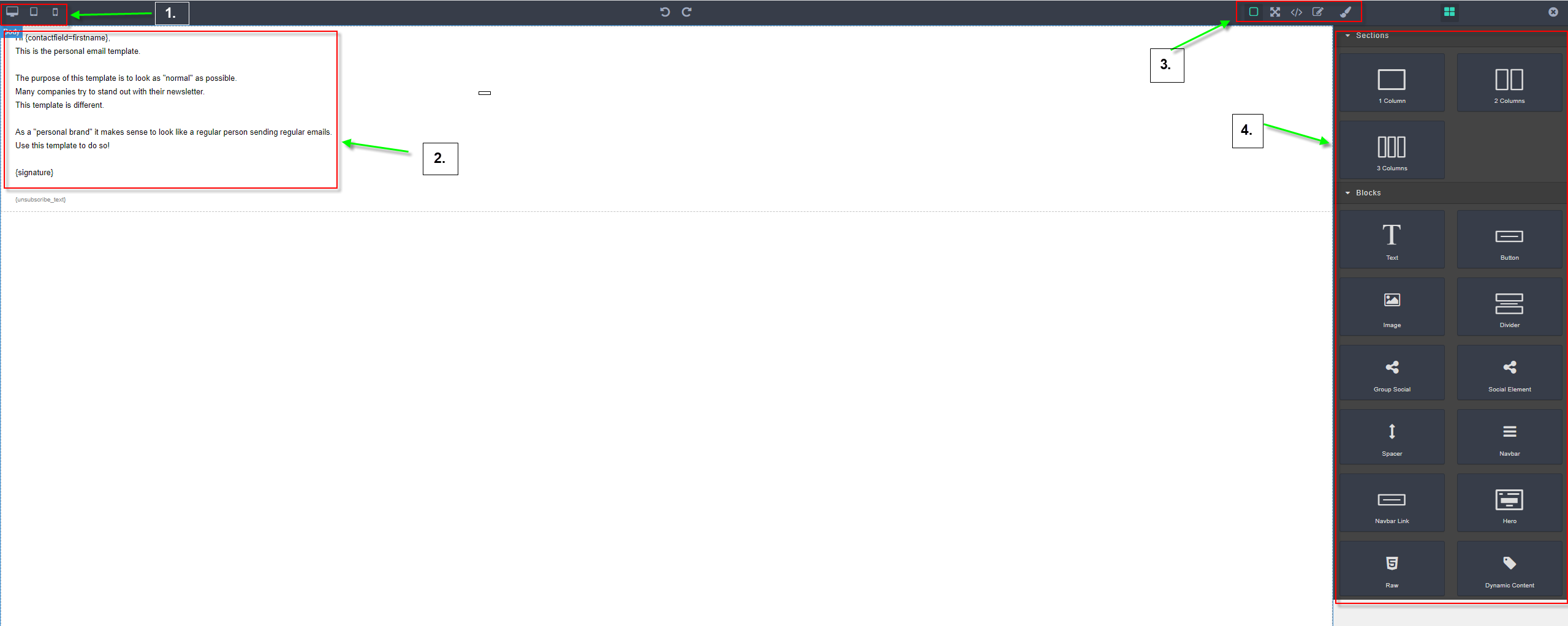
Choose between desktop, Tablet or mobile view to preview the message in different screens
|
2. Text editing section
|
|
The manual space to edit the text presented. Essentially, a space to edit the template contents
|
3. Toggle editing modes
|
|
(from left to right)
•View components •Expand / collapse full-screen mode View code •Edit code •Opens Style manager to select and modify individual components •Toggle back to component selector
|
4. Section and block options
|
|
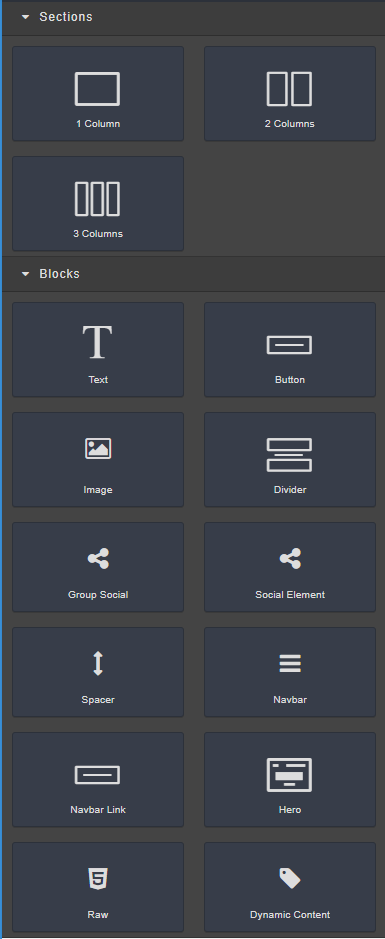
This column is dedicated to displaying all the drag-and-drop elements for users to utilize when creating Templates.
drag and proceed to edit the elements to customize them as required. |
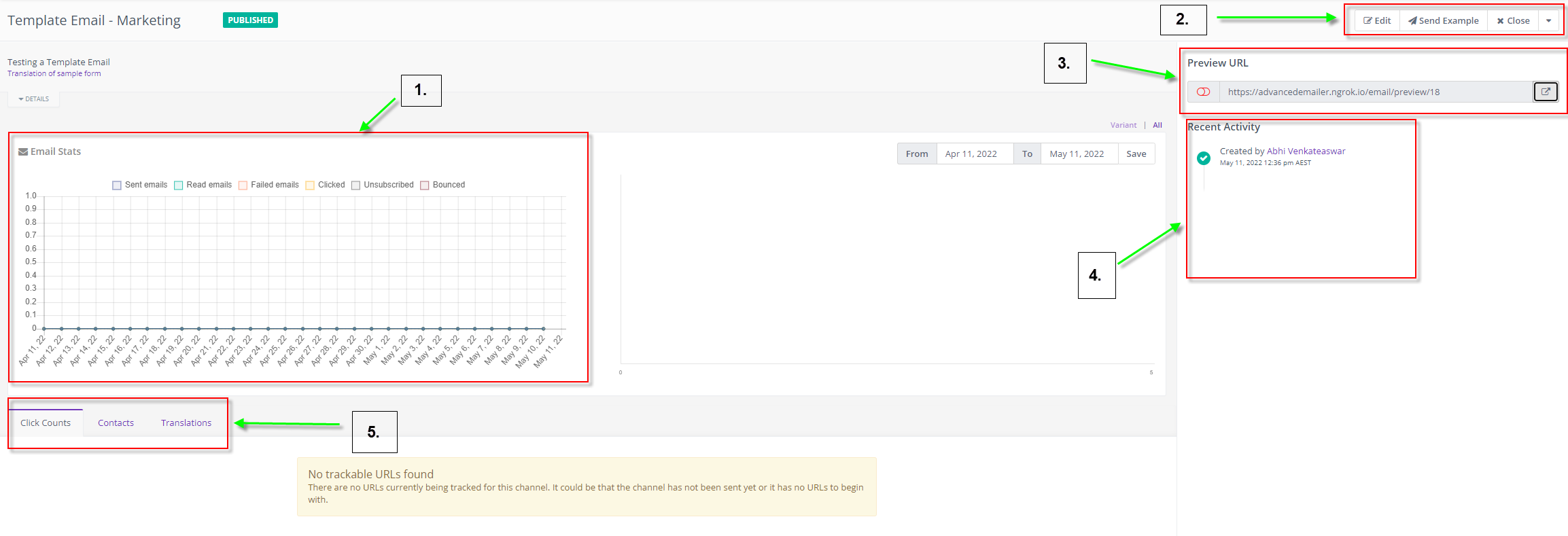
Once templates have been created and saved Users can view a comprehensive summary page of the Template with several action options provided.
1.
|
A graph that shows overall performance of the template in Advanced Emailer
|
2.
|
Edit, send an example email using the template or close the summary page
|
3.
|
View and share a link with other users to preview how the template looks in the real world
|
4.
|
Activity tracker for the template |
5.
|
•Tracks the click counts of URLs present in the template
•Tracks contacts that have received the templates
•Shows the parent entity and following child entities in terms of Translations created
|