|
<< Click to Display Table of Contents >> Advanced Emailer - Email - Code Mode |
  
|
|
<< Click to Display Table of Contents >> Advanced Emailer - Email - Code Mode |
|
Code Mode is an option available in the Email channel and Page edit form. It allows Users to create/insert/edit content in HTML code. This is helpful for situations where Users do not want to use a Advanced Emailer's theme but instead want to use a HTML theme copied from a 3rd party theme builder.
Code Mode will not modify any of the code Users paste in. The other option to edit a page/email content is to use the Builder. It uses Froala editor only to edit the text/image content, not the full page, so it will not modify the page layout.
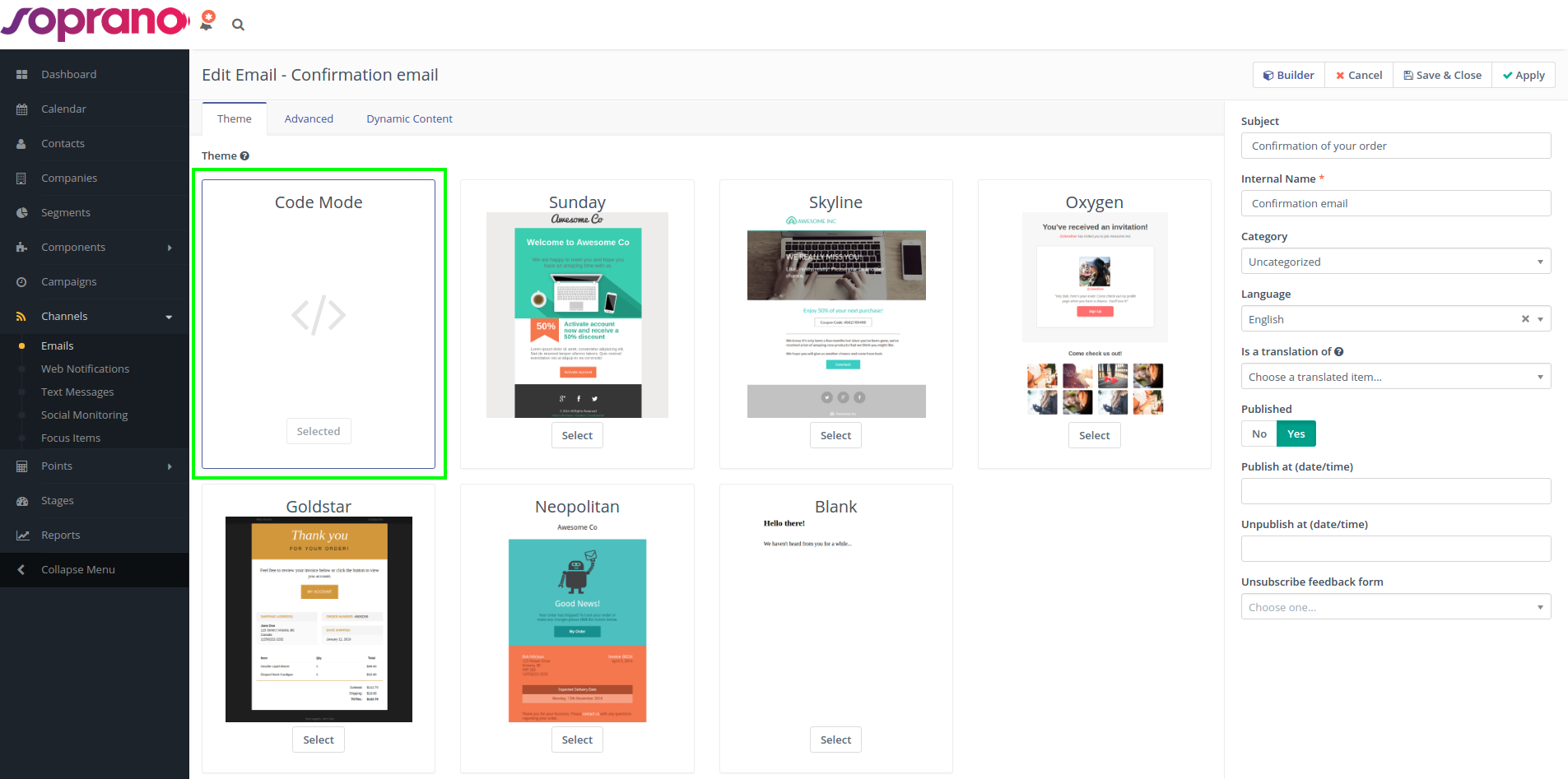
Select the Code Mode
The Code Mode can be selected in the theme-select section after Users create/edit the page/email. To open the Code Mode Builder after selecting the Code Mode theme option, click the Builder button.
Limitations
If Users opt to use a default Advanced Emailer theme to create the page/email and want to edit the HTML code of it in the Code Mode Builder, it can be done, but cannot switch back to the theme again. Users will always have to edit the content in the Code Mode Builder. Selecting a theme will always refresh the content to the default theme HTML and so any modifications made will be lost.
Edit the HTML content in the Code Mode Builder
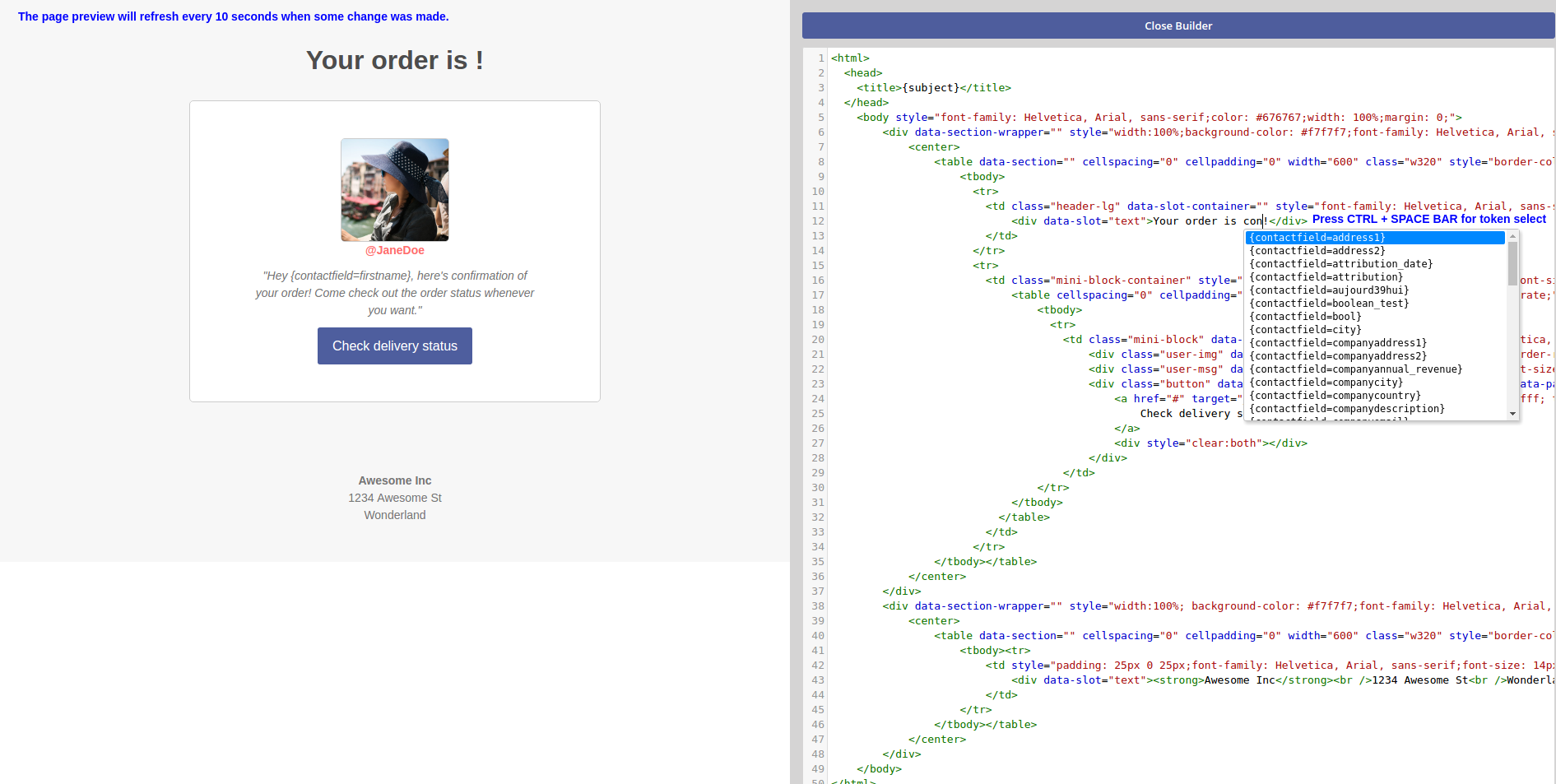
When the Code Mode Builder is opened, Users can see the preview on the left, the HTML code editor on the right. The preview will automatically refresh every 10 seconds if some change has been made to the code.
Advanced Emailer Tokens
Users can use the tokens in the Code Mode Builder when typing them directly. For example when Users type {contactfield=firstname} or select them from the dropdown, the dropdown will open when pressing CTRL + SPACE BAR. Users can then type to search for the token to be inserted. Example screen below:
Media Manager
There is a button at the top of code area where Users can open the Media Manager to upload and/or select an image or file. If Users select a file, the URL of that file will be inserted to the current position of the cursor. Use this to create links and IMG tags.
Code Formatter
It might happen that User's older emails or pages appear as HTML code on one line or if Users insert an HTML code with odd formatting, use the Format Code button to address this. It will automatically go through the code and format it so it is easier to navigate.